Account Profile Guide
This page describes the Profile section in the Teliqon portal. It explains how to view and configure profile information, other settings, balance notifications, and login history.
General information
On the Profile page, you can view and configure your user profile information for the project in Teliqon portal. You can access this page from the side menu on the left:
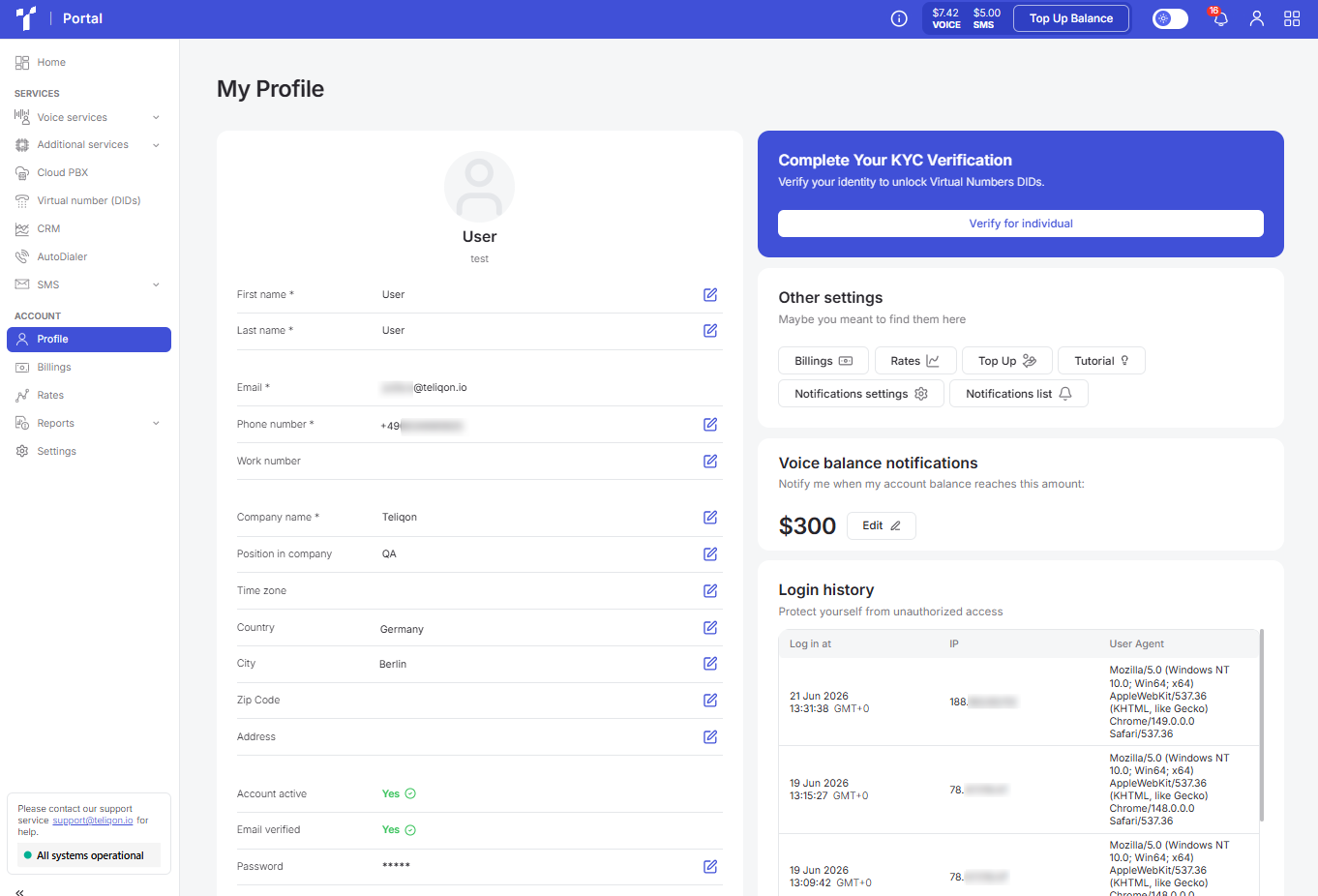
The Profile settings page includes the following blocks:
- Profile information;
- KYC Identity Verification block (required for purchasing numbers);
- Other settings;
- Voice balance notifications;
- Login history.
Profile information
The Profile information block looks as follows:
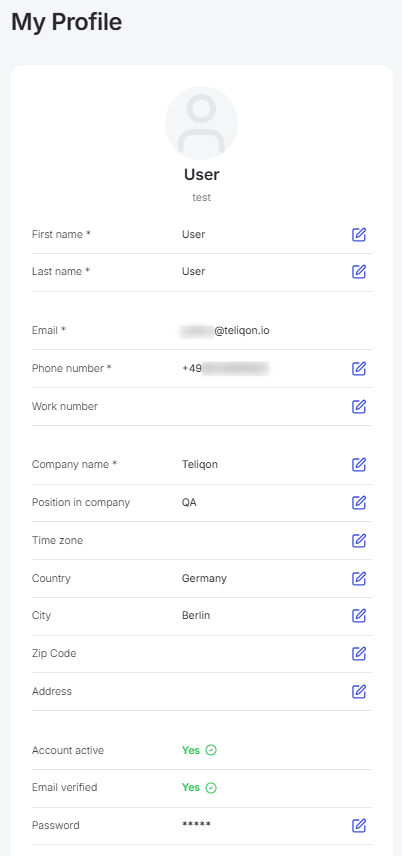
In this block, you can view information regarding the following user data:
- First Name;
- Last Name;
- Email;
- Phone number;
- Work number;
- Company name;
- Position in company;
- Time zone;
- Country;
- City;
- Zip code;
- Address;
- Account active;
- Email verified;
- Password.
To change a field value, click the edit icon (pencil) to its right. Then, enter the new information using your keyboard or select an option from the dropdown list.
You can change all fields except for Email, Account active, and Email verified.
Once you are done editing, click the Save button to keep your changes, or click Cancel to discard them.
KYC Verification
This block allows you to complete the user identity verification process, which is required to unlock access to purchasing and using virtual phone numbers (Virtual Numbers DIDs), withdrawing funds from the bonus account, and protecting the service against fraud.
After clicking the Verify for individual button, you will be redirected to the verification provider's page.
First, you need to indicate whether you are a resident of the US or another country:
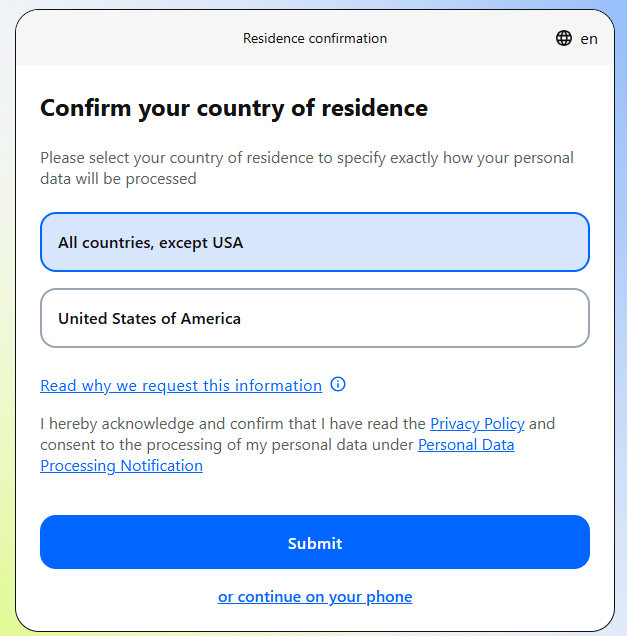
Next, click Submit, then select your country and document type:
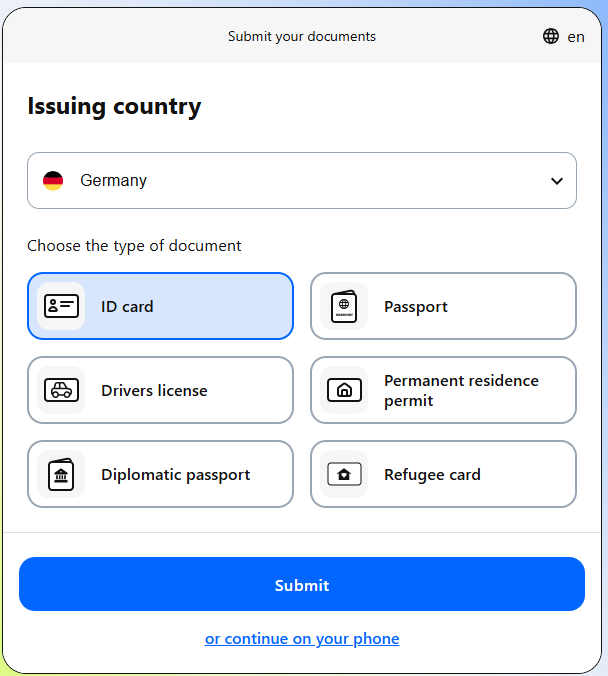
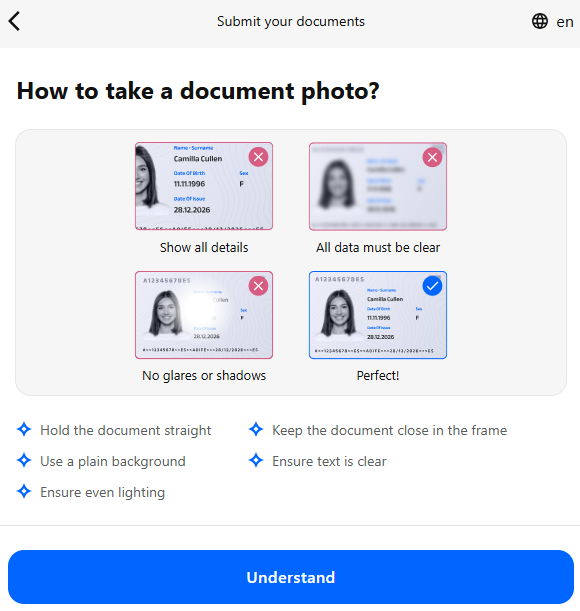
Depending on the document you choose, you will need to take a high-quality photo of it, following the on-screen instructions:
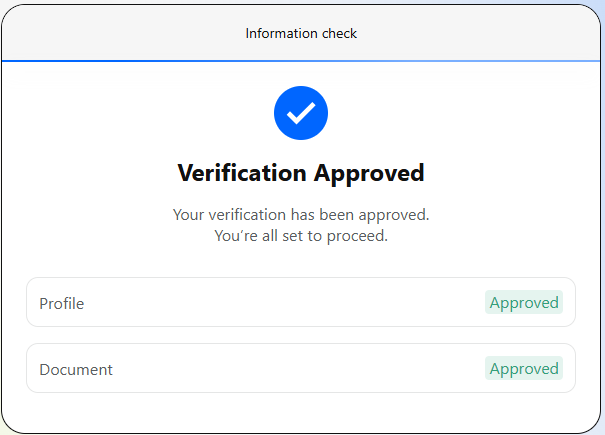
Once the required photos are uploaded, the system will begin the verification process. If all documents are successfully verified, you will see the following status:
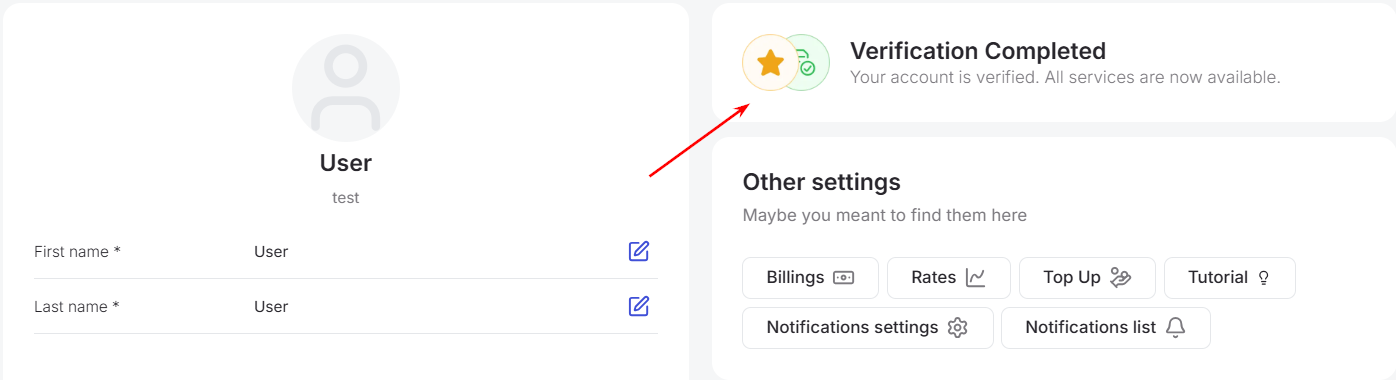
The updated status will also appear on your Teliqon Portal profile page:
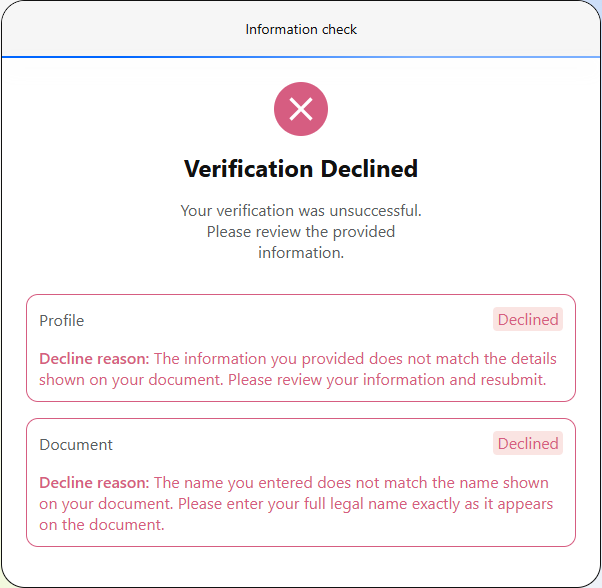
If the system rejects your verification, you will receive a notification from the provider detailing the reasons for the refusal:
The updated status will also appear on your Teliqon Portal profile page:
The option to retry verification will become available again on your Teliqon Portal profile page.
Alternatively, you can contact a Teliqon Portal manager directly and provide the required photos to complete the verification process manually.
Common Verification Issues
- If you open the verification page but close it before uploading your documents, your profile may display a Verification is processing status, and the retry button will be temporarily disabled.
How to resolve this:
- Wait for the session to reset automatically: The system will eventually close the inactive session, and the verification button will become active in your profile again.
- Contact support for a manual reset: You can message our support team, and a manager will manually reset your application status so you can restart the process immediately.
- If the system rejects your documents, it is usually due to one of the following reasons:
Photo Quality and Format Issues
a. The photo is blurry, has camera flash glare, or the edges of the document are cropped out of the frame.
b. You uploaded a black-and-white copy, a photocopy, or a screenshot instead of a photo of the original document.
c. The file format is not JPEG or PNG, or the image shows signs of digital alteration and editing.
Document Non-Compliance
a. The document has expired.
b. Only one side of a two-sided document (like an ID card) was uploaded.
c. You submitted an unsupported document type (for example, using a mobile phone bill to prove your residential address).
Data Mismatches
a. The first name, last name, or date of birth typed in the application contains typos and does not match the text on the document.
Biometric (Selfie) Check Errors
a. The face in the selfie does not match the photo on the document, other people are visible in the frame, or a VPN/Proxy is enabled (your IP address location should match the country of your issuing document).
Other settings
The Other settings block contains buttons, each of which leads to a corresponding section:
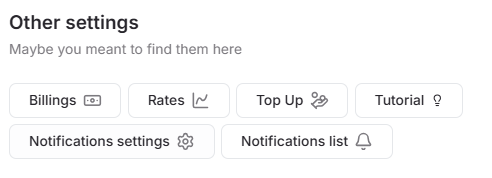
- Billings: A section regarding your project's deduction and top-up history, described in more detail here;
- Rates: A section regarding rates and destinations, described here;
- Top Up: A section for topping up the project, which you can access via this link;
- Tutorial: Use this button to access an interactive tutorial on how to use the portal. After clicking it, a window will open where you can:
- Start over by clicking the Start again button to reset your progress and retake the tour from the beginning.
- Select a section by checking a specific topic or clicking the corresponding stage on the progress bar at the top.
- Continue training by clicking the Continue tutorial button to pick up exactly where you left off.
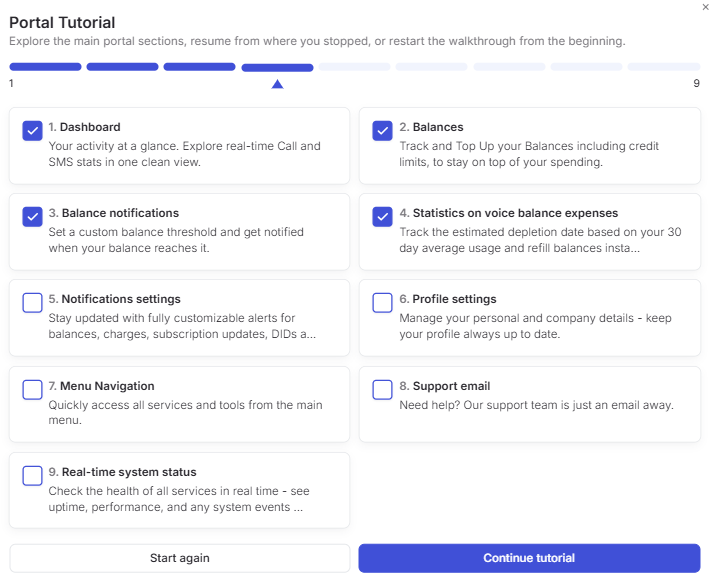
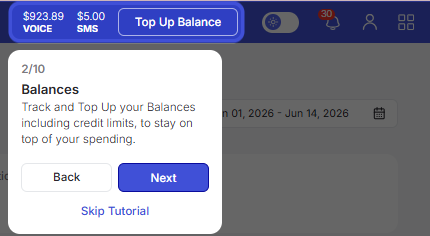
After making a selection, an interactive menu with hints will open:
- Notifications settings: This section is for configuring notifications; more details are available here;
- Notification list: You can view your notifications on a separate page; this section is described in more detail in the “User Menu”.
Balance notifications
This block displays the amount that, when reached, triggers a notification regarding the need to top up your account for voice services.
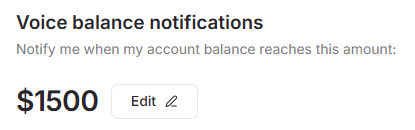
You can configure this amount via the Dashboard section or directly in this block using the Edit button.
Clicking the Edit button opens a field where you can enter the new amount using your keyboard:
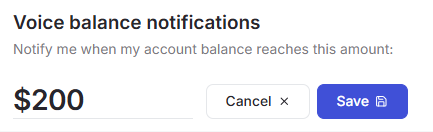
If you change your mind about changing the amount, click the Cancel button; the value will remain unchanged, and the editing mode will be closed.
After clicking Save, the new value will be stored, and you will receive a notification every time your balance reaches this threshold.
If you would like to additionally configure balance notifications related to SMS, please go to the Dashboard section.
Login history
This block displays the user's login history (account logins), which looks as follows:
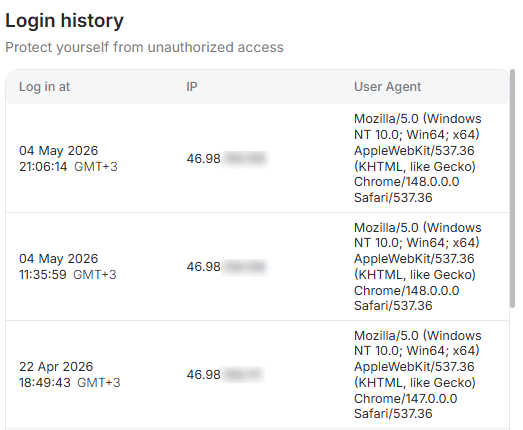
The following data can be viewed in the table:
- Date and time of login to the system;
- IP address from which the login was performed;
- User Agent (client application identification string) - information about the browser and operating system used by the manager.
SMS - OTP
This document describes the SMS OTP page in the Teliqon Portal and explains how to configure SMS settings, view pricing, calculate SMS costs, and check processed SMS history. It also describes how to work with the SMS OTP API, including request parameters and callback response examples.
Account Billings Guide
This document describes the Billings page in the Teliqon Portal, including how users can view top-ups and deductions from the project voice balance. It explains the top toolbar, filtering options, transaction history table, export action, sorting, total expenditures, and bottom toolbar pagination controls.


