Lead Checker
This document describes the Lead Checker functionality in the Teliqon Portal. It explains number verification, history, filtering, and detailed metadata analysis for format and analysis checks.
General information
On the Lead Checker page, you can verify the customer phone number using the verification services available on the Teliqon portal. You can access this page from the left-hand side menu:
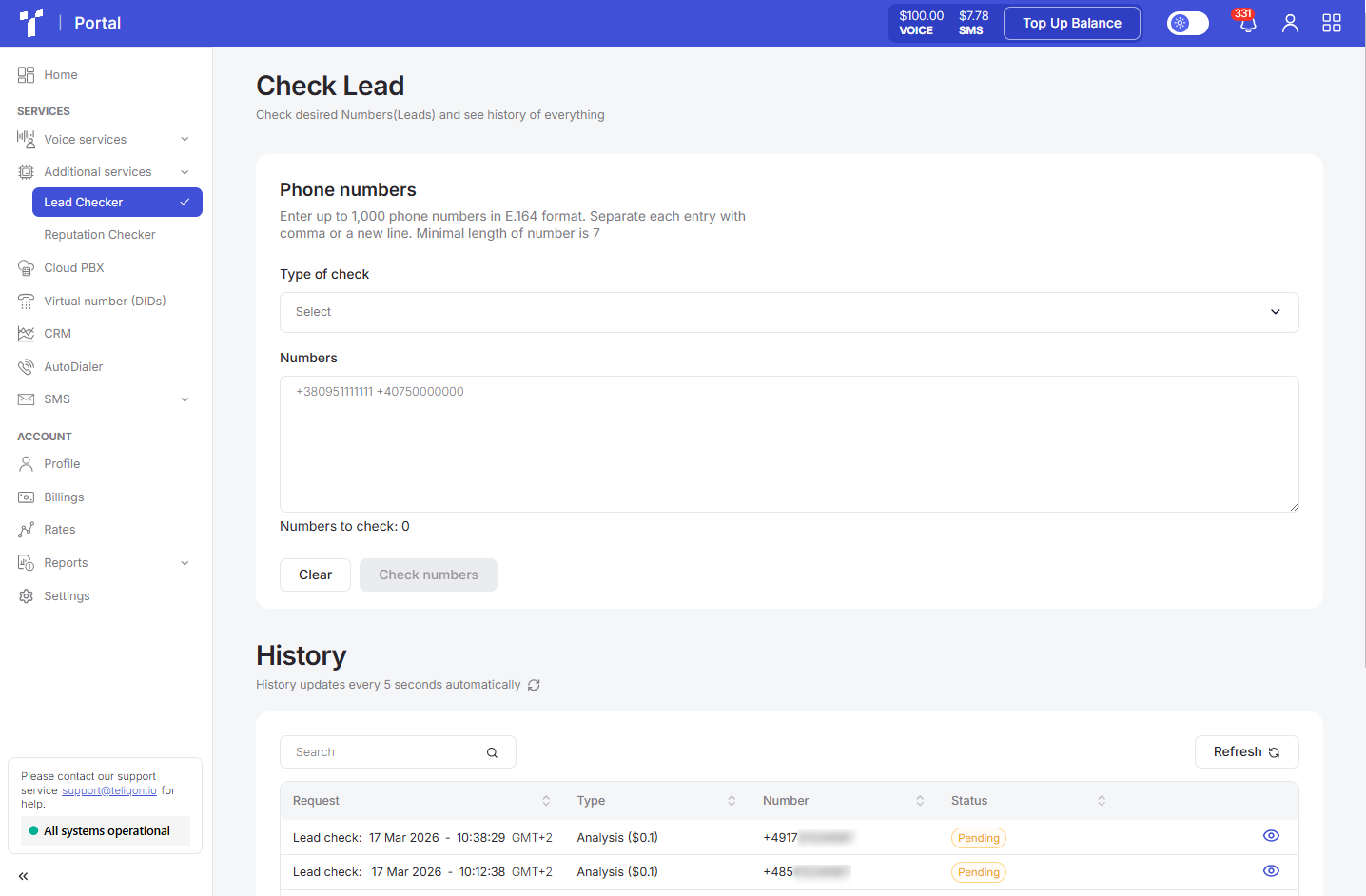
This page contains the following two sections:
-
Check Lead;
-
History.
Check Lead
The Check Lead section is structured as follows:
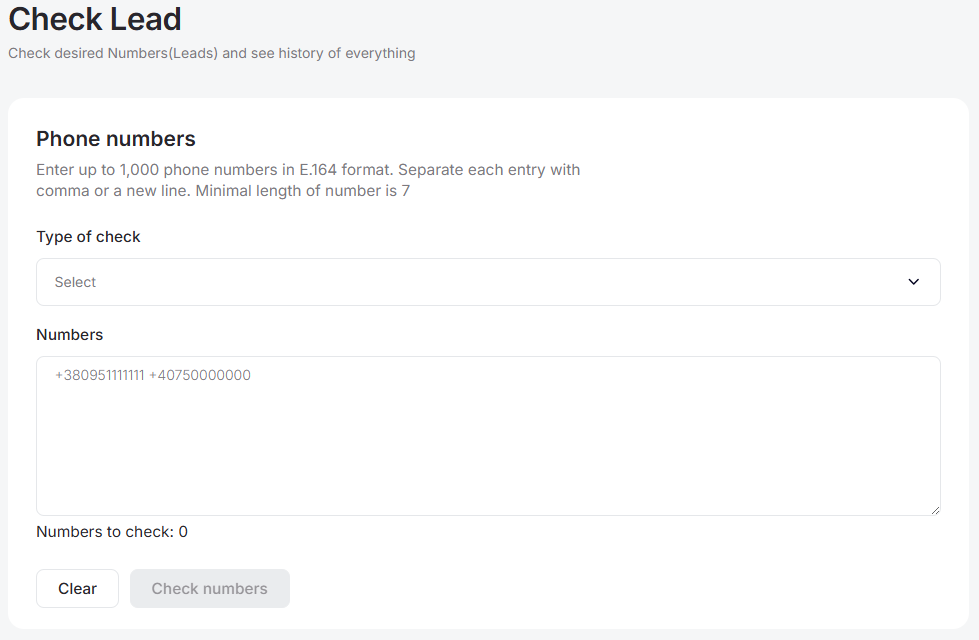
To verify phone numbers in this section, you need to complete the following fields:
- Verification type dropdown list. You can choose one of the two available verification types:
a. Analysis (service cost: $0.1) - Checks the connection status of the mobile number within the cellular network;
b. Format (service cost: $0.00) - Validates the phone number format, determining whether it is valid or invalid.
-
Phone number input field. You can enter between 1 and 1000 phone numbers in E.164 format (e.g., +40750000000). Numbers must be entered one after another in a single line, without any separators.
-
Check numbers - Confirmation button / Clear – Clear input button.
How to perform a check:
-
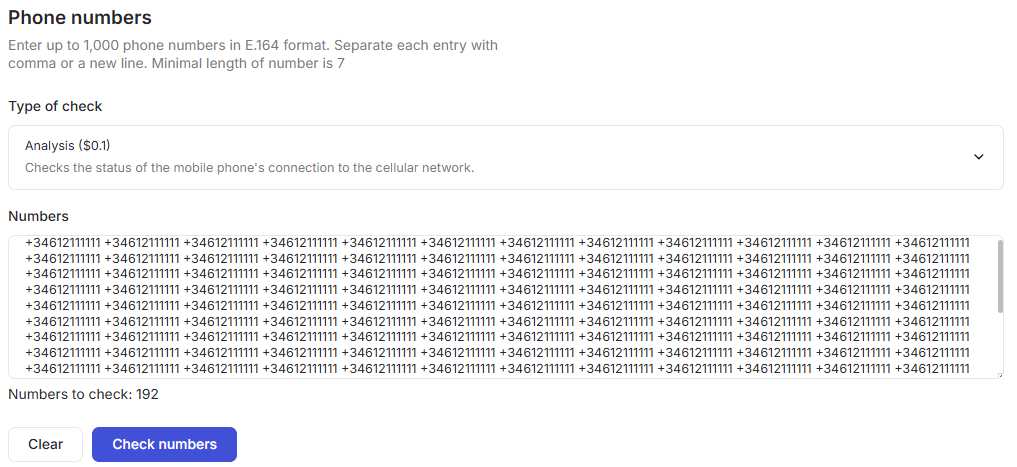
Enter the number (or a list of numbers) in full format into the input field. Keep in mind that each number must be at least 7 digits long. The count of recognized numbers will automatically update below the field as you type or paste.
-
Select the desired check type from the available options.
-
Click the Check numbers button to run the process and view your results.
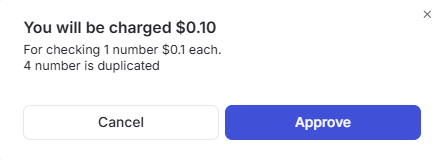
A pop-up window will appear prompting you to confirm the deduction of a specific amount from your account balance for verifying the number of phone numbers you have entered. If the system detects duplicates, it will notify you but will only process and charge for one instance of each. You can either confirm the action by clicking the Approve button or cancel it by clicking Cancel:
If you decide not to proceed with the number analysis, you can reset the entered phone numbers by clicking the Clear button.
As a result of the verification, the following message will be displayed:

To view detailed information about a phone number, you need to navigate to the second section - History.
History
The Potential Lead Verification History section is structured as follows:
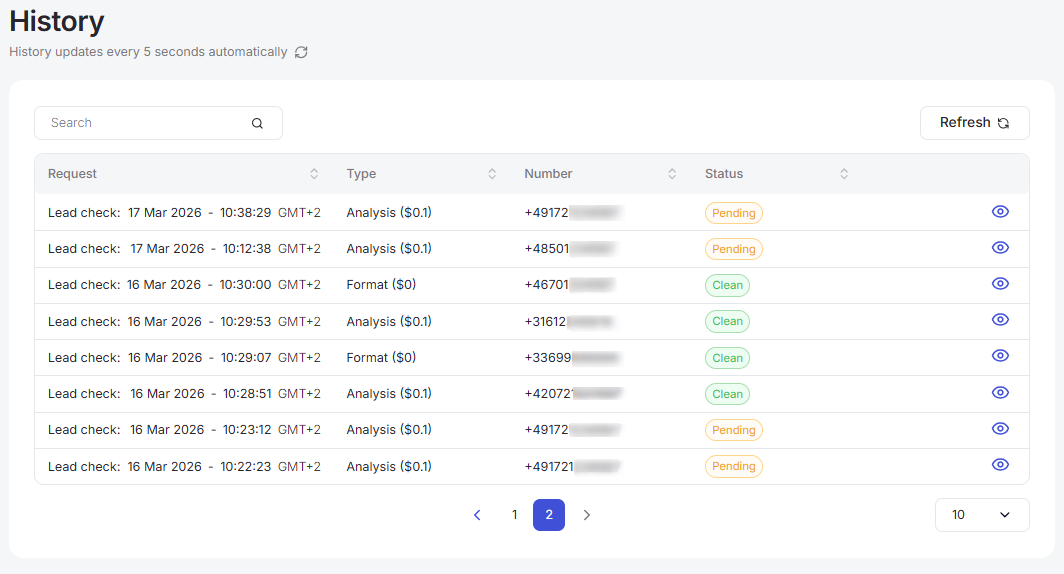
This section contains the following elements to facilitate list management:
-
Top toolbar;
-
List of number analysis requests;
-
Bottom toolbar.
Top toolbar
The top toolbar consists of the following elements:

-
Search field: To find specific entries among your checked numbers, just type at least two characters into the search bar and hit Enter or click the Search button.
-
Refresh button: The list updates automatically every 5 seconds, but you can manually refresh the records at any time by clicking the refresh icon.
List of number analysis requests
All Potential Lead Check attempts made within the project using this tool are displayed in the list.
A value sorting function is available in the table. To activate this option, click the arrow next to the column name, and the data will be automatically sorted in ascending order. To change the order to descending, click the same arrow again.

Lead Check Request
In the Request column, you can click on the unique date in any row or the eye icon to open a details page. The information displayed there will vary depending on the type of number verification you performed.
Format
After the format verification, you can view detailed information about the number on a separate page:
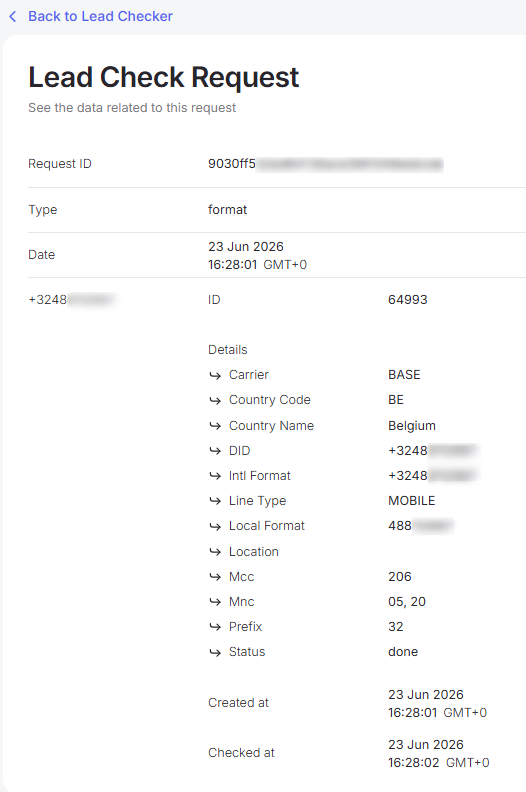
Specifically, the analysis provides the following details:
- Metadata - this is service information about the call. While it doesn't contain the actual conversation content, it includes technical data essential for identifying suspicious activity:
a. Carrier - The name of the mobile operator the number belongs to based on its prefix (e.g., “Base”).
b. Country Code - The two-letter ISO code of the country where the number is registered (e.g., “BE” for Belgium) .
c. Country Name - The name of the country the number is registered in (e.g., Belgium).
d. DID - A direct inbound number that allows external callers to route directly to a specific phone line.
e. Intl Format - The international number format, including the “+” and country code.
f. Line Type - Indicates the type of connection, such as mobile, landline (fixed), or VoIP.
g. Local Format - The number in its local format, without the country code, as typically dialed within the country (e.g., 488111111 for Belgium).
h. Location - The specific geographic region or city tied to the number.
i. MCC (Mobile Country Code) - A three-digit code identifying the country of the mobile network (e.g., “206” for Belgium).
j. MNC (Mobile Network Code) - A two or three-digit code identifying the specific mobile operator within a country (e.g., “05” or “20”).
k. Prefix - The international country calling code prefix used to route calls to that country (e.g., “32” for Belgium).
l. Status - Indicates the current execution phase or completion state of the analysis process (e.g., done).
-
Created At - The date and time when the analysis request was initiated.
-
Checked At - The date and time when the analysis was performed.
Analysis
After analyzing the number, you will be able to obtain the following information about the number:
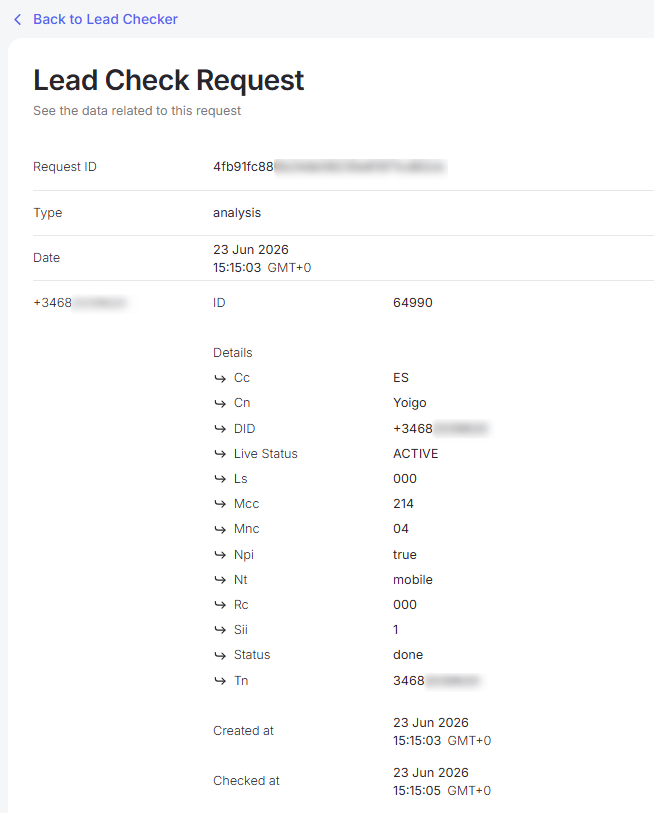
Specifically, this type of verification provides the following details:
- Metadata - this section contains service information about the call. While it doesn't include the conversation content, it provides technical data used to identify suspicious activity:
a. Cc (Country Code) - The two-letter ISO code of the country where the number is registered (e.g., “ES” for Spain).
b. Cn (Carrier Name) - The name of the mobile operator currently serving or originally issuing the number (e.g., “Yoigo”).
c. DID - A direct inbound number that allows external callers to route directly to a specific phone line.
d. Live Status - Shows the current operational status of the number within the network (e.g., “ACTIVE”).
e. Ls - A technical status code representing the current state or response of the line (e.g., “000”).
f. Mcc (Mobile Country Code) - A three-digit code identifying the country of the mobile network (e.g., “214” for Spain).
g. Mnc (Mobile Network Code) - A code identifying the specific mobile operator within a country (e.g., “04”).
h. Npi (Numbering Plan Indicator) - Indicates whether the number conforms to the standard numbering plan identifier; values are true or false.
i. Nt (Network Type) - Identifies the specific type of network being used for the number (e.g., “mobile”).
j. Rc - A technical response or routing code returned during the network check (e.g., “000”).
k. Sii - System information indicator code used for internal routing or signaling status.
l. Status - Indicates the current execution phase or completion state of the analysis process (e.g., “done”).
m. Tn (Telephone Number) - The full international mobile subscriber number used to identify the phone globally.
-
Created At - The date and time when the analysis request was initiated.
-
Checked At - The date and time when the analysis was performed.
Bottom toolbar
The bottom toolbar looks as follows:

It provides the following options:
-
Use page pagination;
-
Select the number of rows per page. The following options are available:
a. 10 per page;
b. 15 per page;
c. 25 per page;
d. 50 per page;
e. 100 per page;
f. 250 per page.
CDRs
This document describes the Call Detail Record page in the Teliqon Portal. It explains the CDR toolbar, filtering options, CSV export behavior, call list columns, and bottom pagination controls.
Reputation Checker
This document describes the DID Reputation Check functionality in the Teliqon Portal. It explains verification types, history, filtering, and detailed reputation check results.


