Login / Registration
This document describes login, registration, account confirmation, email change, and password recovery flows in the Teliqon Portal. It explains which fields and actions are available to users and how the system responds during account access and recovery procedures.
General information
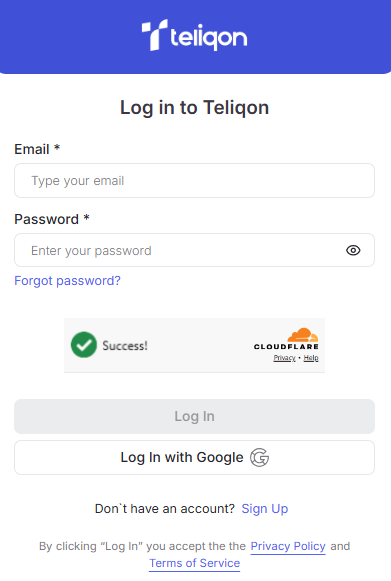
The Teliqon Portal login page features the following authorization form:
-
Log in to the system if you already have an account;
-
Recover your password if you have an account but have forgotten your password;
-
Create a new account.
Login
The login form provides the following fields and tools for the authorization of registered users:
-
Email * - a field for entering your email address.
-
Password * - a field for entering your password. You can instantly view your password by clicking the “eye” icon.
-
Log In - the button used to enter the system.
-
reCAPTCHA - designed for user verification (helps the system distinguish between real people and bots).
-
Log In with Google - the button for authorization via your Google account.
-
Forgot password - the button to reset your password.
-
Legal links - links to review the “Privacy Policy and Terms of Service”.
The Email and Password fields are filled in manually using the keyboard. To log in to the system, use the email and password of a registered user.
If you do not have an account in the system yet, you should proceed to the registration section.
After entering your email and password, click the Log In button. Upon successful verification of your data, the system will automatically redirect you to your Teliqon Portal personal account.
Registration (Sign Up)
When you click the Sign Up button, the following form will appear:
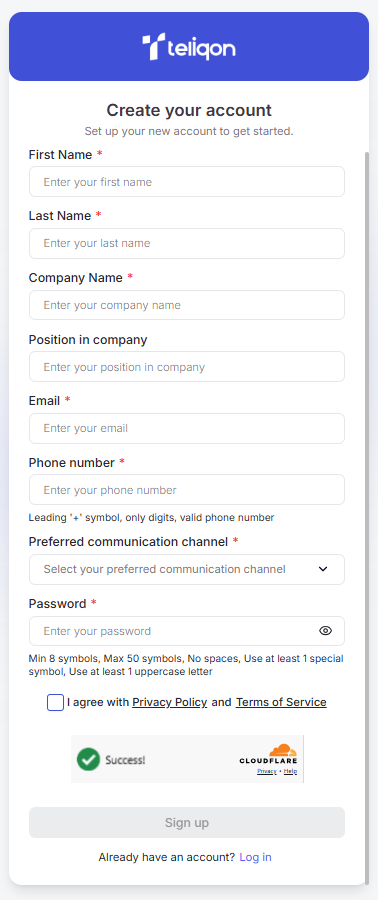
This form contains the following mandatory fields:
-
First Name *;
-
Last Name *;
-
Company Name *;
-
Position in company;
-
Email *;
-
Phone Number *;
-
Preferred communication channel *;
-
Password *.
Only the Position in company field is optional.
The Preferred communication channel field features a dropdown list where you select a convenient contact method:
-
WhatsApp;
-
Telegram;
-
Email.
A manager will contact you using the channel selected in the form; therefore, please provide the phone number associated with your Telegram or WhatsApp account.
All other fields are filled in manually using the keyboard.
At this stage, if you decide not to register, you can return to the login page by clicking Log in.
To continue registration, fill in all fields and check the “I agree with Privacy Policy and Terms of Service” checkbox, then click the Sign up button.
If the data you entered has been previously added to the system, you will see the error message: Error - user already exists.
If your data is unique, you will receive a verification email at the provided address with the following message:
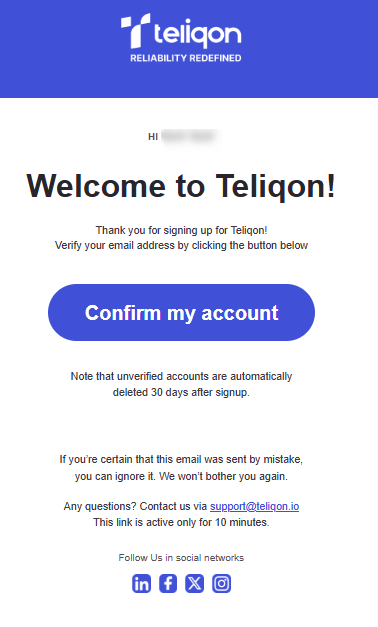
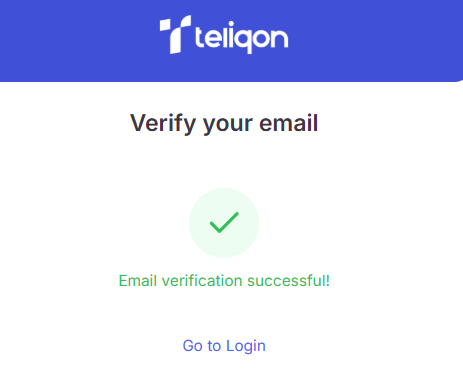
Once you click the account confirmation button, your email will be verified, and a success confirmation window will appear:
Please note that unverified accounts are automatically deleted 30 days after registration.
Additionally, if you notice a mistake in the email address entered during registration, you can update your email by clicking the Change email button in the form:
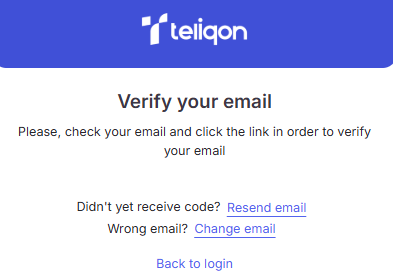
Next, the email change window will open:
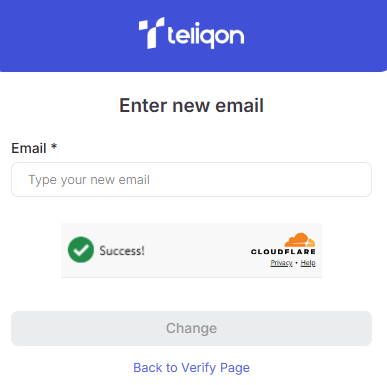
After entering a new email address, you will receive the registration confirmation form described above.
Password Recovery
If you forget your password, you can reset it using the Forgot password button.
After clicking the password recovery button, the following window will open:
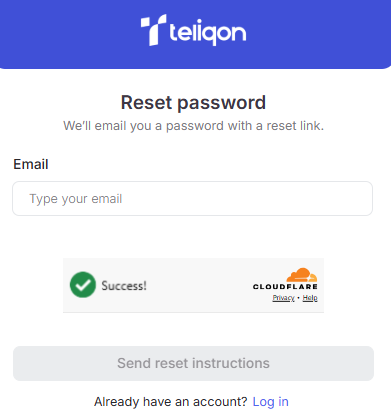
Enter the email address registered in the system and click the Send reset instructions button.
At this stage, if you decide not to reset your password, you can return to the login page by clicking Log in.
After clicking the button to resend the code, the following window will open:
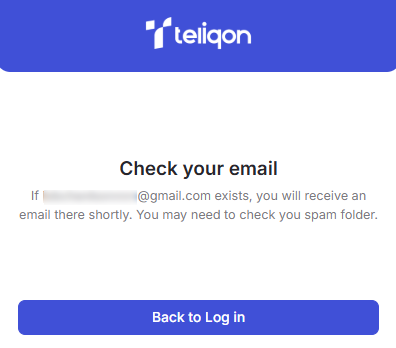
An email containing password recovery instructions will be sent to the specified address:
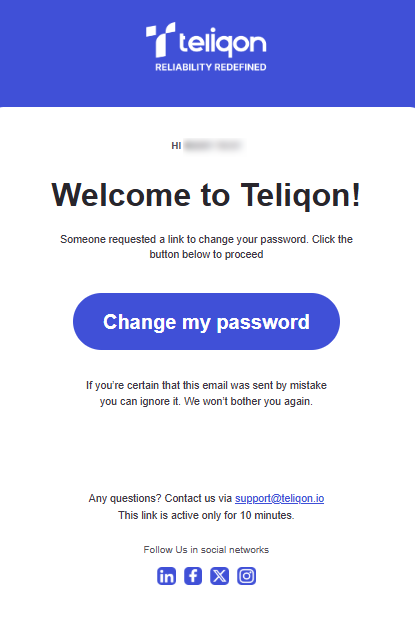
To change your password, follow the link in the email to open the form for setting a new password. Enter your new password twice in the fields provided and click Change password:
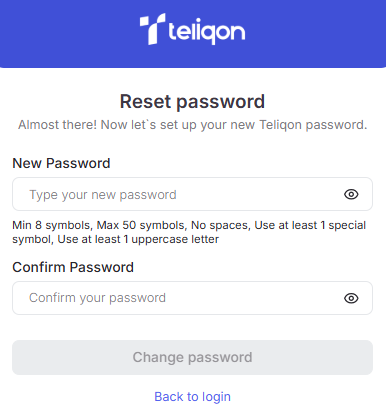
After changing your password, you will be redirected to the login page, where you can log in to the system using your new password.


