AutoDialer
This document describes the AutoDialer page in the Teliqon Portal, including available tariff plans, subscription purchase flow, and active solution management. It also explains the AutoDialer list, top toolbar, filtering, sorting, tariff editing page, and bottom toolbar pagination controls.
General Information
On the AutoDialer page, you can purchase a tariff plan and view information within the Teliqon Portal. To reach this page, simply navigate to the sidebar menu on the left:
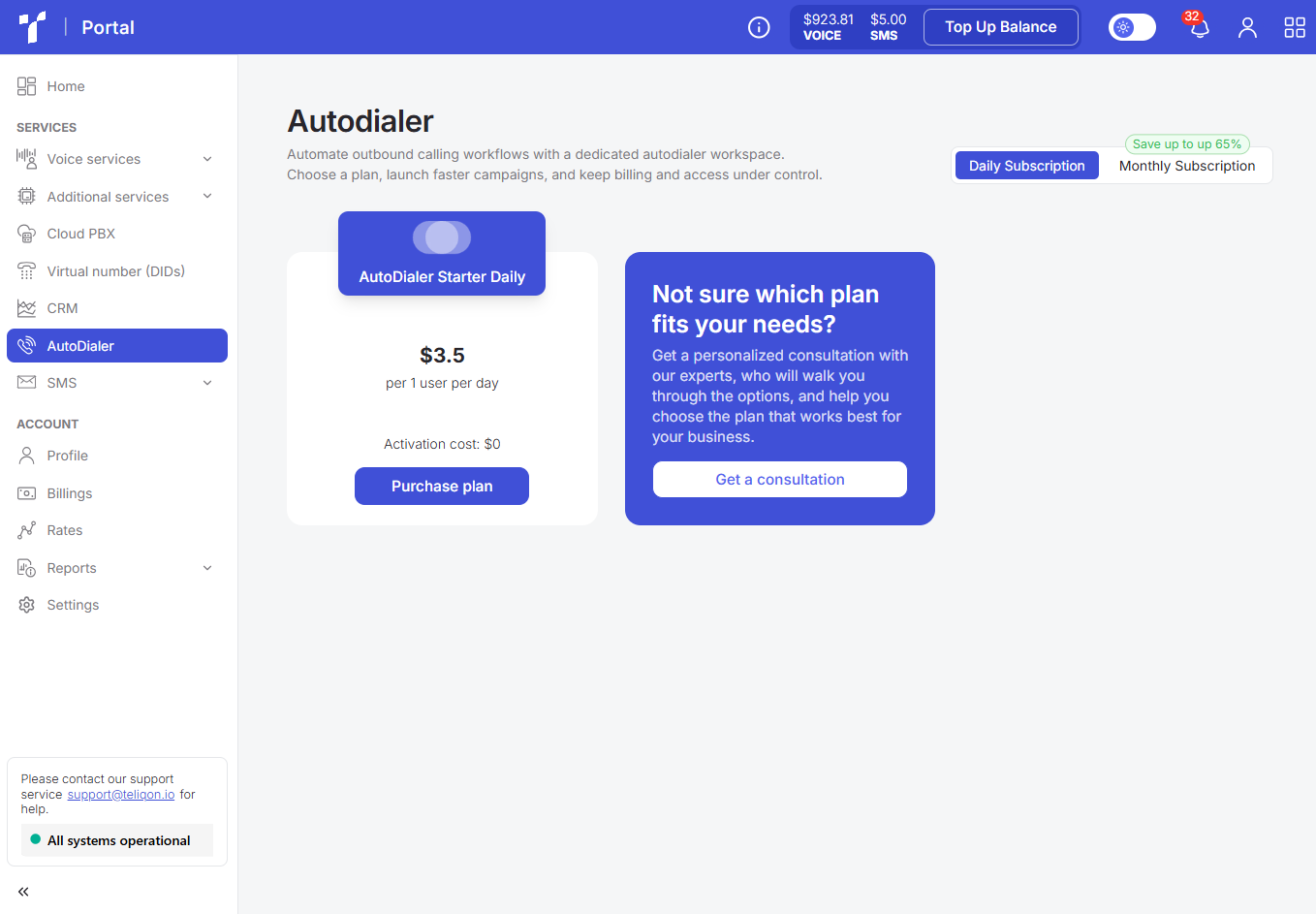
If the AutoDialer solution isn't set up on your portal yet, you will see a page displaying the available tariff plans.
First, select your subscription type, then click the Purchase plan button and fill in the required fields.
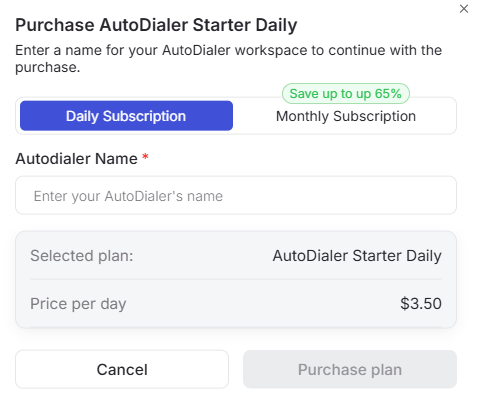
Depending on the selected subscription, a window will open with a form to complete and the pricing details. The following subscriptions are available:
- Daily - a daily subscription where charges are based on the agents who actually used the service during the day. This means you can create any number of agents in AutoDialer, however, only those who handled at least one call in the system will be billed:
- Monthly - a monthly subscription where you select the number of agents in advance. The charge depends on the chosen number of agents regardless of whether the agent actually used AutoDialer:
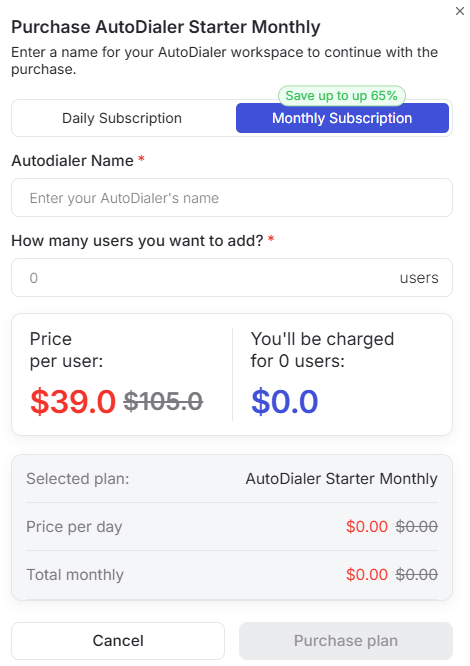
With this subscription type, you can increase the number of agents after purchasing the tariff plan. More details on this are described below.
After selecting a plan, you will be prompted to complete a mandatory quiz - “Is an Auto Dialer right for your business?”. It helps identify your business needs and find the optimal calling solution.
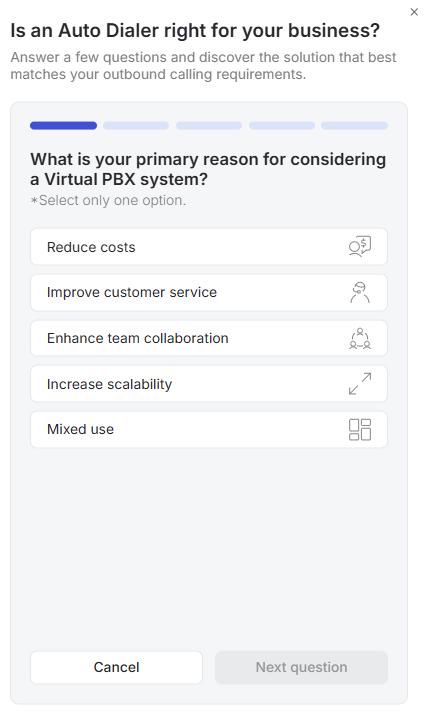
In the quiz, you will need to provide the following information:
- Primary reason for considering the system - cost reduction, customer service improvement, team collaboration, etc.;
- Number of employees who will be using telephony;
- Company's industry;
- Current CRM or helpdesk tools in use;
- Contact details - full name, company name, role in the company, phone number, email address, and preferred communication channel.
Please note: completing the quiz is required. Once the form is submitted, our manager will contact you via your preferred channel to help with the purchase and tailor the Auto Dialer setup to your needs.
If you need help deciding, feel free to reach out to Teliqon Portal technical support by using the Get a consultation form or by clicking the link provided here.
If your project on the portal already includes a purchased AutoDialer solution, it will appear in the list of active solutions.
AutoDialer List
The list of purchased AutoDialer solutions is displayed as follows:
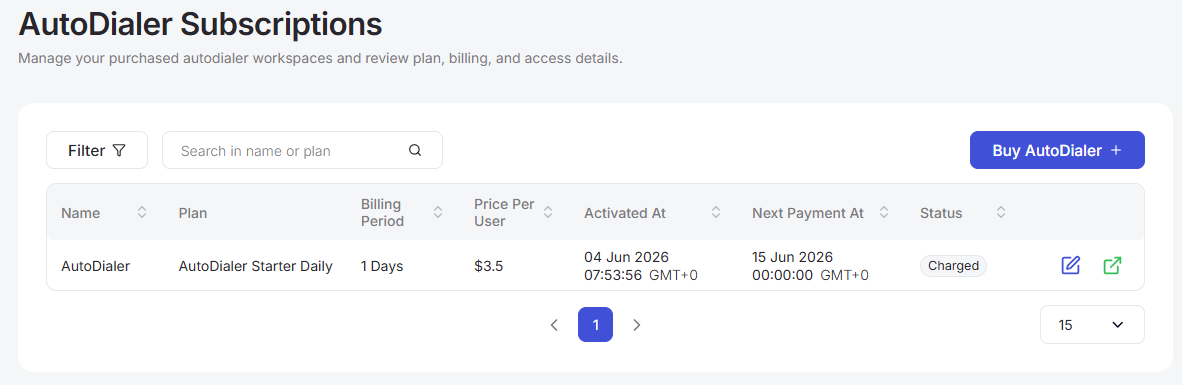
It consists of the following sections:
- Top toolbar;
- AutoDialer solutions list;
- Bottom toolbar.
Top toolbar
The top toolbar consists of the following elements:

- Filter. You can filter data by the following parameters:
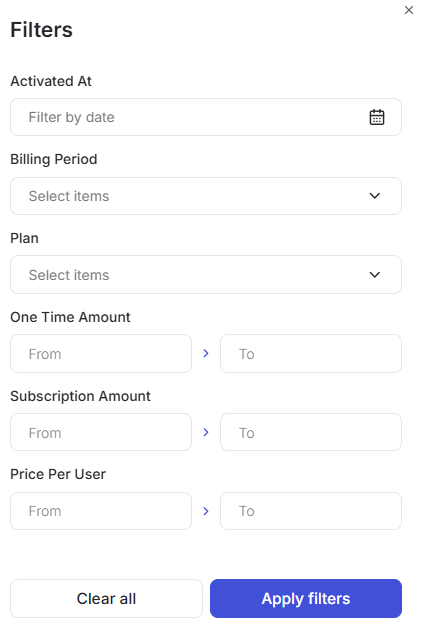
- Activated At - filter by the AutoDialer subscription activation date using the calendar;
- Billing Period - filter by the payment period using the dropdown list;
- Plan - filter by the selected plan using the dropdown list;
- One Time Amount and Subscription Amount - filter by the one-time or monthly payment amount using the keyboard;
- Price Per User - filter by the cost per user using the keyboard.
- Search field. To start searching among the purchased tariffs in the list, simply enter more than one character into the input field and press Enter on the keyboard or the Search button in the search bar.
- Button for purchasing a new AutoDialer tariff.
AutoDialer Solutions List
All Teliqon AutoDialer solutions available in your project are displayed in the table list.
A value sorting function is available in the table. To activate this option, click the arrow next to the column name, and the data will be automatically sorted in ascending order. To change the order to descending, click the same arrow again.

The table contains the following columns:
- Name and Plan (tariff plan name);
- Billing Period (the paid period);
- Price Per User (the cost per agent);
- Activated At (the subscription activation date);
- Next Payment At (the next payment date);
- Status (the current subscription status; available options: Disabled, Not assigned, Created, Low balance, Charged).
- Actions.
Two buttons are available: navigating to the current tariff plan settings (pencil icon) and a quick link to the AutoDialer environment (if configured).

Clicking the “pencil” icon will open the tariff plan editing page:
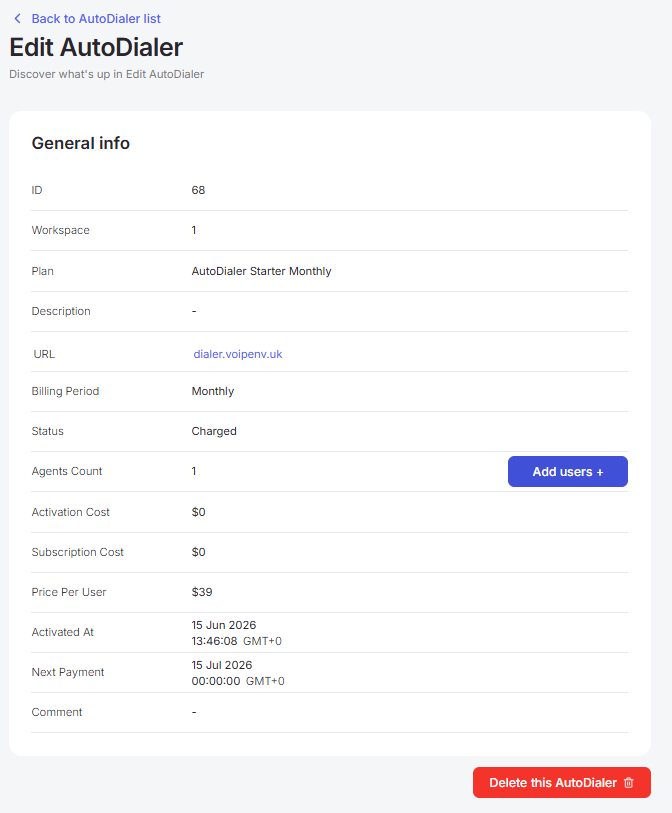
This section contains the main information about your purchased AutoDialer plan:
- System login - the domain you can follow to access the personal account of your purchased AutoDialer solution.
- Subscription information - this section displays the details of your tariff plan: billing period, activation cost, payment amount, price per agent, activation date, and next payment date.
- Management - if you have the “Monthly” subscription type selected, you can add new agents using the Add users + button. You can also delete the current plan using the Delete this AutoDialer button.
Bottom toolbar
The bottom toolbar looks as follows:

It provides the following options:
-
Use page pagination;
-
Select the number of rows per page. The following options are available:
a. 10 per page;
b. 15 per page;
c. 25 per page;
d. 50 per page;
e. 100 per page;
f. 250 per page.
CRM
This document describes the CRM page in the Teliqon Portal, including access to the CRM demo version, trial registration, and information about the available functionality during the trial period.
SMS - OTP
This document describes the SMS OTP page in the Teliqon Portal and explains how to configure SMS settings, view pricing, calculate SMS costs, and check processed SMS history. It also describes how to work with the SMS OTP API, including request parameters and callback response examples.


