Main
This guide explains the Main dashboard in Teliqon CRM and how to review project statistics using Sales activity, Calls count, and Calls count by manager charts. It also describes how to configure global and per-chart date ranges, switch chart visualization types, and filter displayed entities or managers.
General Information
The main page of Teliqon CRM contains three key statistical charts that allow you to monitor your project’s performance:
-
Sales activity;
-
Calls count;
-
Calls count by manager.
You can configure the time ranges for these charts - either individually for each chart or collectively for all charts at once.
The configuration is done using the calendars available on each chart.
Additionally, there is a global calendar on the dashboard that allows you to adjust the time range for all charts simultaneously.
To access this page and view the project summary statistics in Teliqon CRM, go to the Main section in the left sidebar menu.
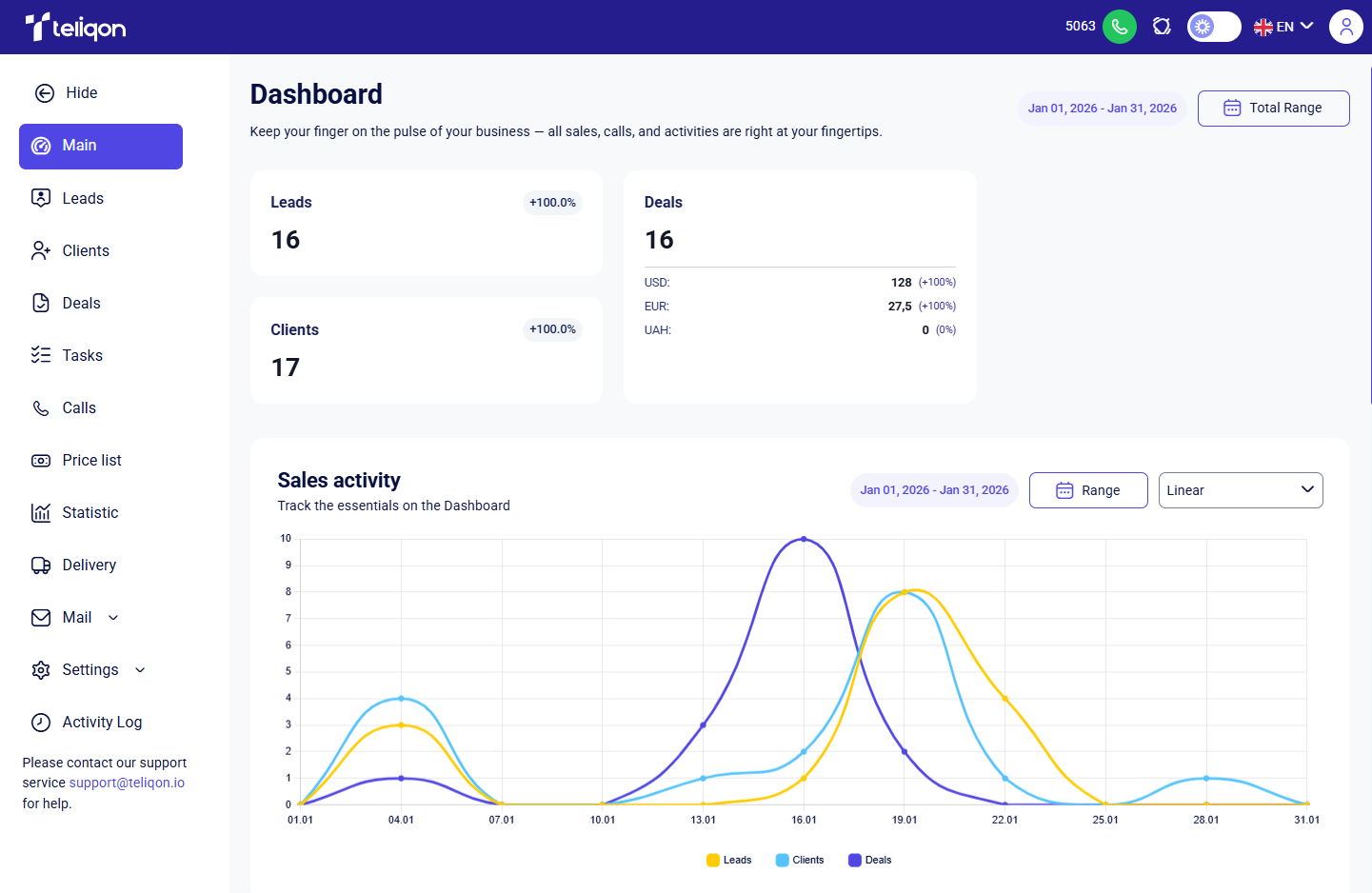
Charts overview and Calendar usage
Total Range
Using the Total Range on the dashboard, you can select a time period for which data will be displayed across all charts.
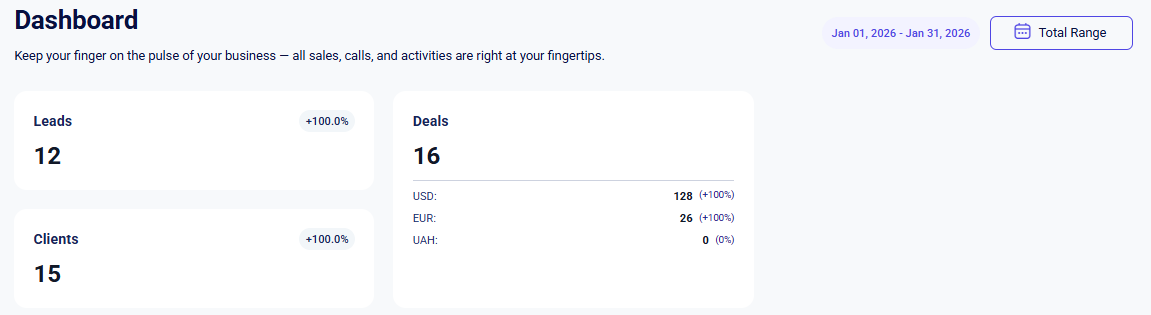
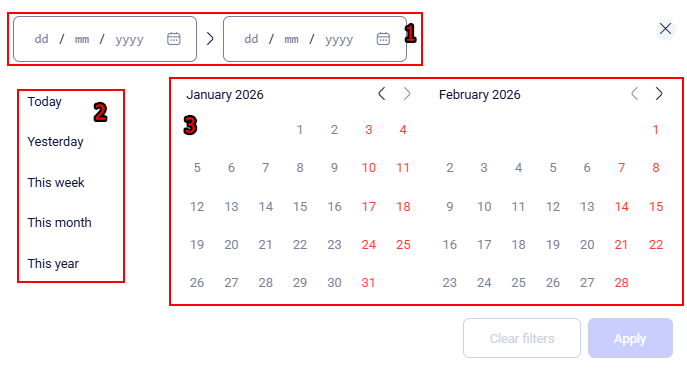
You can choose the time period for which you want to view statistics in one of the following ways:
-
Enter the time range manually in the From and To fields, using the format: 12/01/2026 > 18/02/2026
-
Select one of the predefined options:
-
Today;
-
Yesterday;
-
This week;
-
This month;
-
This year.
- Select a start and end date using the embedded calendar. Choose the start date by hovering over the day and clicking the left mouse button. Then, select the end date in the same way. To select a date from another month, click the < > arrows next to the month name to navigate to the previous or next month.
After making your selection, click the Apply button to save and apply the chosen date range.
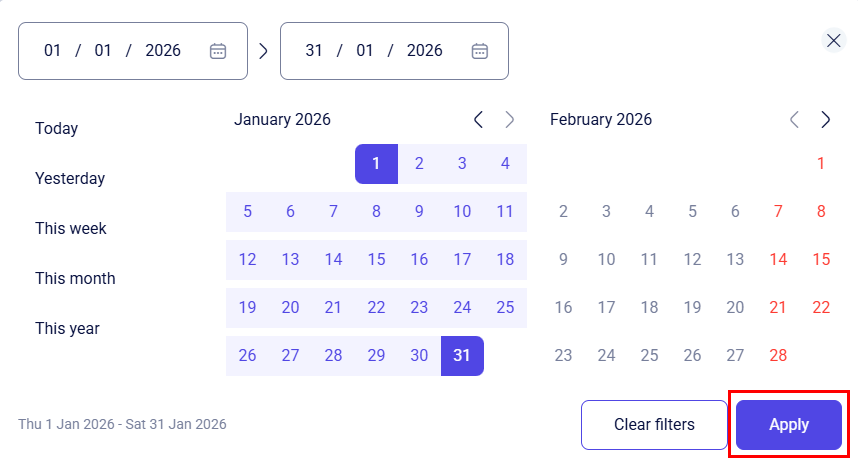
After saving the changes, the selected time range will be automatically applied to all charts on the main dashboard.
If you wish to reset the selected parameters while choosing a time period in the calendar, click the Clear filters button*.*
To close the calendar window and return to the dashboard without applying the selected date range, click the X icon in the upper-right corner of the calendar.
Sales activity
This metric allows you to visualize the creation of leads, clients, and deals over a selected period of time. Using this information, you can monitor the peak activity of your new clients in Teliqon CRM.
Additionally, the total number of leads, clients, and deals is displayed above the chart.
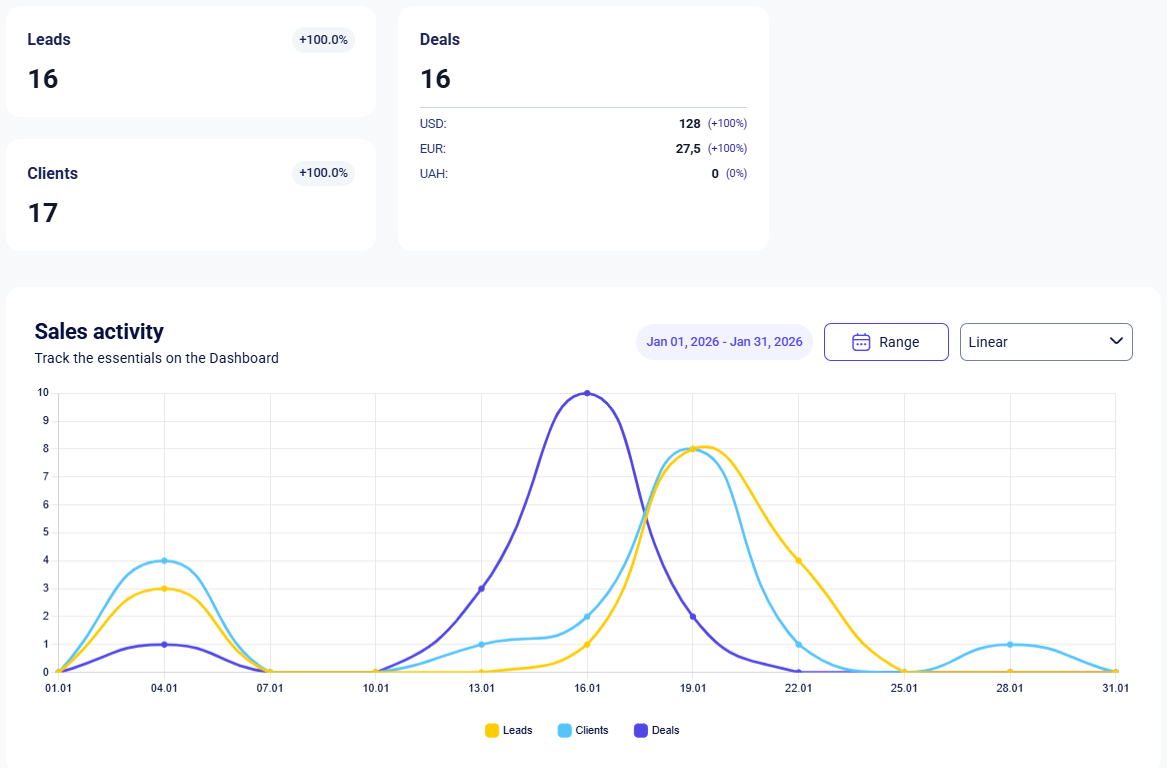
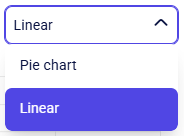
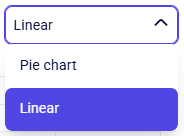
You can choose your preferred data visualization format:
-
Linear chart - displays the chronology of activities within a specified timeframe (showing dynamics, peaks, and drops by date);
-
Pie chart - displays the overall summary and ratio of entities (leads, clients, deals) within the total volume for the specified period.
By default, all entities (leads, clients, and deals) are selected, but you can hide any that are not needed. To do this, click on the entity type you wish to exclude
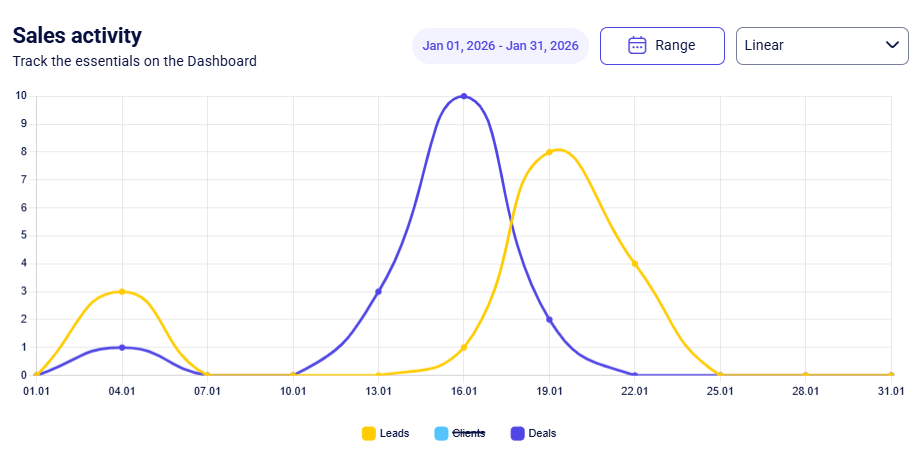
To show a hidden type again, simply click on it once more.
To change the date range for this specific chart, click the Range button. In the calendar that appears, select the required time period. For detailed instructions on setting the time period in the calendar, see the Total Range section.
Calls count
The Calls count chart, in addition to the calendar, includes an extra configuration parameter - the call type to be displayed on the chart. This metric visualizes the number of calls of each type made within the project during the selected time period. By default, all call types are selected on the chart:
-
Inbound calls;
-
Outbound calls;
-
Internal calls;
-
Missed calls.
You can hide any unnecessary call types from the chart. To do this, click on the name of the type you wish to hide:
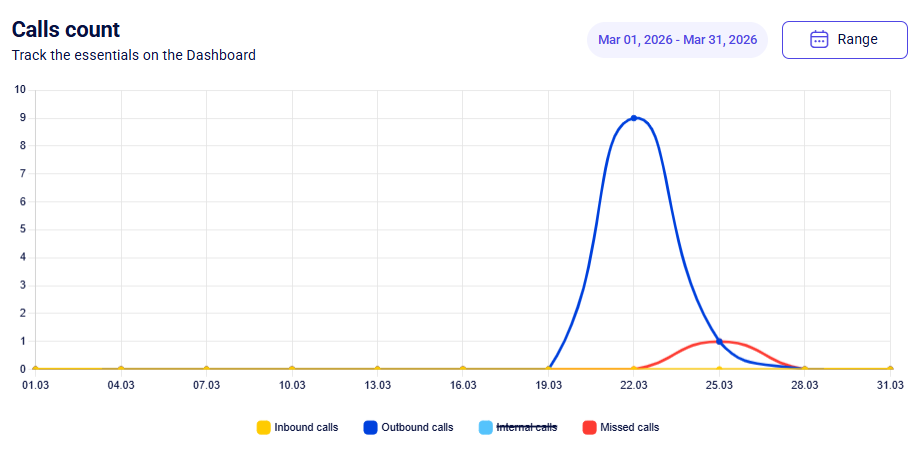
Additionally, above the chart, there is a panel listing all calls for the selected period, categorized by call type.
To show a hidden type again, simply click on it once more.
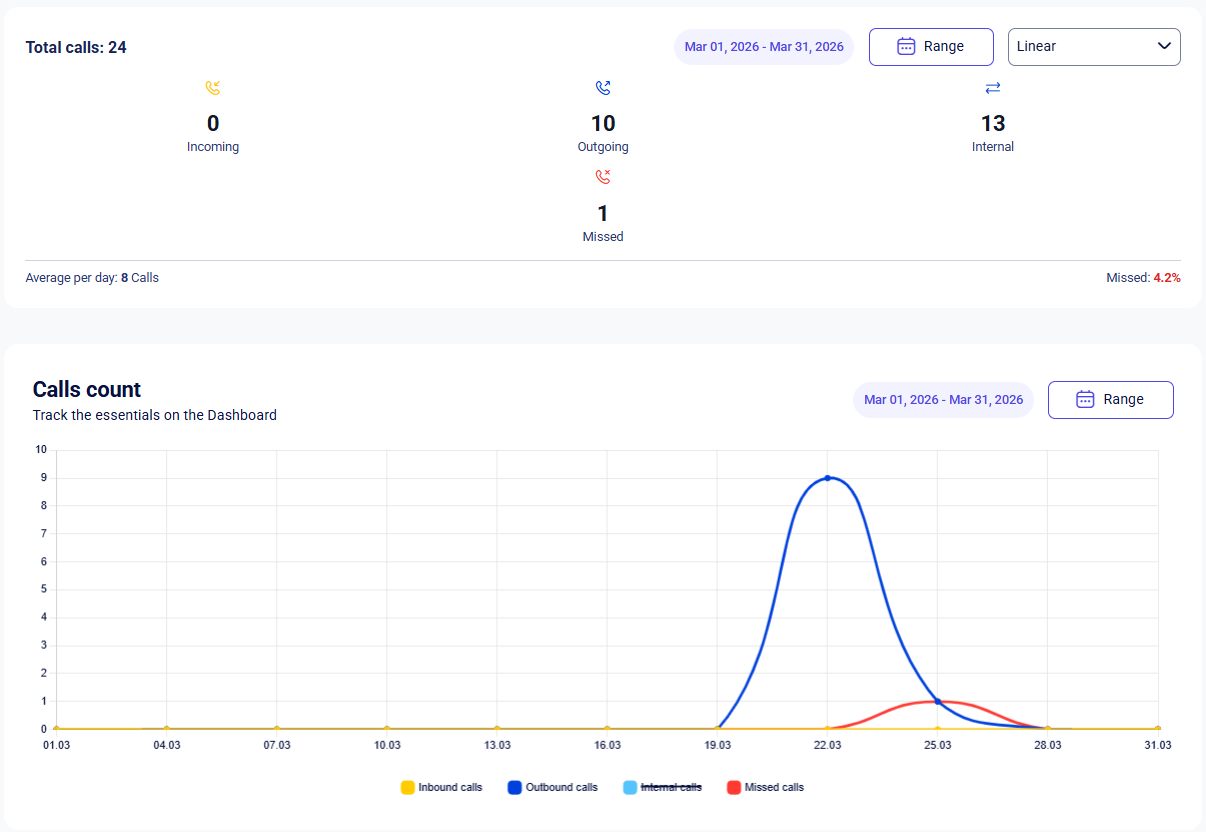
To change the date range for this specific chart, also click the Range button. In the calendar that appears, select the required time period. For detailed instructions on setting the time period in the calendar, see the Total Range section.
Calls count by manager
This chart allows you to track the performance of each individual employee by analyzing the number of calls made during a selected period. With this metric, you can objectively compare workload intensity and identify the most productive managers in customer communication.
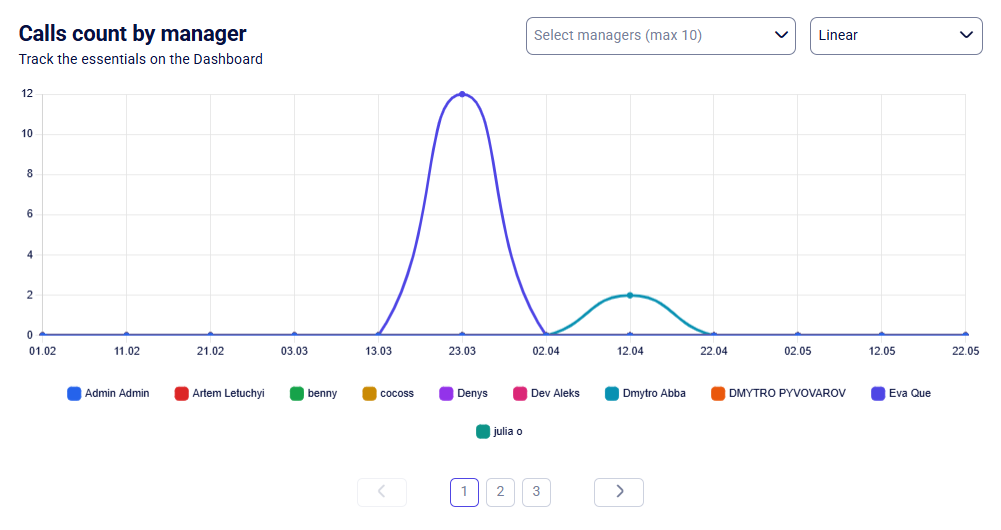
In the upper right corner of the chart, you'll find the Select managers dropdown menu, which allows you to add specific employees to the view. You can choose between 1 and 10 managers; once selected, the chart will automatically update to display their statistics.
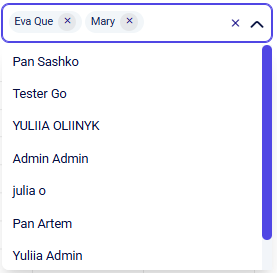
Each manager is represented by a unique colored line for easy activity comparison. To exclude a manager from the statistics, click the X icon next to their name in the filter or simply click their name directly on the chart area.
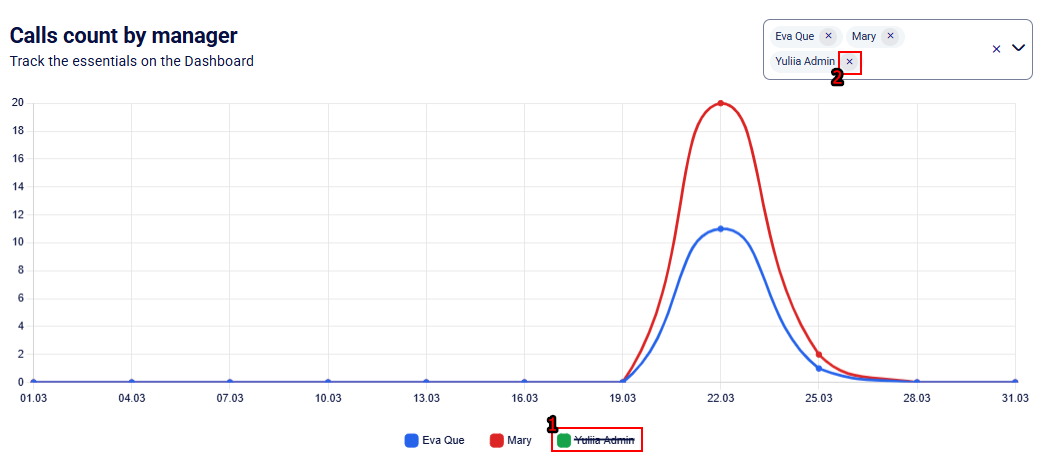
To reset the filter and display statistics for all managers, click the X icon on the right side of the selection field or remove users from the list individually.
You can choose your preferred data visualization format:
-
Linear chart - displays the chronology of activities within a specified timeframe (showing dynamics, peaks, and drops by date);
-
Pie chart - displays the overall summary and ratio of calls per manager within the total volume for the specified period.
WebRTC client
This guide explains how to use the WebRTC client in Teliqon CRM for incoming and outgoing calls. It covers the dialer, call screen, quick actions during calls, call control buttons, transfer workflow, and one-click calling from CRM sections.
Leads
This document explains how to manage leads in Teliqon CRM, including list and board views, filters, importing, exporting, lead cards, notes, activities, delivery, additional contacts, tasks, and conversion to clients. It describes available toolbar actions and the main workflows for creating, editing, organizing, and processing leads.


