This guide explains how to connect and manage email messages in Teliqon CRM. It covers email integration, synchronization settings, mailbox folders, message actions, replies, forwards, and linking email participants to CRM entities.
General information
This section contains information regarding your email messages in Teliqon CRM.
If you haven't connected your email integration yet, clicking on the Mail section in the left sidebar menu will take you to the following page:
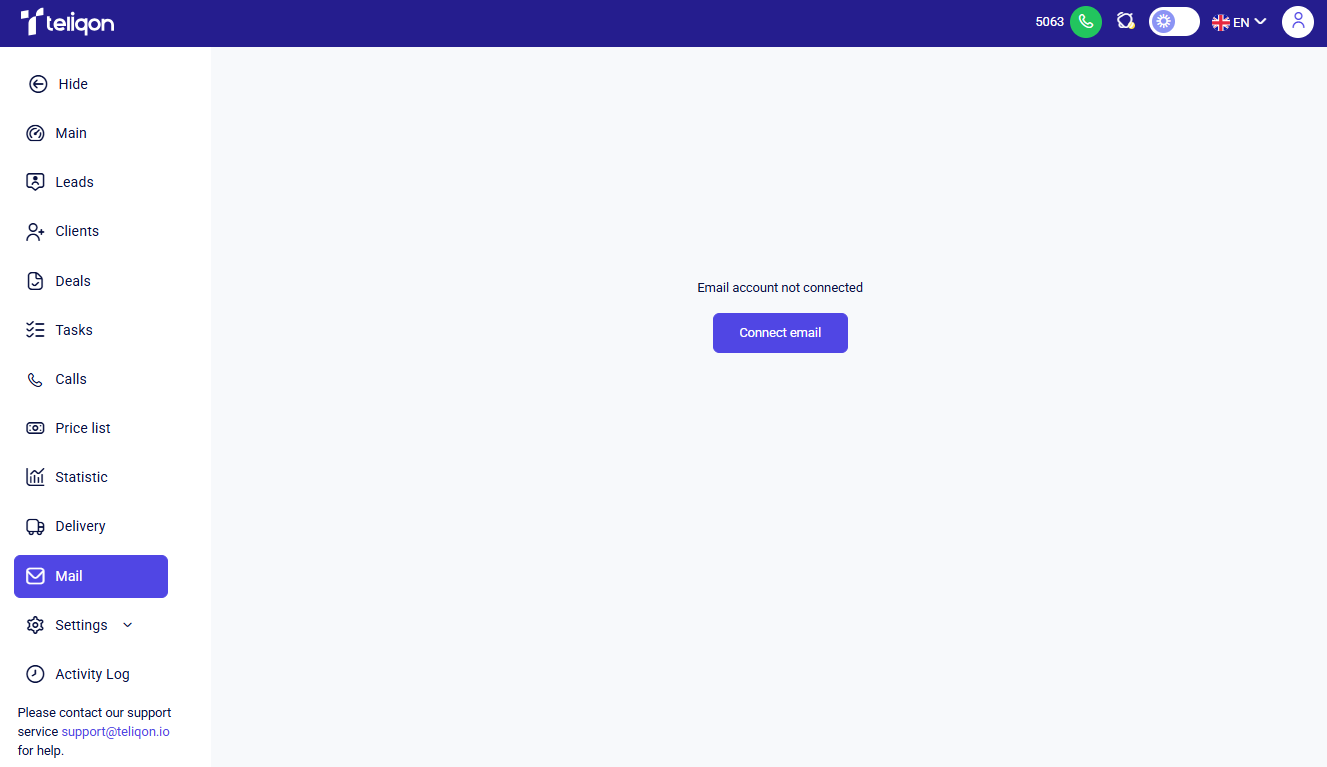
This page allows you to set up your email integration. To get started, simply click the Connect email button.
Connecting email integration
After clicking the Connect email button, the following pop-up window will appear:
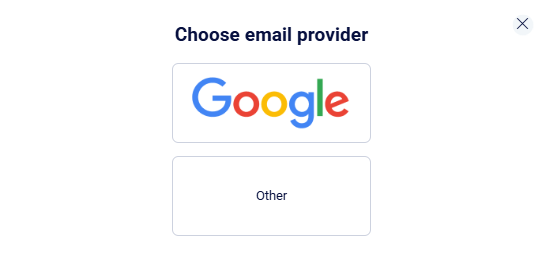
To authorize using your Google account, click the Google button and complete the sign-in process within the application.
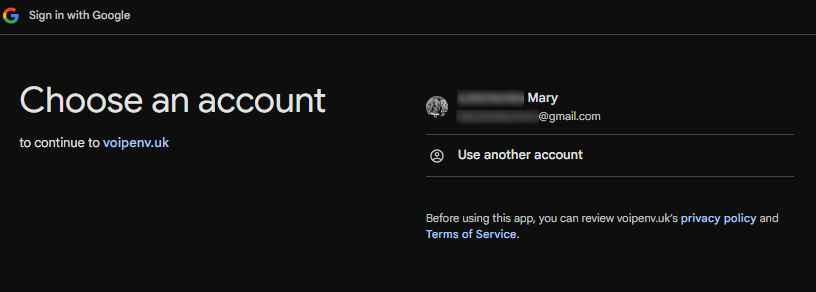
If you prefer to authorize using a different method, select the Other option. In the window that appears, enter your email address into the corresponding field.
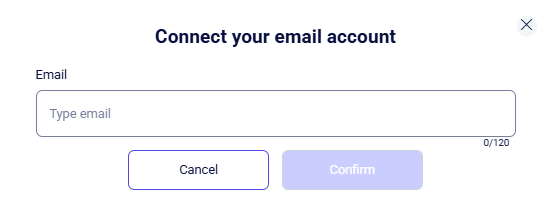
After entering your email, additional configuration settings will be displayed to complete your account connection:
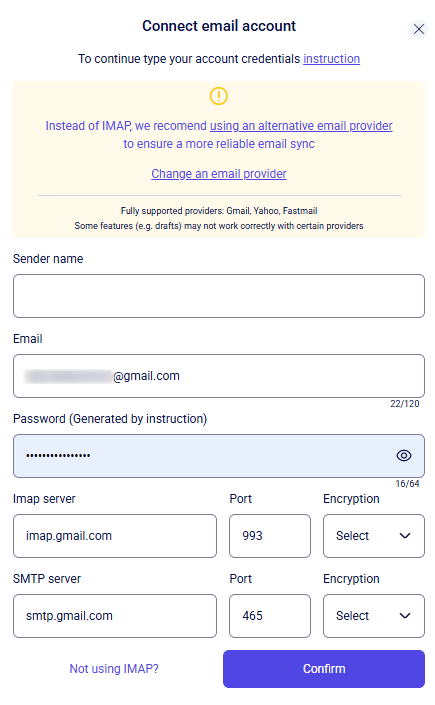
To integrate your email service, please complete the following fields:
- Sender name;
- Email;
- Password;
- Incoming Mail Server (IMAP) & Port;
- Outgoing Mail Server (SMTP) & Port.
To do this, click on the input field and enter the required information using your keyboard.
In the Sender name field, enter your login (sender's name). You also need to enter a password in the Password field, but there is an important detail: for security reasons, most modern services (Gmail, Outlook, Ukr.net, etc.) don't allow the use of your primary email password. Instead, you will need to provide a specifically generated App password.
Fields for Email, servers, and ports are typically auto-populated. If they don't appear automatically, you can manually find these details in your email provider's help section or settings.
Additionally, the Instructions link provides a detailed guide on setting up the integration. It covers how to connect your email to Teliqon CRM and lists technical parameters (servers and ports) for popular services like Gmail, Outlook, and iCloud.
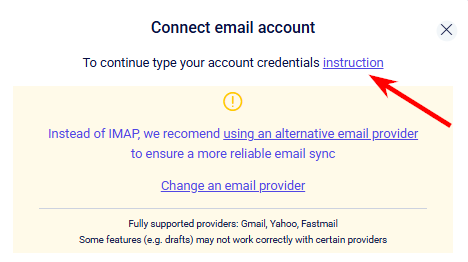
Once all required fields are complete, click Confirm. To exit and cancel the setup, click the X icon.
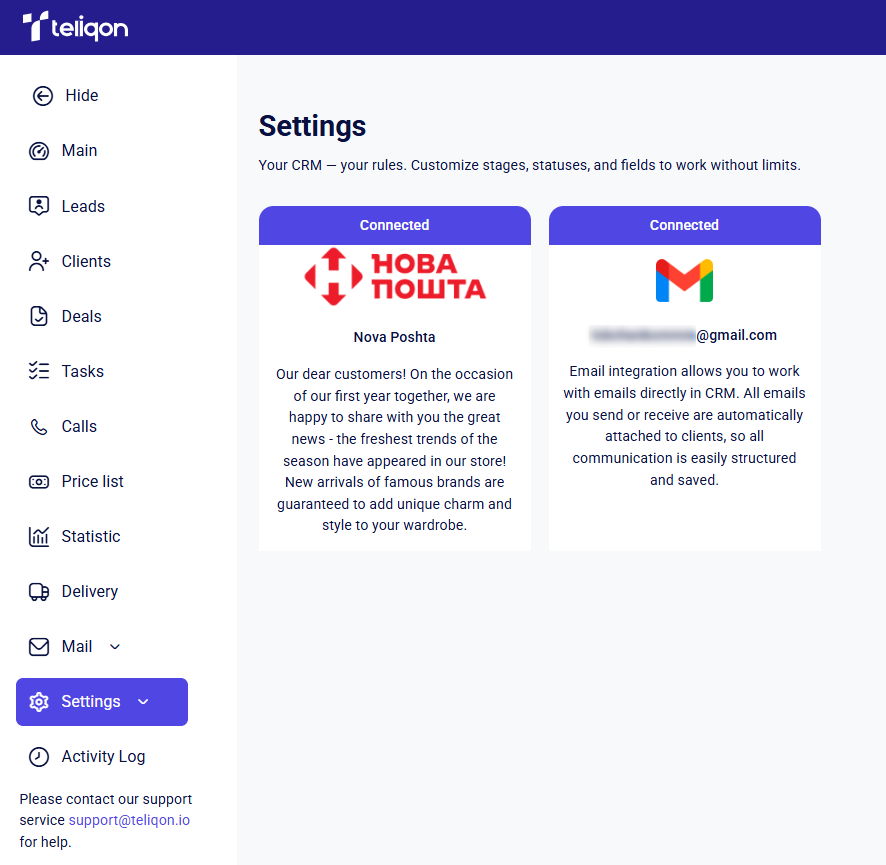
After a successful connection, you will be redirected to the settings page, where the email integration status will appear as Connected.
The following sub-menu tabs for Mail will appear in the sidebar:
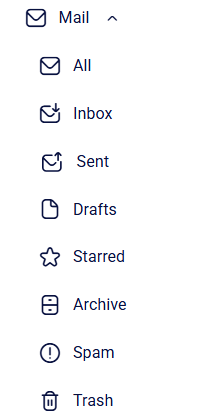
- All. A general section that aggregates all incoming and outgoing correspondence, including archived emails. It also automatically includes messages from your custom mailbox folders, allowing you to see the complete communication history in a single window.
- Inbox. This is where all new messages addressed to you arrive. It serves as your primary workspace for processing current mail.
- Sent. An archive of every message you have successfully delivered to recipients.
- Drafts. A dedicated space for saving unfinished emails. You can return to editing and sending them at any time.
- Starred. A folder for important messages you’ve marked with a special indicator for quick access and priority processing.
- Archive. Designed to store processed emails that are no longer needed but should remain in the system for history or search purposes.
- Spam. Unwanted or suspicious messages are automatically filtered here. We recommend checking this folder periodically to ensure no important emails have been flagged by mistake.
- Trash. A temporary storage for deleted emails. From here, you can either restore messages.
Before you can manage your emails, you will need to complete the initial setup. This process is described in detail in the following section: Email integration setup.
Email integration setup
To configure your email integration, navigate to Settings → Mail in the left sidebar menu.
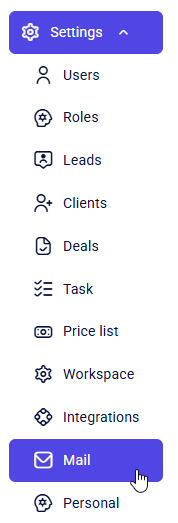
This will open the email integration settings page:
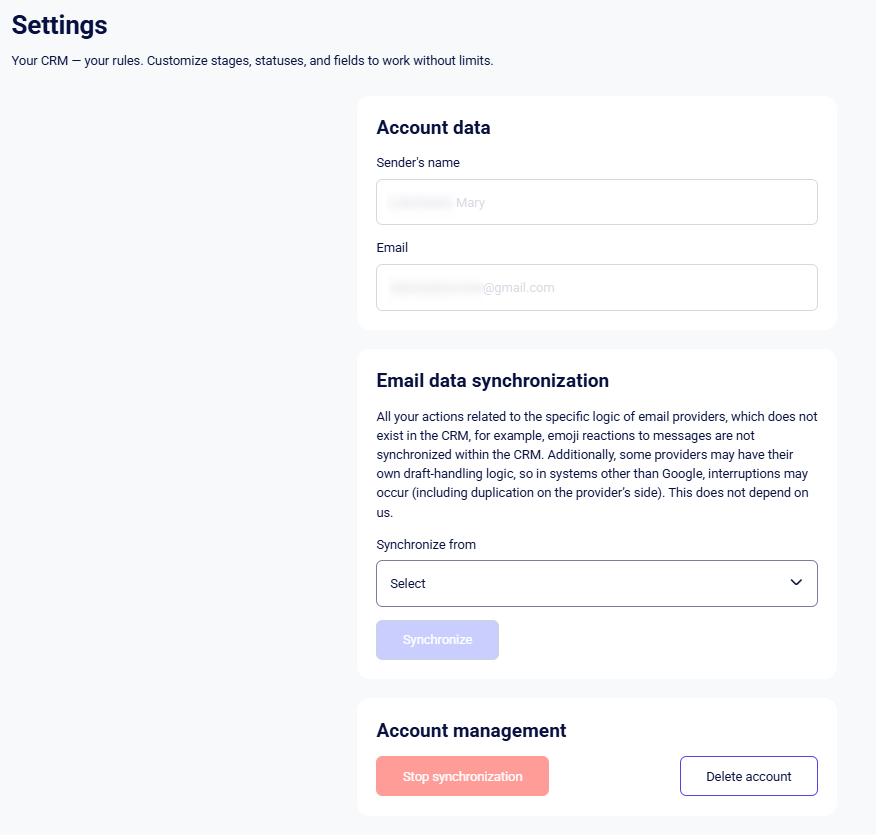
The Mail settings page consists of the following three sections:
- Account data;
- Email data synchronization;
- Account management.
The information in the Account data section is populated automatically and cannot be edited.
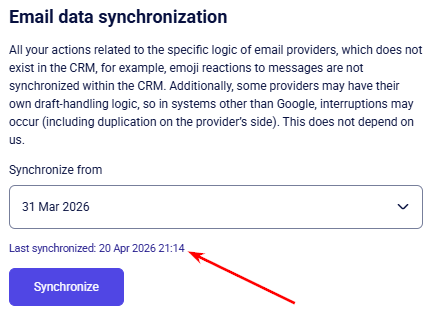
In the Email data synchronization section, you can select one of the available sync periods. The options are:
- Today;
- 1 Month;
- 3 Months;
- 6 Months.
After selecting your preferred sync period, click Synchronize. You can monitor the progress directly within the form:
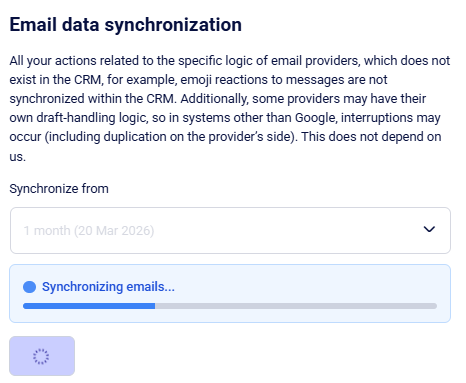
Once the sync is finished, a confirmation message will be displayed:
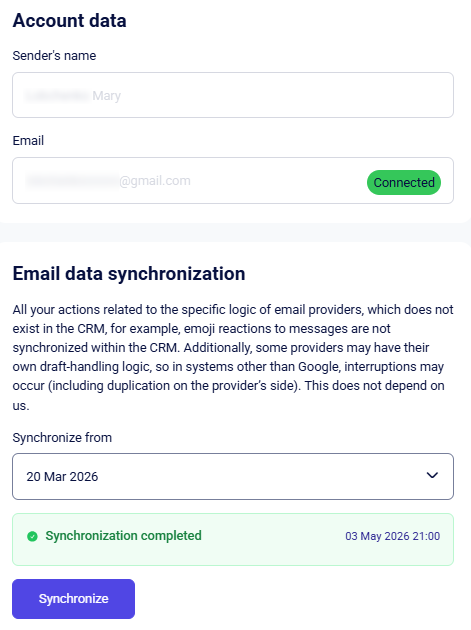
This section also shows the timestamp of the most recent auto-sync with your inbox.
In the Account management section, you can stop the email account synchronization or disconnect the integration between your email account and Teliqon CRM.
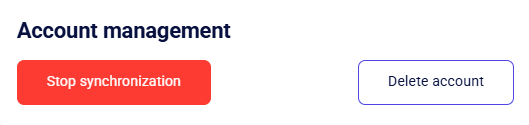
Click Stop synchronization to pause data synchronization, or Delete account to remove the integration entirely.
Managing your email
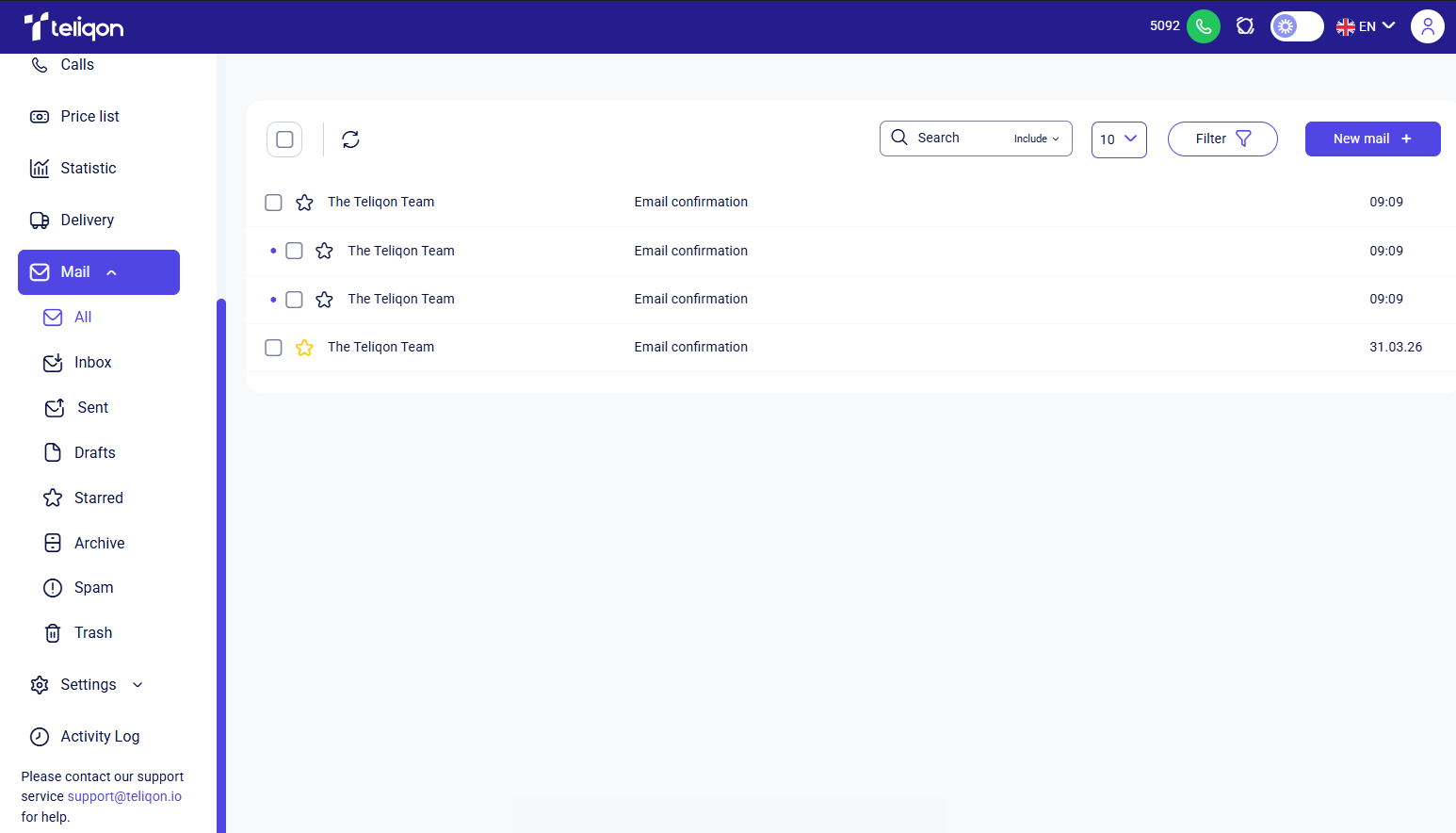
After setting up the integration, open the Mail tab to begin. This section allows you to monitor and handle your correspondence through the following pages:
Toolbar
The toolbar on this page allows you to:
- The Select All button, which lets you select all emails on the page with a single click to perform bulk actions (via the quick action panel described below). Clicking this button once will check all checkboxes on the page. Clicking it again will deselect them.
- Refresh email data – a button to update the information in the message list and ensure you see the latest emails.
- Quick Action Panel – this bar activates automatically once one or more messages are selected:
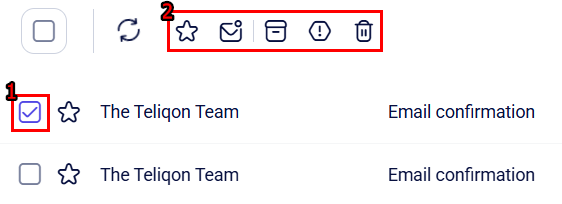
The panel allows for efficient email management:
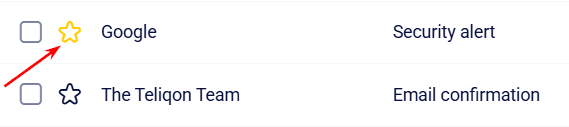
- Mark as “Important” (star icon) – such emails are marked with a yellow star in the general list and duplicated in the “Starred” folder.
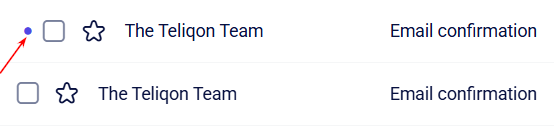
- Mark as “Read” or “Unread” – new messages are marked with a distinct dot that disappears after the email is read.
- Archive – messages are moved to the “Archive” folder but remain in the “All” folder.
- Mark as “Spam” – transfers unwanted emails to the corresponding folder.
- Delete selected – permanently removes selected messages.
- Use the Search Bar to instantly find emails by keywords in the subject line or body. Simply click into the search field and start typing - the search begins automatically as soon as you enter the first characters.
- Rows per page. Use this dropdown to adjust your inbox view by changing the number of emails shown on a single page. Available options:
- 5;
- 10;
- 25;
- 50;
- 100
- Filter button - allows you to quickly segment your mail using the following criteria:
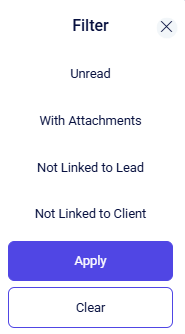
- Unread - displays only new messages that require your attention.
- With Attachments - finds emails that have attached files (documents, photos, invoices).
- Not Linked to Lead - shows emails from contacts who are not yet registered as leads in the system.
- Not Linked to Client - helps identify messages from unknown senders or those not yet added to your client database.
- New mail + button for composing new email.
Email body
In addition to using the toolbar, you can open an email directly by clicking on its subject. This will take you to the message view page:
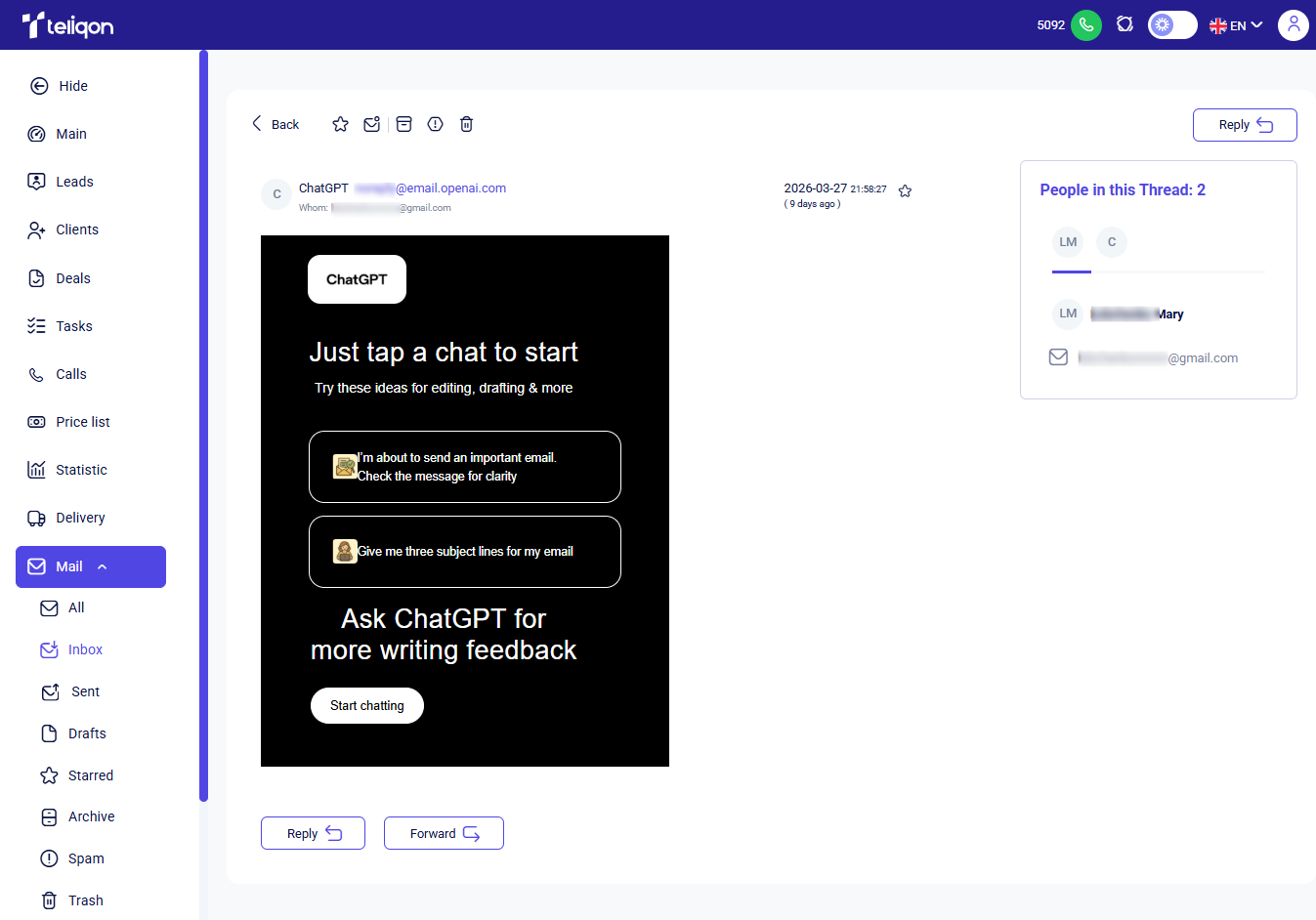
The following actions are available on this page:
- Go back - return to the email list;
- Quick action panel - use the panel to perform actions on the email;
- Reply - respond to the email;
- Forward - forward the email;
- People in this Thread - interact with the block containing all participants of the email.
Reply to email
When you click the Reply button, a pop-up window will appear where you can compose and send your message. The window looks as follows:
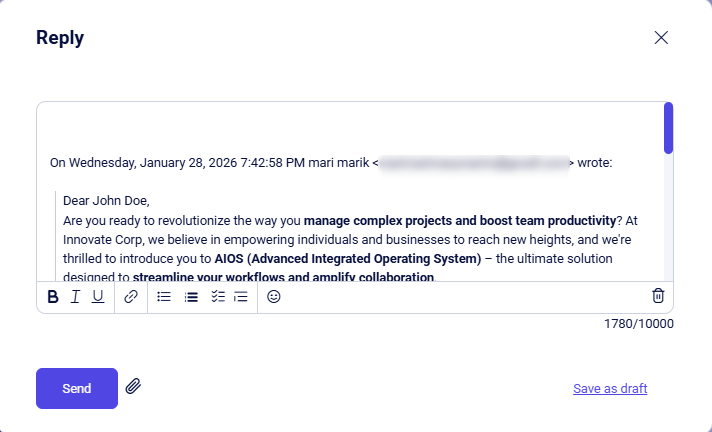
Use the formatting toolbar at the bottom of the window to style your message. The tools are arranged from left to right as follows:
- Bold text;
- Italic text;
- Underlined text;
- Insert a link. To do this, enter your text, highlight it with your cursor by holding down the left mouse button, and click the Link button. A pop-up window will appear where you should enter the URL in the format "https://test.site.com". Then, click Save if you have entered the correct link, Cancel or Delete if you change your mind.
- Format text as a List view;
- Format text as an Ordered List;
- Format text as a Task List;
- Format text as a Blockquote.
To attach a file, click the paperclip icon to the right of the Send button. In the window that opens, select the required document from your device.
If you decide to send the message later, you can save it by clicking Save as draft. Your message will be stored in the Mail → Drafts section.
Forward email
When you click Forward, a pop-up window will appear:
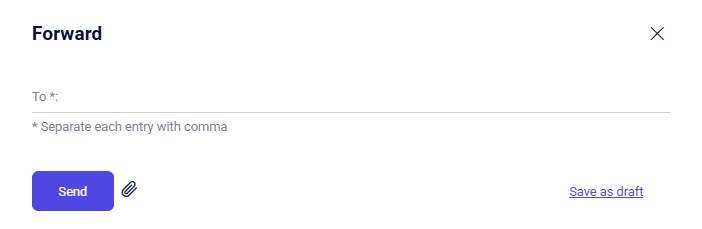
Fill in the To field with one or more email addresses, using commas as separators. Like with replies, you have the option to attach files to your message during preparation.
Next, choose one of the following actions:
- Send;
- Save as draft.
If you select Save as draft, the unsent email will appear in the Drafts tab in the sidebar menu on the left.
Once you have entered the recipients' addresses and attached any necessary files, click the Send button to complete the operation and send the email.
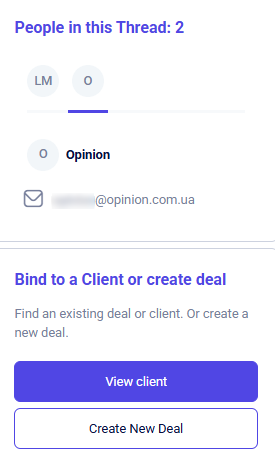
People in this Thread
This section displays everyone involved in the current email thread:
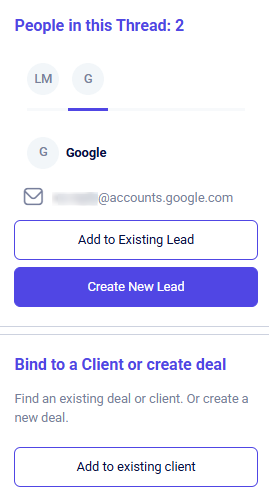
In this section, you can:
- View participants: see all email addresses involved in the conversation.
- Link to existing entities: add a participant's email to an existing lead or client.
- Create new entities: generate a new lead or deal directly from a participant's contact information.
After linking an email address to an existing client/lead or creating a new lead from it, this block will provide a shortcut for instant navigation to the corresponding card:
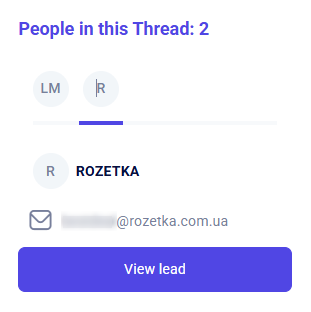
To create a deal for an existing client, start by linking the contact's email address to their profile by clicking the Add to existing client button. Once linked, the Create New Deal button will become available:
Delivery
This guide explains how to use the Delivery section in Teliqon CRM to manage shipment records and TTNs. It covers the delivery toolbar, adding an existing TTN, searching and filtering deliveries, bulk actions, and the main delivery table columns.
Settings
This document explains how to configure Teliqon CRM settings, including users, roles, entity fields, visibility rules, workspace options, integrations, mail, and personal settings. It covers the configuration workflows available from the Settings section and provides step-by-step guidance for managing CRM structure and access.


