Login
This document describes the Login page in Teliqon CRM and explains how users can sign in, use Google authentication, recover a forgotten password, and change their password. It covers the authorization form, required fields, password recovery flow, verification code entry, and password requirements.
General information
To access the authorization form, use the following link: https://demo-crm.teliqon.io/.
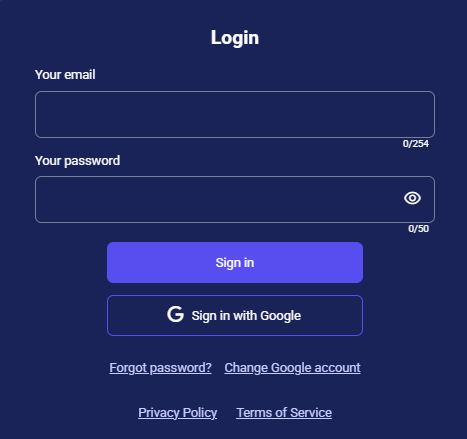
This form allows you to:
- Sign in to your existing account;
- Recover your password if you've lost it;
- Change your account in case of multiple accounts.
Login
The login form contains the following elements for authorized users:
-
Your email field - for entering the email address;
-
Your password field - for entering the password.
This field also includes a “show password” button (the “eye” icon); -
Login buttons - “Sign in” and “Sign in with Google”;
-
Password recovery - “Forgot password?” link;
-
Change Google account button to switch to an account registered to a different email.
-
Legal information - links to the Privacy Policy and Terms of Service. The Your email and Your password fields must be filled in manually.
To log in, enter the email address and password of a user registered in Teliqon CRM. Once the credentials are entered, click the Sign in button. Upon successful verification, you will be redirected to the Teliqon CRM Profile.
Verified users can sign in with Google. Click Sign in with Google and select the account you use for Teliqon CRM.
After that, you will receive an email with a verification code, which must be entered in the corresponding login window.
If you don't have an account, contact your Teliqon CRM system administrator to create one.
Password Recovery
If you forgot your password, you can recover it using the “Forgot password?” button.
After clicking the reset password button, the following window will open:
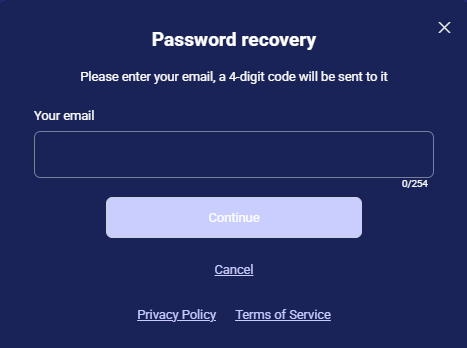
Enter your email address in the Your email field, then click Continue.
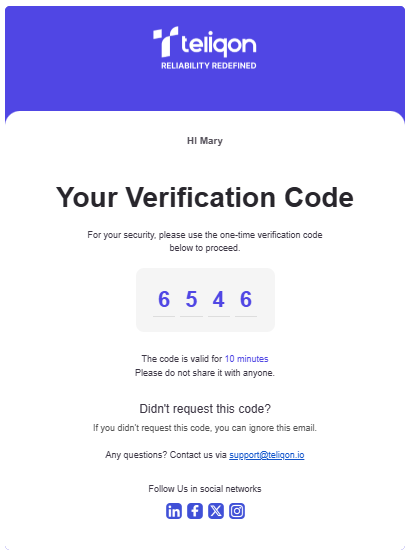
You will receive an email at the specified address containing a one-time code (the screenshot shows an EXAMPLE; a unique code will be generated for each user):
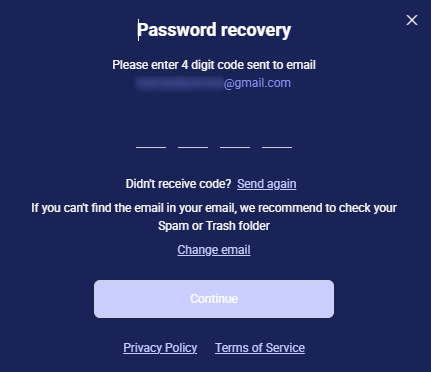
Next, enter the code from the email into the form (if you haven't received the code, please check your “SPAM” folder):
After successfully verifying the code, you will be redirected to the Password recovery page:
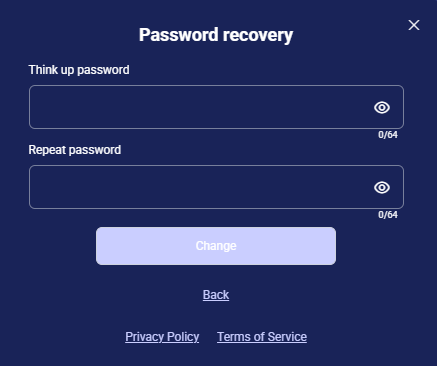
Password requirements:
- From 6 to 50 characters;
- No spaces;
- At least one special character (e.g., @#$%^* ).
After entering your new password, click the Change button. You will then be redirected to the login page, where you can log in using your updated credentials.


