Deals
This guide explains how to work with deals in Teliqon CRM, including viewing, creating, importing, exporting, filtering, and managing deal records. It also covers deal cards, notes, activity history, delivery, tasks, and product/service settings.
General information
This section contains information about your project's deals in Teliqon CRM.
On the Deals page, you can:
-
View deals in your preferred view - as a list or a board.
-
Search for deals by full or partial matches in any field using the search bar.
-
With a single click: view, archive, or copy deal links.
-
Create, edit, import, export, and filter deal data by any field.
To access this page and view deal information, navigate to the Deals section in the left-side menu.
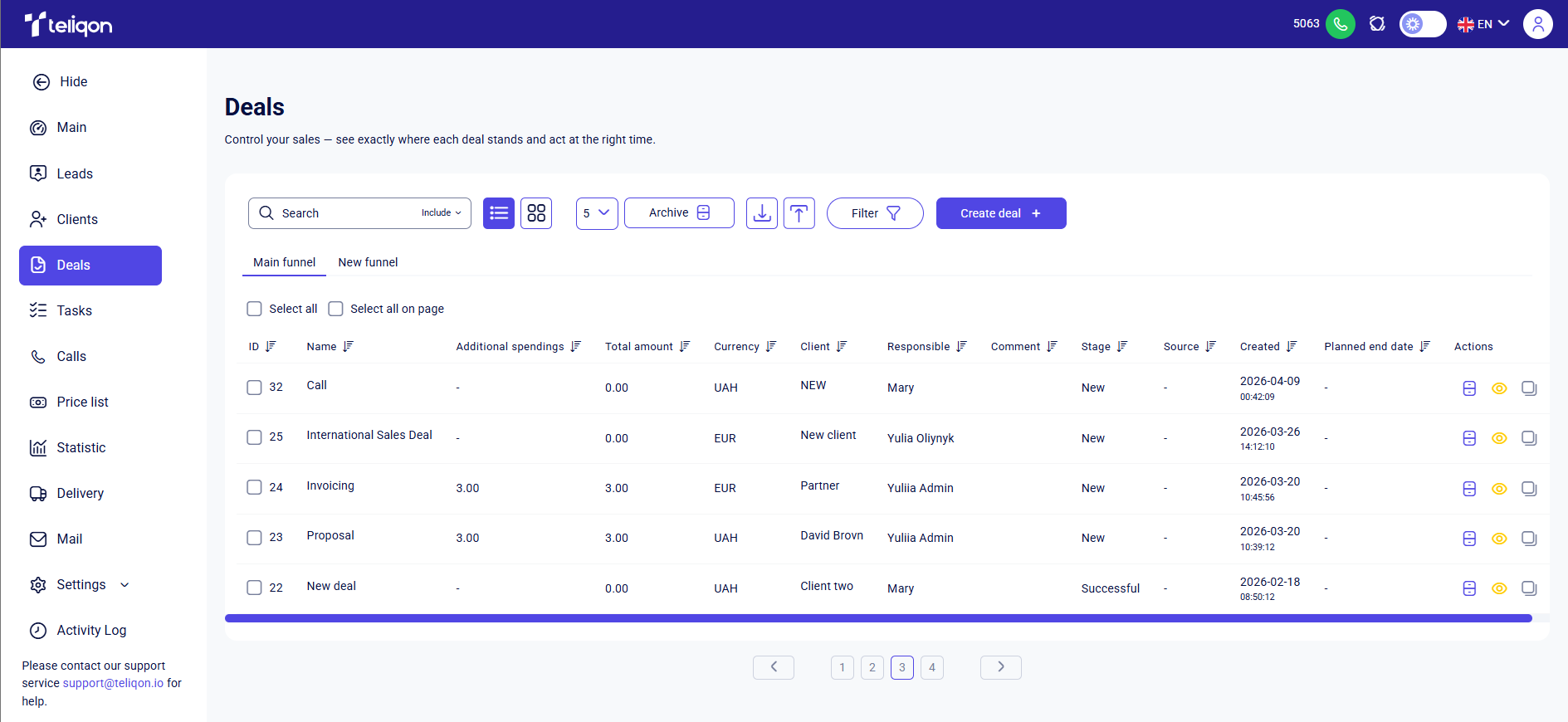
How to work with the Deals page
Toolbar
The toolbar on the Deals page allows you to quickly and conveniently perform various actions with your deal records.
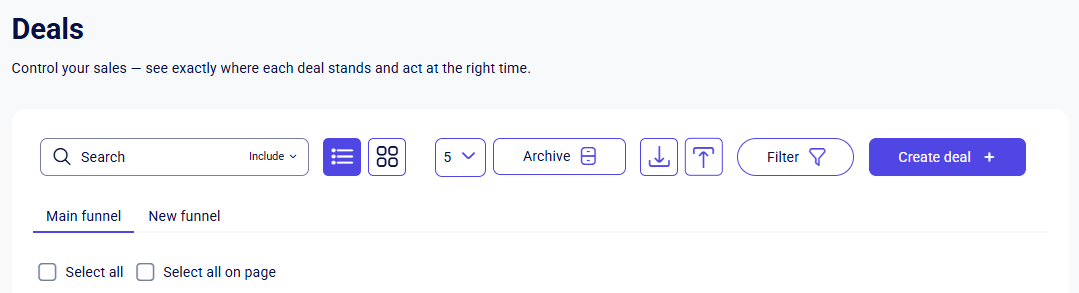
-
Search bar: provides a convenient way to find deals by entering full or partial matches across any field. To use the search bar, simply click on it and start typing - the search begins automatically as soon as you enter the first characters. The search bar also features “Include” and “Exclude” filters, giving you the flexibility to include or exclude results based on specific keywords.
-
Switch view mode: toggle between List view and Board view by clicking the corresponding icons:
-
List view displays deals as a structured list.
-
Board view displays deals as cards.
- Pagination button: allows you to limit the number of records displayed on the page.
Available options:
-
5;
-
10;
-
25;
-
50;
-
100
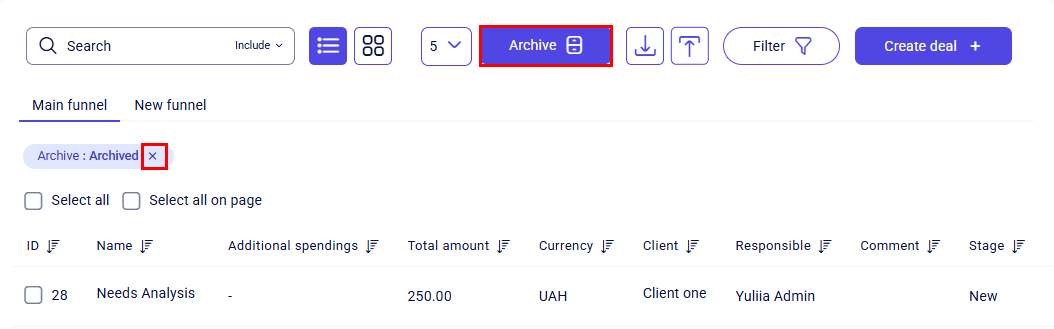
- Archive button: lets you switch between active and archived deals in your project.
The first click navigates to archived deals. To return to active deals, click the button again or click the X next to the automatically created filter.
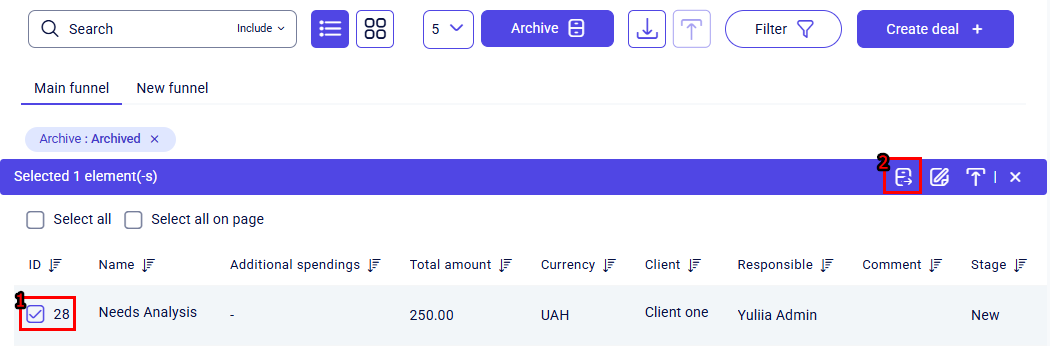
To restore a deal from the archive to the active list, select it using the checkbox and click Unarchive on the quick actions toolbar:
Or use the separate button next to the item in the Actions column.

-
Import button: allows importing deal data into the system. Detailed description available here.
-
Export button: enables exporting deal data from the system. Detailed description available here.
-
Filter button: allows you to filter deals based on a combination of parameters across different fields. Detailed description available here.
-
Create deal + button: allows you to add a new deal to the system. Detailed description available here.
-
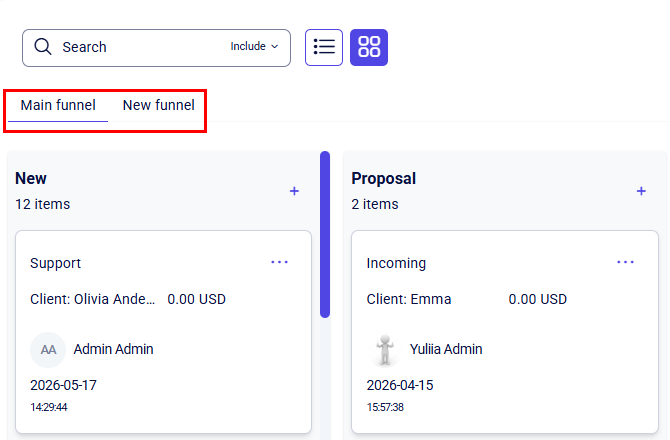
Funnel selection bar: enables you to instantly switch your workspace between different sales funnels (e.g., “Main” and “International”). Instructions on how to manage funnels can be found here.
-
The Select all button allows you to select all deals in the system for bulk actions with a single click, while the Select all on page button selects only the deals currently displayed on the active page. Clicking the button once marks all the checkboxes, and clicking it again clears the selection.
Deal list and Board Management
You can choose between two display modes for viewing your deals: List view or Board view. Each mode offers its own advantages.
List view
The List view provides a convenient way to sort data with a single click, as it allows the use of quick filters located next to the column headers.
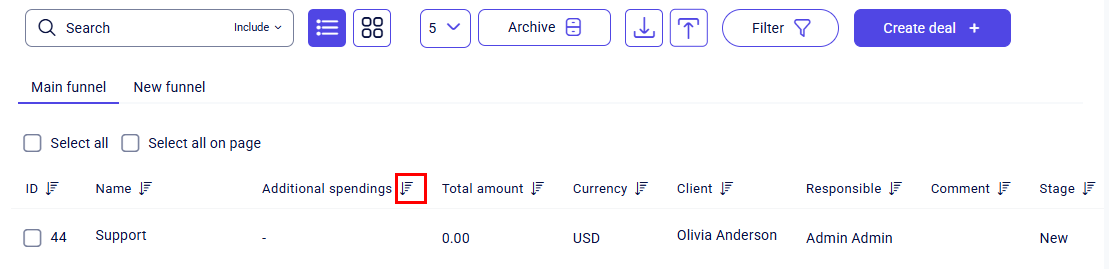
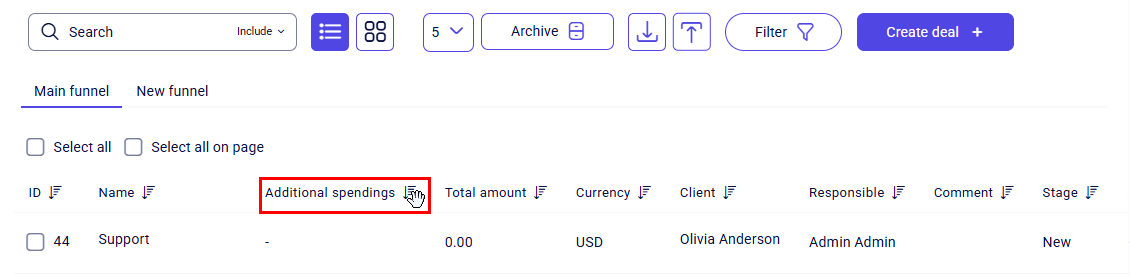
Only one quick filter can be active at a time. Each quick filter has three states, which can be toggled by clicking on it:
-
No sorting;
-
Sort descending;
-
Sort ascending.
Clicking another quick filter will automatically reset the previously selected one to its initial state (no sorting).
Additionally, the system supports free column movement in almost every section or block. Simply click and hold the desired column with your left mouse button and move it into your preferred sequence. This allows you to instantly adapt the interface layout to suit your tasks.
To the left of each record, there is an empty checkbox. Clicking the checkbox selects the corresponding item; clicking it again deselects it. After selecting a checkbox, the quick action panel appears, displaying the number of selected items and the available actions that can be performed with them:
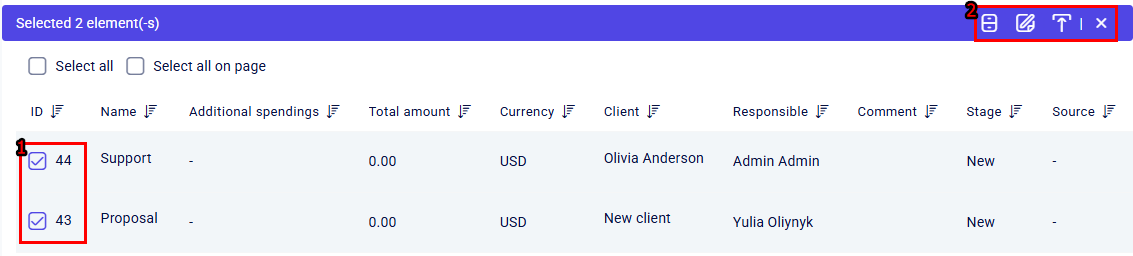
Elements on the additional panel (from left to right):
- Archive all selected items - this button is used to move selected deals to an "archived" state in bulk.
Deals will not be deleted from Teliqon CRM; instead, they will be transferred to the archived deals page. Instructions on how to access the archived deals page can be found in this section.
- Edit selected items - this button enables bulk editing of all selected elements (deals).
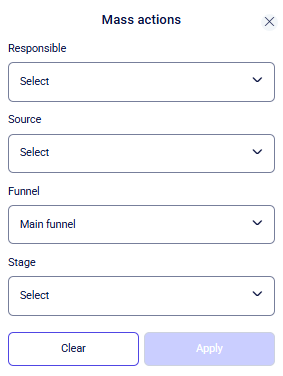
Clicking the button opens a popup window with available mass actions:
-
Bulk assignment of the ‘Responsible’ manager for selected deals.
-
Bulk assignment of the ‘Source’ for selected deals.
-
Bulk assignment of the ‘Funnel’ for selected deals.
-
Bulk assignment of the ‘Stage’ for selected deals.
Only default fields can be modified in this way.
The available values for these fields are limited to the options provided in the dropdown lists.
Clear button - cancels bulk actions, closes the popup window, and clears previously selected settings.
Apply button - saves the selected settings and applies them to the previously selected deals.
Close (X) button - closes the bulk actions popup.
-
Export data – quickly export records previously selected via checkboxes. Clicking this button opens a window showing the count of selected items and allows you to choose specific fields for the export. More details are available in this section.
-
Cancel (X) button - clicking the X on the additional panel will deselect all checkboxes, returning them to their default empty state.
To the right of each deal, there are three buttons:
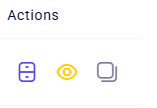
-
Archive deal: this button allows you to move a deal from active to archived with a single click. Archived deals in your project can be viewed using the archived deals button.
-
View personal deal card: instructions on how to work with the personal deal card are provided here.
-
Copy personal deal card link.
Board view
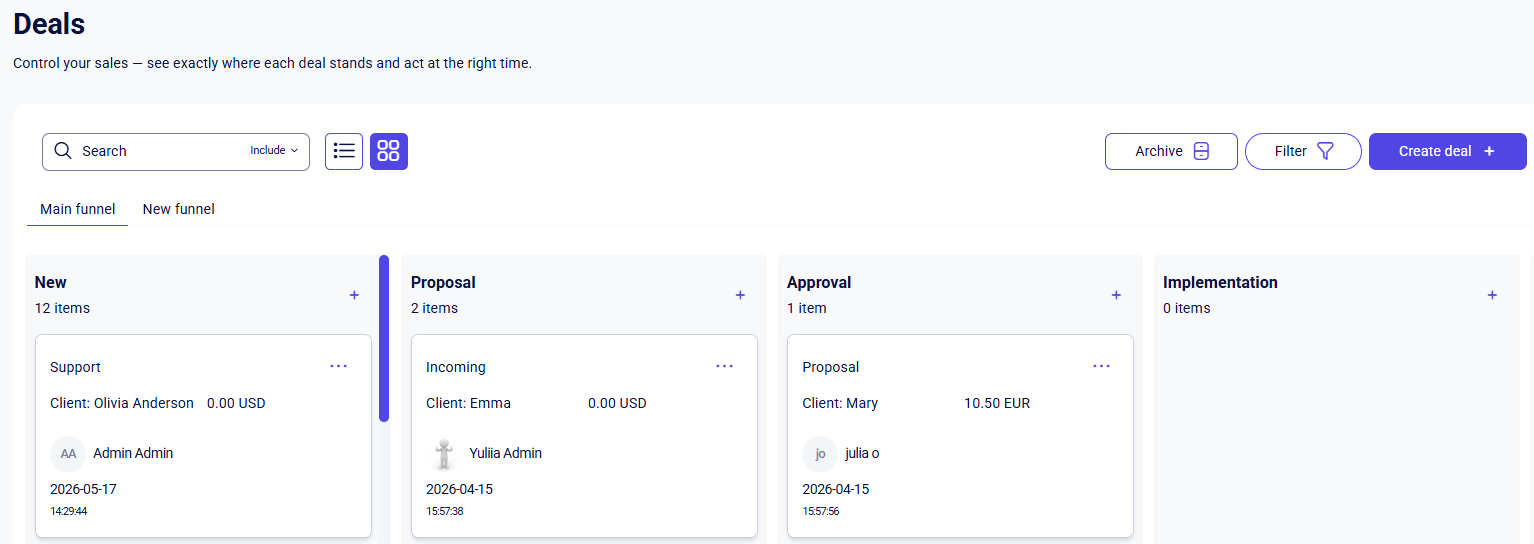
Enabling Board view displays your deals as cards grouped by their respective statuses. This visualizes the workflow and allows for convenient moving of deals between stages using drag-and-drop.
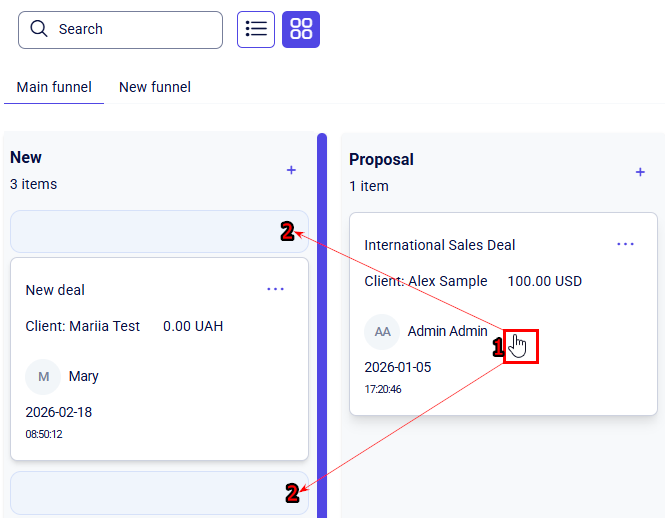
To change the deal status, press and hold the card with the left mouse button and drag it to the desired column. Once a blank space appears in the new status, release the mouse button.
Unlike the List view, the Board view does not include buttons for exporting, importing, limiting the number of records per page, or bulk selecting deals.
On the deal board, you can create a new deal using any of the three creation buttons:
-
On the toolbar, as described in this section.
-
At the top of a column corresponding to a specific status.
-
At the bottom of a column corresponding to a specific status.
The first button creates a deal without an assigned status, requiring manual selection. In contrast, using the second or third options within a specific column automatically preselect the status in the Create a deal popup. This status can still be modified manually if needed.
You can also choose the funnel in which a deal will be created. It is convenient to switch between them using the top panel - simply click on the name of the desired funnel to do so:
To edit a specific deal on the Board view, click anywhere on the deal card except for the "..." icon. Details on working with the personal deal card are provided here.
By clicking on the "..." menu, you can choose one of the following options:
-
Archive deal: this button allows you to move a deal from active to archived with a single click. You can view your project's archived deals by clicking the Archive button.
-
Copy deal link: copies the link to the deal's record.
Deals filters
On the Deal toolbar, there is a Filter button. This feature allows you to quickly and conveniently filter deals based on specific criteria.
After clicking the Filter button, a popup window will appear with the available filtering options. By default, you can filter deals by the following parameters:
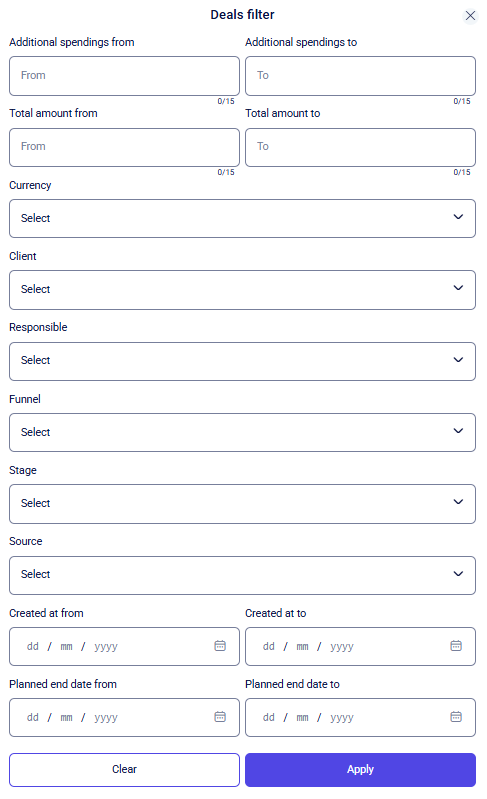
-
Additional spendings from - Additional spendings to;
-
Total amount from - Total amount to;
-
Currency;
-
Client;
-
Responsible;
-
Funnel;
-
Stage;
-
Source;
-
Created at from - Created at to;
-
Planned end date from - Planned end date to.
The parameters Created at from/to and Planned end date from/to fields can be set in two ways:
-
Manually: enter the date using your keyboard in the day/month/year format (e.g., 15/06/2024).
-
Via the calendar: click on the field and select the desired date from the calendar window that appears.
The Additional spendings from/to and Total amount from/to parameters can be configured by manually entering numeric values using your keyboard or using the control arrows.
All other deal filtering parameters can be configured using a dropdown list of values.
Once you have selected the necessary filtering parameters and want to apply the changes, click the Apply button.
To reset the fields to their default values, click the Clear button.
To close the filtering window, click the X in the top-right corner.
Create a new deal
Clicking the Create deal + button will open a popup window where you need to fill in the fields for the future deal. Mandatory fields are marked with an asterisk (*).
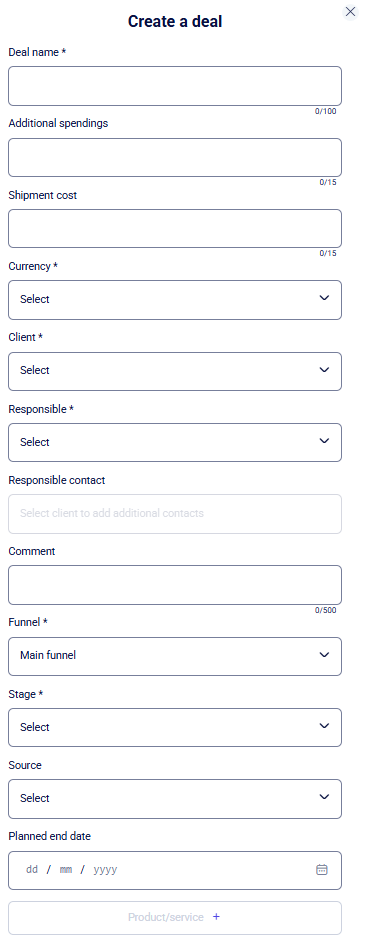
To create a deal, the following mandatory parameters must be filled in:
-
Deal name *;
-
Currency *;
-
Client *. Select an existing client from the list or create a new one by choosing the “+ Create client” option (for quick lead-to-client conversion). Detailed instructions on creating a client can be found here;
-
Responsible *;
-
Funnel *;
-
Stage *.
The following fields are optional:
-
Additional spendings;
-
Shipment cost. The system automatically populates this field based on the waybill (TTN) if the Sender is the payer. This value is voided upon waybill deletion. Manual input is supported for entering delivery costs from other courier services;
-
Responsible contact;
-
Comment;
-
Source;
-
Planned end date;
-
Product/service.
This field allows you to link products or services selected by the client to the deal. You can manage your list of services and products in the Price List section. If you have product/service configured, you can link them to the deal by clicking the plus (+) icon in the corresponding field:
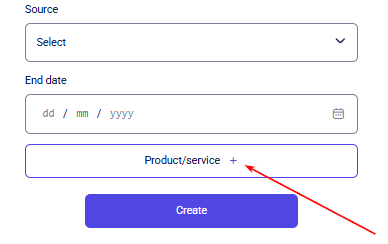
Then, select the required product/service by checking the box next to the item (1) and confirm your selection by clicking Save selected products (2).
If the client has ordered multiple items, you can specify the amount in the Amount field within the Selected window. This field can be filled in manually using your keyboard or by clicking the up/down arrows.
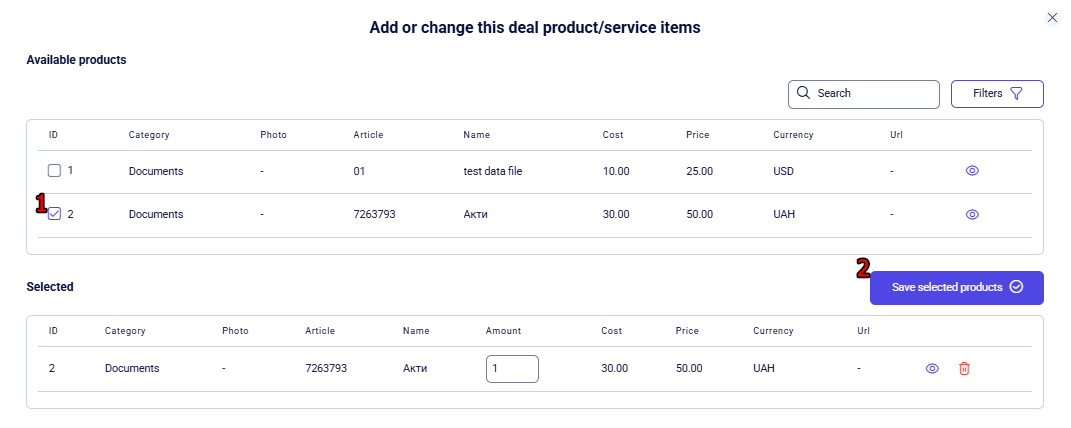
Important: you can only add products or services to a deal if their currency matches the currency of the deal itself. Additionally, archived items cannot be attached to active deals.
Fields are configured in the Settings→ Deals section, and are divided into two types:
-
Fields with a dropdown list of values;
-
Fields where information must be entered manually via the keyboard.
Once the required fields are filled in, click the Create button located at the bottom of the form. If you decide not to create the deal, click the X in the top-right corner of the form.
After creation, the new deal will appear in both the list and board views.
Deal import
To import deals, you need to click the corresponding button located to the right of the Export date button. After that, a pop-up window will appear:
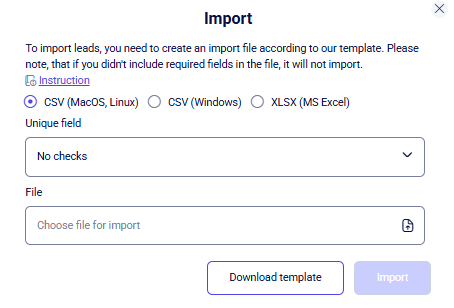
In the import popup, you can upload a deal file based on the template. To do this, click the "File" field (indicated by a document icon with an arrow). In the file browser window that opens, select the document containing the deals you wish to upload from your device and confirm your choice.
You can also follow the upload instructions by clicking the Instruction link.
Two file formats are supported: CSV and XLSX. Depending on your operating system, select one of the three checkboxes:
-
CSV (MacOS, Linux);
-
CSV (Windows);
-
XLSX (MS Excel).
You can choose one of the following three unique fields:
-
No checks;
-
Id;
-
Name.
To create the required import file, click Download template, fill it in with your deal data, and then select it using the Choose file to import field.
Important: The template includes the 'ID' parameter, which must be filled in manually before import. You can find the last used deal ID in the system by sorting the list by 'ID' using the quick filter. Once identified, add 1 to the last deal ID - subsequent deals should be numbered with an increment of +1. If an entered ID already exists in the system, all other records will be imported except the conflicting one.
After setting all the necessary import parameters, click Import. The system will upload the deals, and they will appear in your deal list.
If you decide not to import the file, click the X in the upper-right corner of the pop-up window to return to the deals list or board view.
Deal export
You can export deals in two ways:
-
Via the quick action panel- exports only the records selected with checkboxes. More details about the quick action panel can be found here;
-
Via the general Export Data button on the toolbar- downloads all deals based on the filters configured for export. After clicking, a pop-up window will open:
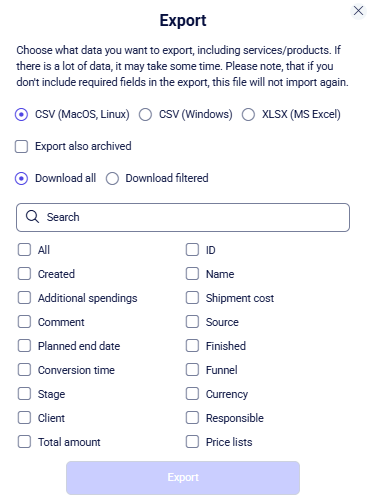
In the export pop-up window, you can configure the following export settings:
-
Download all deals or only previously filtered deals;
-
Export also archived deals;
-
Select the list of deal fields that will be included in the exported .csv file.
Two file formats are available for selection: CSV and XLSX. Depending on your operating system, choose one of the three checkboxes:
-
CSV (MacOS, Linux);
-
CSV (Windows);
-
XLSX (MS Excel).
For convenience, you can use the search bar to quickly find the fields you need for the export. The search works based on full or partial matches of the text entered from the keyboard.
After selecting the settings, click Export. The system will download a file to your computer in the selected format containing the list of deals with the chosen parameters.
To cancel the export and return to the deals, click the X (Close) button in the top-right corner of the window.
View an existing deal's card
Each deal in the system has its own personal card. Click on the deal's name or the view button to open the editing page, which looks like this:
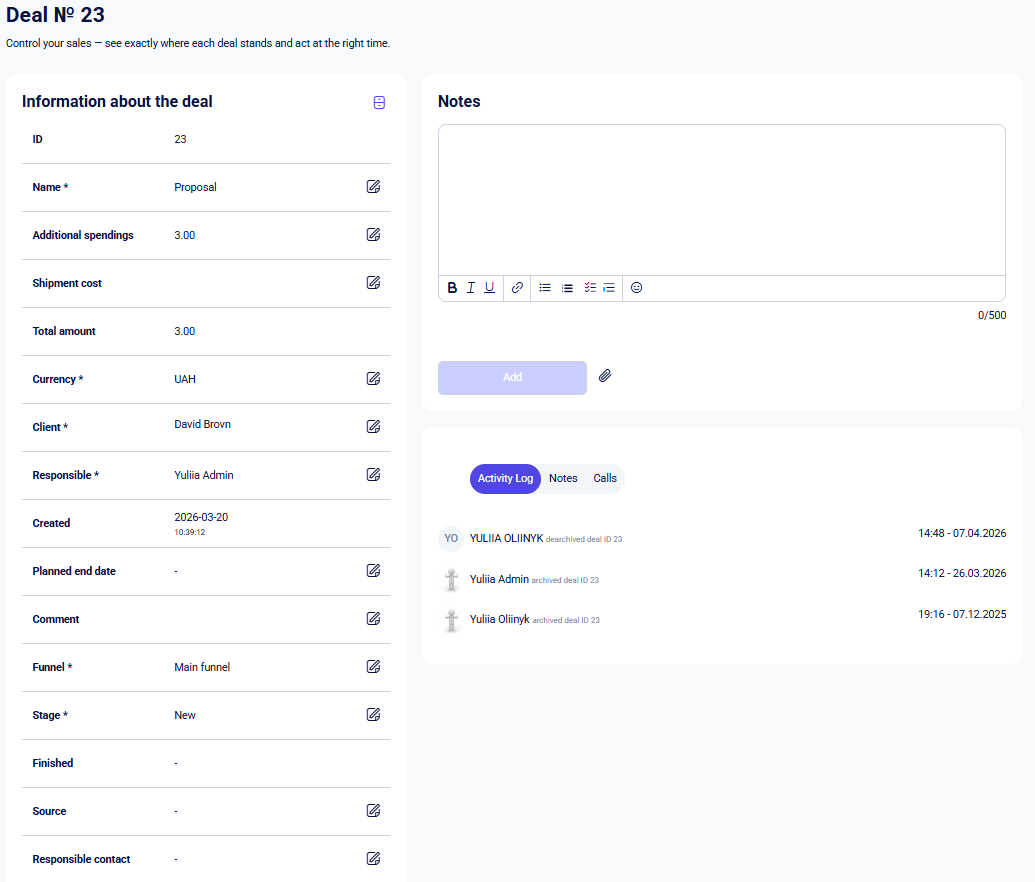
On the deal profile page, you can find the following sections:
-
Information about the deal;
-
Notes;
-
Activity block (Activity Log, Notes, Calls);
-
Delivery;
-
Tasks;
-
Product/service.
To exit the profile and return to the main list, click Deals (available in List view):
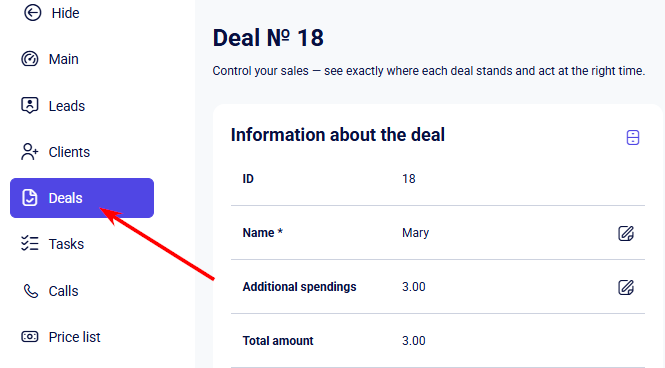
In Board view, click the X in the top-right corner of the modal window to close it.
Information about the deal
In addition to the editable parameters, there is an Archive button at the top of this block.

Clicking it will set the deal's status to 'archived', moving it to the archived deals page. Clicking it again will unarchive the deal and return its card to active status. Instructions on how to access the archived deals page can be found here.
Below the buttons, the deal parameters are displayed. These include both default system parameters and your custom-configured parameters. Parameters can be configured in the Settings→ Deals section.
The following fields are considered default system parameters:
-
ID (non-editable field);
-
Name *;
-
Additional spendings;
-
Shipment cost;
-
Total amount;
-
Currency *;
-
Client *;
-
Responsible *;
-
Created;
-
Planned e nd date;
-
Comment;
-
Funnel *;
-
Stage *;
-
Finished;
-
Source;
-
Responsible contact.
You have the ability to change any of the system or custom parameters, except for ID, Created, and Finished. The ID and Created parameters are set at the moment the deal is created and cannot be edited. The Finished parameter is set at the moment the deal is closed. The Total amount parameter automatically calculates the total cost by factoring in the price and quantity of items in the deal, additional spendings, and shipping costs (if applicable).
To make changes to a parameter, click the Edit icon to the right of the selected parameter. For example:
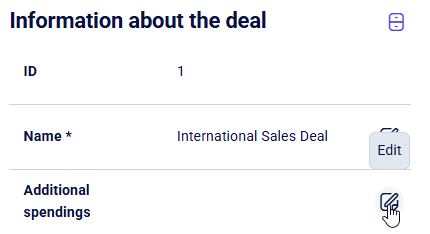
Then, click on the desired field and make your changes.
Once you have finished editing, scroll to the bottom of the block and click Save to apply the updates, or Cancel to discard them.
Notes
In the note creation field, you can enter text of up to 500 characters.
For convenient note formatting, you can use the tools available on the bottom toolbar:
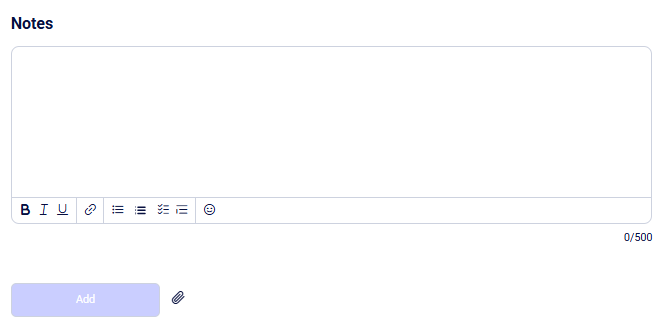
List of tools (from left to right)
-
Bold text;
-
Italic text;
-
Underlined text;
-
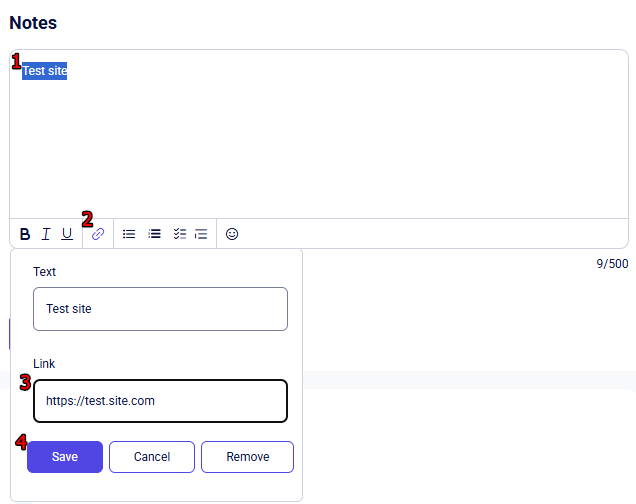
Insert a link ;
To do this, enter your text, highlight it with your cursor by holding down the left mouse button, and click the Link button. A pop-up window will appear where you should enter the URL in the format "https://test.site.com". Then, click Save if you have entered the correct link, Cancel or Delete if you change your mind.
-
Format text as a List view;
-
Format text as an Ordered List;
-
Format text as a Task List;
-
Format text as a Blockquote;
-
Add an Emoji.
Additionally, you can attach a file to the note. To do this, click the "paperclip" icon to the right of the "Add" button:
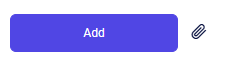
In the window that appears, select the required document from your device.
Important: There is a limit of up to 5 files, with a maximum size of 5 MB each. If necessary, these parameters can be increased - please contact our support team for assistance.
After creating a note, you need to click the Add button.
Block with Activity log, Notes, Calls
This block contains three tabs that allow you to view the following:
-
Activity Log. This tab displays changes made to the deal by managers. For example: changing the responsible person or manually filling in a parameter;
-
Notes added to the deal;
-
Incoming, outgoing, and missed calls to/from the client's number linked to this deal. It is important to note that the deal itself does not have a phone number field, so without being linked to a client entity, calls will not be displayed in the deal.
Delivery
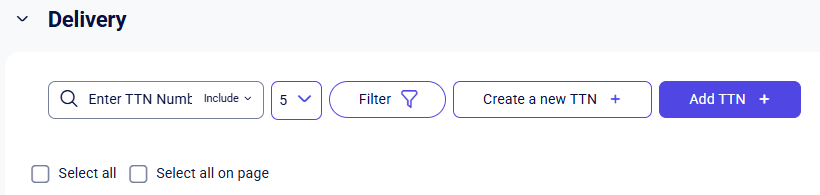
The Delivery block features a toolbar with the following functions:
-
Search field for finding records by TTN number;
-
Display limit button, which allows you to set the number of records shown per page;
-
Filter button;
-
Create a new TTN button;
-
Add TTN button.
If your project doesn't have an active integration with Nova Poshta, clicking on the Create a new TTN or Add TTN buttons will open a pop-up window prompting you to configure the integration first.
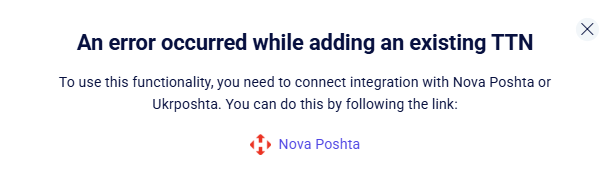
Once the integration is successfully configured, you will be able to use all the features of this section.
You can find detailed instructions on how to set up the Nova Poshta integration in the following documentation section.
The block also features the Select all and Select all on page checkboxes. These allow you to select either all scheduled deliveries for this deal's client or only those displayed on the current page to perform operations on the action panel:
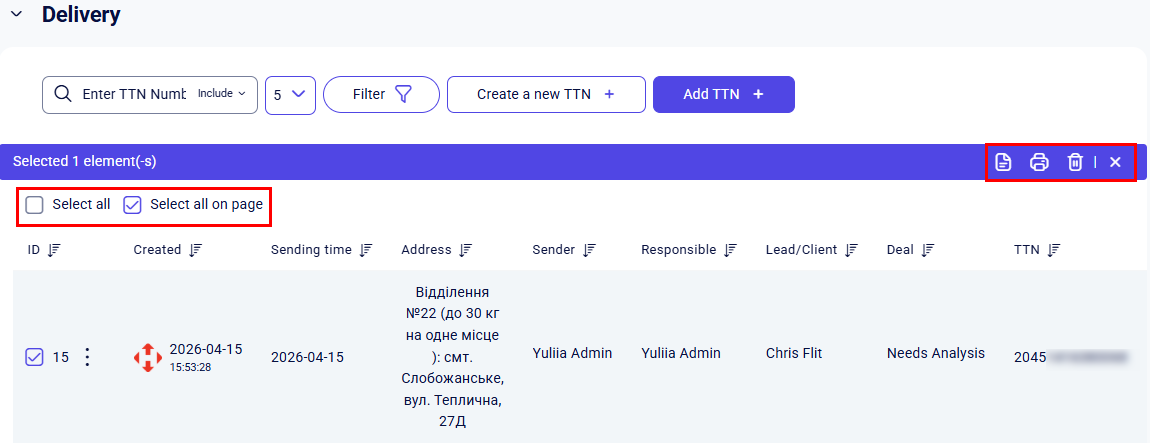
The following bulk actions are available:
- Print selected delivery registry.
This action generates a delivery list for the courier's convenience. Clicking this button downloads a .pdf file to your computer containing the following delivery details: ID, Tracking Number (TTN), Shipment Information, Delivery Cost, Recipient Details, Additional Information, and Payment Method.
- Print selected invoices.
This action generates a list of deliveries for convenient use by the courier. Printing is available in the following three formats:
-
Labeling;
-
Zebra type making;
-
Making 100×100 type Zebra.
-
Delete TTN;
- Deselect all.
To cancel the bulk selection of tracking numbers, click the Select all checkbox again or click the X on the bulk actions toolbar.
Create a new TTN
Once you have configured the integration with Nova Poshta, you can start creating TTNs for a deal.
To do this, click the Create a new TTN + button in the Delivery block.
After clicking the button, you will be redirected to the New TTN Creation page, which appears as follows:
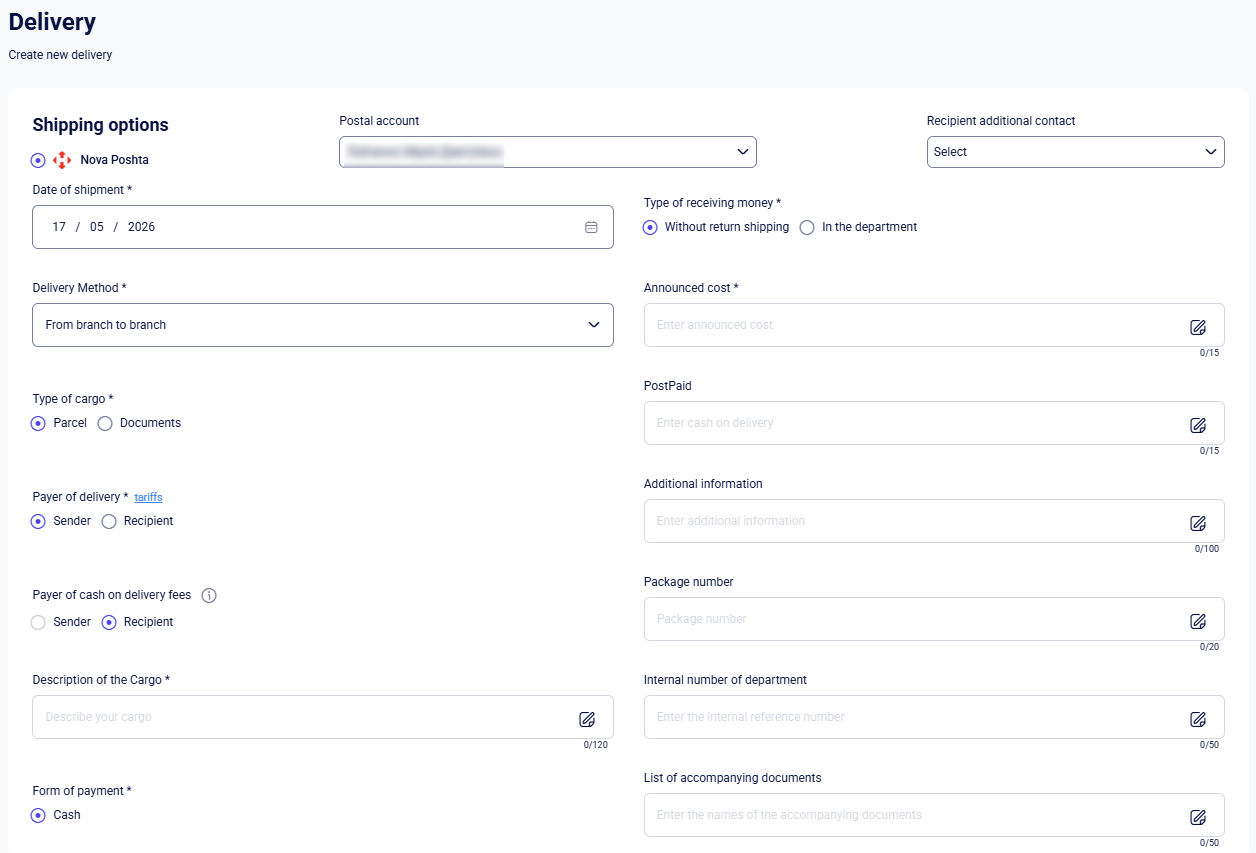
The Create New TTN page consists of the following sections:
-
Shipping options;
-
The size of the shipment;
-
Sender data;
-
Recipient data.
Once all mandatory fields are completed, click the Save button at the bottom of the page to create the new TTN.
Shipping options
In the Shipping options block, the following fields are available for completion:
-
Checkbox to select the desired postal service: Nova Poshta;
-
Postal account. If you have integrated multiple accounts, you can choose the one you need at any given moment here;
-
Recipient additional contact. This option is enabled only when multiple contact numbers are detected in the client's card, providing a dropdown to select the primary recipient for this action;
-
Date of shipment * - must be filled in the day/month/year format, e.g., 15/06/2024, or you can select the desired date using the calendar icon located to the right of the field;
-
Delivery method *;
-
Type of cargo *;
-
Payer of delivery *. Click the tariffs button to view the carrier's current tariff schedule;
-
Payer of cash on delivery fees *;
-
Description of the Cargo * ;
-
Form of payment *;
-
Type of receiving money *;
-
Announced cost *;
-
PostPaid;
-
Additional information;
-
Package number;
-
Internal shipment number;
-
List of accompanying documents.
The following fields must be filled in manually using the keyboard:
-
Description of the Cargo *;
-
Announced cost *;
-
PostPaid;
-
Additional information;
-
Package number;
-
Internal number of department;
-
List of accompanying documents.
To unlock a field for editing, click the Edit icon to the right of it.
For the following fields ‘Postal account’, ‘Recipient additional contact’ and ‘Delivery method' select one of the available options from the dropdown list.
Once you’ve chosen all the necessary parameters, you can proceed to configure the next block.
The size of the shipment
The size of the shipment block has two modes that can be switched using the General parameters checkbox.
When the General parameters checkbox is selected, you need to fill in the following three required fields:
-
Total weight (kg) *;
-
Number of seats *;
-
Total volume of shipment *.

The ‘Number of seats’ field indicates the actual number of individual cargo items ready for shipping.
If you uncheck the General parameters box, the following four required fields will become available for editing:
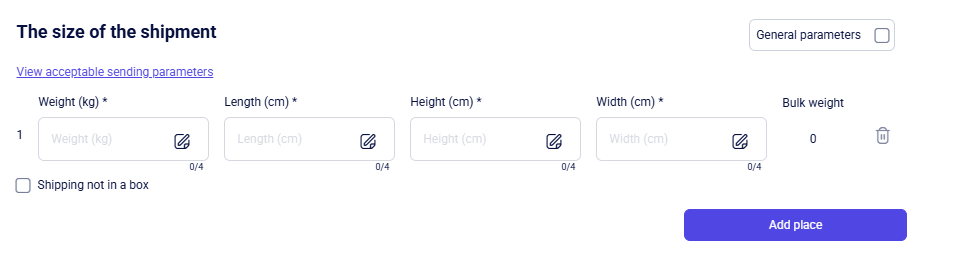
-
Weight (kg) *;
-
Length (cm) *;
-
Height (cm) *;
-
Width (cm) *.
In addition, you can mark the Shipping not in a box checkbox for each added item individually.
If you need to add another item, click the Add place button. After clicking, a new row will appear in the list, where you can enter the details of the next object for shipment. Depending on how many items you add, after saving The size of the shipment, the system will automatically suggest the appropriate Nova Poshta branch in the Sender data and Recipient data settings.
The ‘Bulk weight will’ be calculated automatically once you fill in the first four parameters.
You can delete any item by clicking the Delete icon located to the right of the row containing the shipment size information. After that, the entry will be removed from The size of the shipment block.
Sender data
In this block, the following parameters are available for you to fill in:
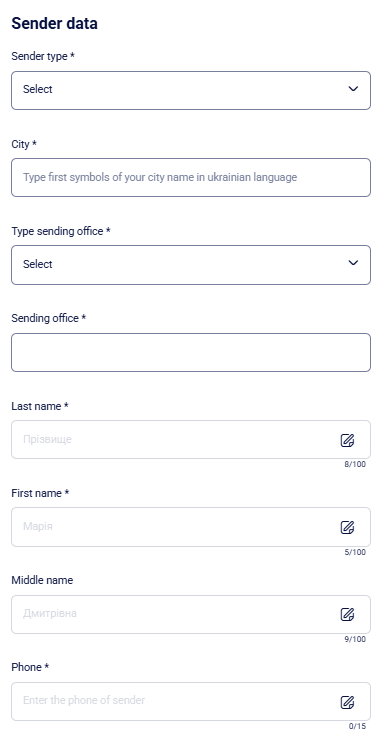
-
Sender type *;
-
City *;
-
Type sending office *;
-
Sending office *;
-
Last name *;
-
First name *;
-
Middle name;
-
Phone *.
All parameters, except for ‘Middle Name’ are mandatory when creating a new TTN.
To fill in the 'City' and 'Sender office' fields, start typing the data in Ukrainian. For example, if you type 'Одеса' in the 'City' field, a dropdown list will suggest options like 'Одеса' and 'Нова Одеса', which you can then select by clicking.
The 'Last Name', 'First Name', 'Middle Name', and 'Phone' parameters can be filled in manually using your keyboard.
Please note: The 'Last Name', 'First Name', and 'Middle Name' fields are automatically populated using data from your selected Postal account,
After completing the Sender data block, it is important to fill out the Recipient data block.
Recipient data
In this block, the following parameters are available for you to fill in:
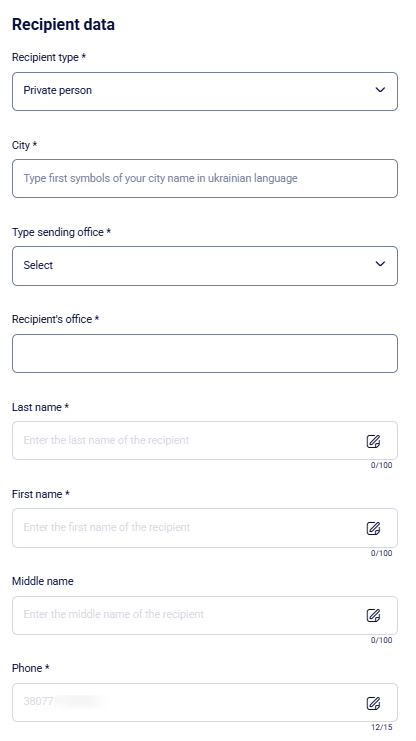
-
Recipient type *;
-
City *;
-
Type sending office *;
-
Recipient's office *;
-
Last name *;
-
First name *;
-
Middle Name;
-
Phone *.
All parameters, except for ‘Middle Name’, are mandatory when creating a new TTN.
To fill in the 'City' and 'Recipient's office' fields, start typing the data in Ukrainian. For example, if you type 'Одеса' in the 'City' field, a dropdown list will suggest options like 'Одеса' and 'Нова Одеса', which you can then select by clicking.
The 'Last Name', 'First Name', 'Middle Name', and 'Phone' parameters can be filled in manually using your keyboard. Note: The 'Phone' field is automatically populated with data from the selected client's profile, but you can still edit it manually if needed.
All other parameters have to be selected from the dropdown list of available values.
To save your changes, click the Save button at the bottom of the page. If any mandatory fields in other sections remain empty, the changes will not be saved until all required fields are completed.
If you decide not to create a new TTN, click the Cancel button at the bottom of the page to discard all changes and return to the client’s personal card view.
Add TTN
After clicking the Add TTN button, a pop-up window will appear where you can add an existing TTN:
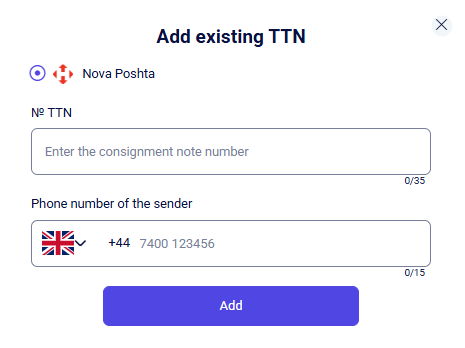
To do this, fill in the following fields:
-
Select the postal service to which the TTN belongs. (Currently, only Nova Poshta is available.);
- № TTN.
This field can be filled in if you already have a shipment created on Nova Poshta, for example. Once the TTN is added to the deal, the corresponding delivery details will automatically appear in the Delivery block of the deal’s personal card.
- Sender’s phone number.
After these three fields are filled out, click Add in the pop-up window to attach the existing TTN.
If you decide to cancel the process, click the X in the top-right corner of the pop-up window.
Filter
When you click the Filter button, a pop-up window will appear where you can configure filtering using the following default parameters:
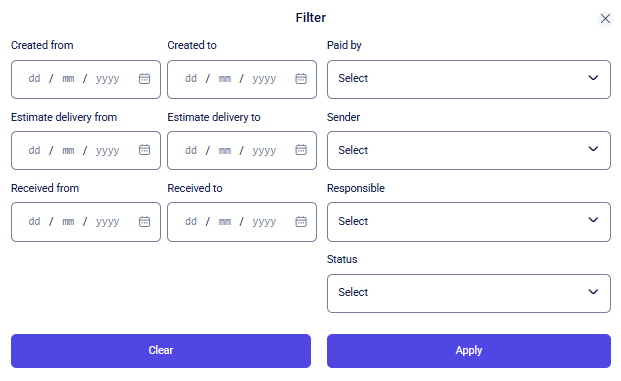
-
Created from - Created to;
-
Estimate delivery from - Estimate delivery to;
-
Received from - Received to;
-
Paid by;
-
Sender;
-
Responsible;
-
Status.
The following parameters: ‘Created from/to’, ‘Estimate delivery from/to’, ‘Received from/to’ can be configured in two ways: manually or via the calendar. More detailed instructions on using the calendar are provided in the main Filter section.
All other parameters for filtering delivery information can be configured using a drop-down list.
Once you have selected the necessary filtering parameters and want to apply the changes, click the Apply button.
To reset the fields to their default values, click the Clear button.
To close the filter window, click the X in the top-right corner.
Task
This block displays information about tasks associated with the Deal.
The task information block appears as follows:
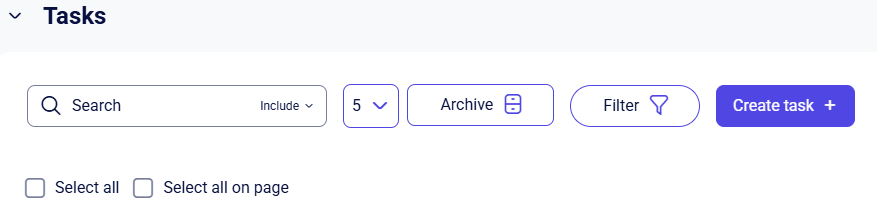
The toolbar contains the following buttons:
-
Search field: provides a flexible way to find tasks by matching any string of characters. The search bar also features an Include / Exclude option, allowing you to filter results using specific keywords. By clicking the bar and typing, the system will instantly filter and display relevant tasks in real-time.
- The button to limit the number of records displayed on the page.
It has the following options:
a. 5;
b. 10;
c. 25;
d. 50;
e. 100
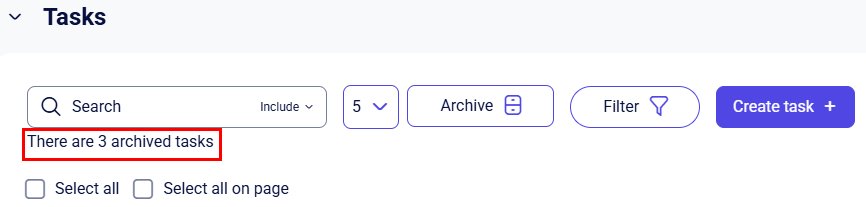
- Archive button: enables switching between active and archived tasks for the client. The first click on this button navigates to archived tasks. To return to active tasks, click the button again.
For convenient monitoring, an There are [N] archived tasks counter is located under the search bar, automatically displaying the total number of archived tasks for the current deal.
-
Filter button: enables filtering tasks based on a combination of filters across different fields. Detailed description of this button can be found here.
-
Create task button: allows you to add a new task to the system.You can read about how to add tasks to the system here.
-
The Select all button allows you to select all tasks in the system for bulk actions with a single click, while the Select all on page button selects only the tasks currently displayed on the active page. Clicking the button once marks all the checkboxes, and clicking it again clears the selection.
Create task
Clicking this button opens the Create task popup window:
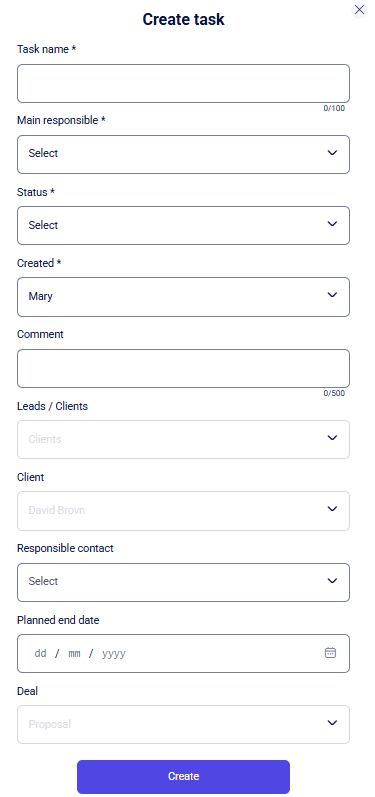
Creating a task directly from a deal profile works the same as in the Tasks section. The main benefit is the automatic link - the system automatically fills in the details for the client associated with this deal, whereas in the general Tasks section, you have to select the client and the deal manually from the list. You can find more details about working with tasks in the dedicated section.
Once the required fields are filled in, click the Create button at the bottom of the form. After the task is created, it will appear in the task list.
If you decide not to create the task, click the X in the top-right corner of the form.
Filter
When you click the Filter button, a pop-up window will appear where you can configure filtering using the following default parameters:
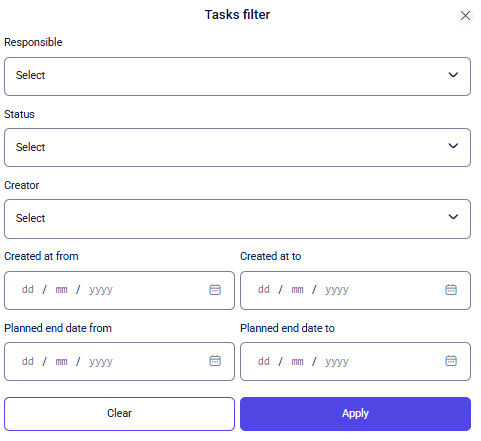
-
Responsible;
-
Status;
-
Creator;
-
Created at from - Created at to;
-
Planned end date from - Planned end date to;
The parameters Created at from/to and Planned end date from/to fields can be set in two ways:
-
Manually: enter the date using your keyboard in the day/month/year format (e.g., 15/06/2024).
-
Via the calendar: click on the field and select the desired date from the calendar window that appears.
All other parameters for filtering task information can be configured using a dropdown list of values.
To activate your selected filters, click the Apply button.
To reset all fields to their default values, click the Clear button.
To close the filter window, click the X in the top-right corner.
Task list
In the task list, there is an empty square (checkbox) next to each entry. Click it to select a specific item, or click it again to deselect it. Once a checkbox is selected, the quick action panel will appear, displaying the number of selected items and the available actions for them:

Additional panel actions (left to right):
-
Archive selected items: this button allows you to move all selected tasks to the archived state. Tasks will not be deleted from Teliqon CRM; they will simply appear on the Archived tasks page. Instructions for accessing the archived tasks page are provided in this section.
-
Edit selected items: this button enables bulk editing of all selected tasks. Clicking Edit selected items opens a popup with available bulk actions:
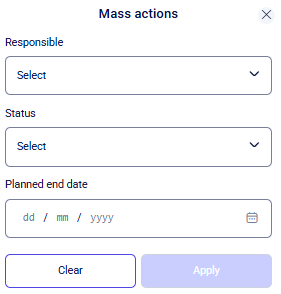
-
Bulk set of ‘Responsible’;
-
Bulk set of ‘Status’;
-
Bulk set of ‘Planned end date’.
Only default fields can be modified in bulk.
The available values for these fields are limited to the options provided in dropdown lists.
The Planned end date parameter can be set either by using the calendar - which opens upon clicking the field to let you pick a specific day, or by manually typing the date in the day/month/year format (e.g., 15/06/2024).
Clear: cancels bulk actions, closes the popup, and clears previously selected settings.
Apply: saves the selected settings and applies them to the previously selected tasks.
Close( X): closes the bulk actions popup.
-
Export data – quickly export records previously selected via checkboxes. Clicking this button opens a window showing the count of selected items and allows you to choose specific fields for the export.
-
Cancel selection. Clicking the X button will clear all selections and reset all checkboxes to their default (unchecked) state.
To the right of each task, there are three available actions:
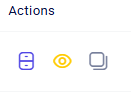
-
Archive task: moves the individual task to the archived state. Tasks remain in Teliqon CRM and appear on the page. Instructions for accessing the archived tasks page are provided in this section.
-
View task card: opens the personal task card.
-
Copy task card link: copies the link to the personal task card.
Personal task card
By selecting the Personal task card, you will be redirected to the specific record inside the Tasks module. You can find a guide on managing tasks in this section.
Services/products
The product/service information block appears as follows:

The toolbar contains the following buttons:
-
Search bar: provides a flexible way to find items by matching any string of characters. The search bar also features an Include / Exclude option, allowing you to filter results using specific keywords. By clicking the bar and typing, the system will instantly filter and display relevant items in real-time - the search begins automatically as soon as you enter the first characters.
-
The button to limit the number of records displayed on the page.
It has the following options:
a. 5;
b. 10;
c. 25;
d. 50;
e. 100
-
Filter button: enables filtering products/services based on a combination of filters across different fields. Detailed description of this button can be found here.
-
Product/service button: allows you to add products or services to the deal or change selected items.
Add product/service
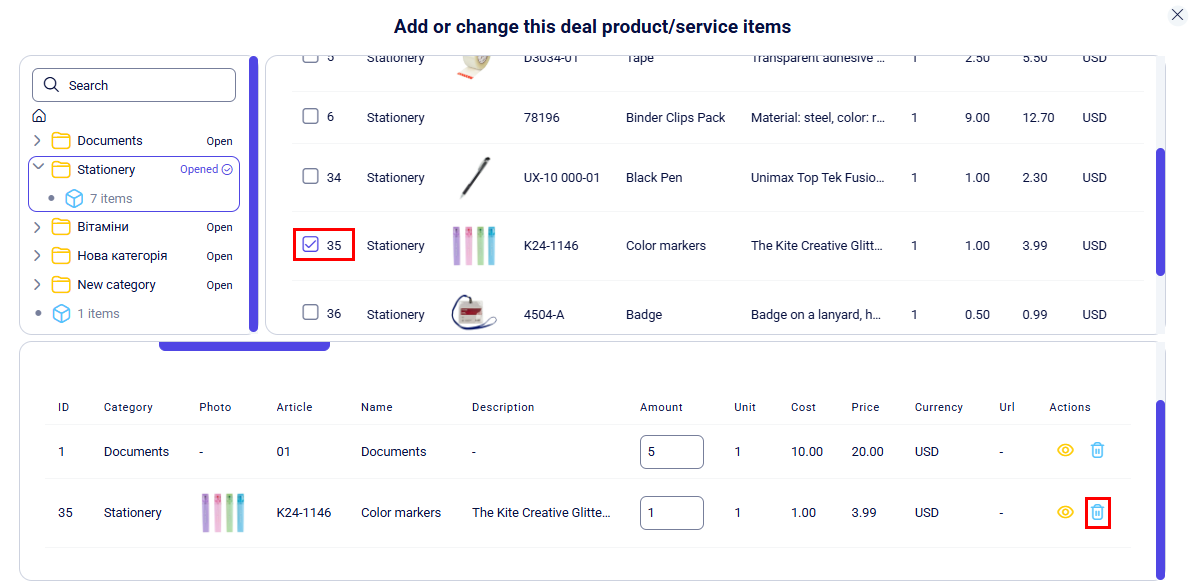
Clicking this button will open the Add or change this deal product/service items pop-up window:
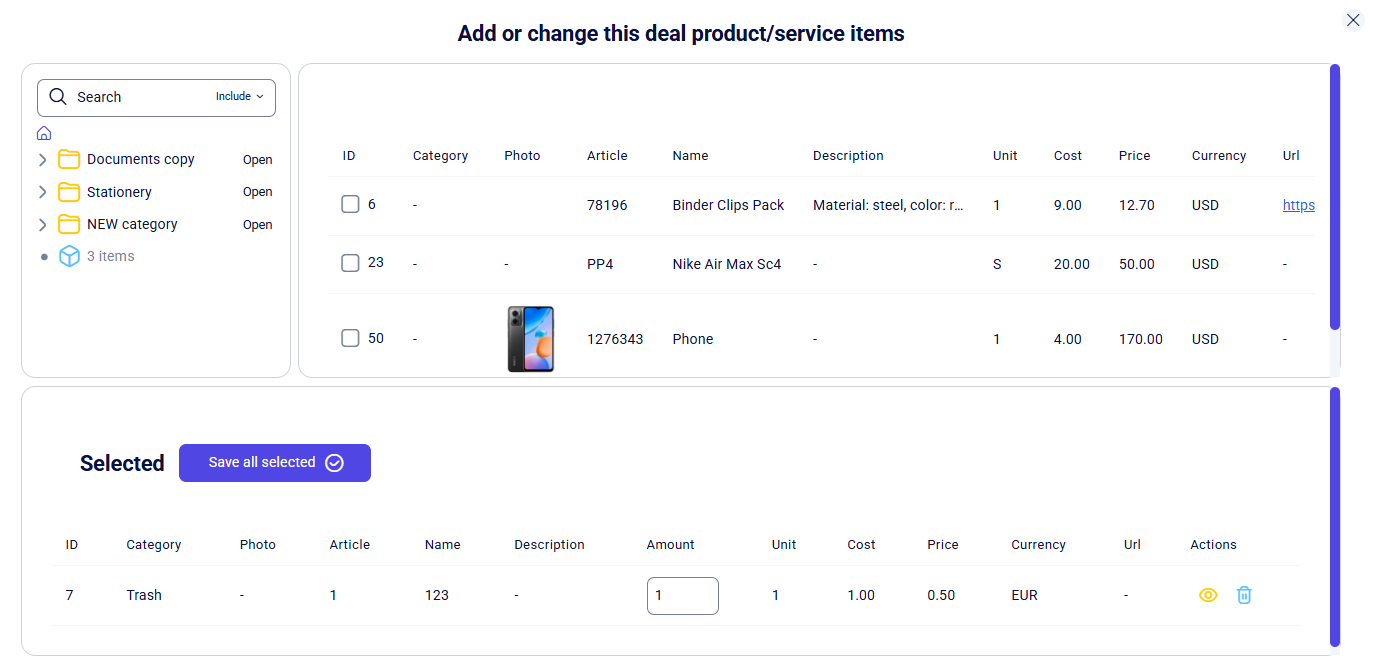
On the left, you can select the required category of products. These categories are formed in the Price list section.
After selecting a category (by clicking on its name), a list of products belonging to it will be displayed on the right. You can add products or services to the selection by marking the checkboxes to the left of their names. Important: you can only add products or services to a deal if their currency matches the currency of the deal itself. Additionally, archived items cannot be attached to active deals.
The amount of a product can be specified in the Selected block in the corresponding field: to do this, enter the required number using your keyboard or click the arrows with your mouse to adjust the value.
If you are satisfied with the selection, you can add the chosen products to the deal by clicking the Save all selected button in the Selected block.
To cancel the selection, find this item in the general list and click the checkbox next to it again, or click the Delete icon opposite the selected product. After this, the item will be removed from the Selected list.
Personal product/service card
To the right of the product/service list or within the Selected list, you can click the view button for products or services (the "eye" icon). By navigating to the Personal product/service card, the system will open the selected record within the Price list section. Instructions on how to interact with this section are available here.
Filter
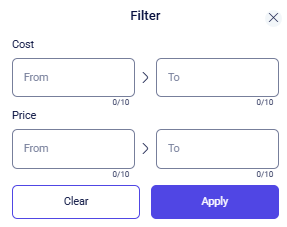
After clicking the Filter button, a popup window will appear where you can configure the data display by the following parameters:
-
Cost (from-to);
-
Price (from-to).
The parameters Cost and Price can be configured by specifying numeric values in the corresponding From and To fields. Data entry is performed using the keyboard or by clicking the control arrows with the mouse.
Once you have selected the necessary filtering parameters and want to apply the changes, click the Apply button.
If you want to reset the field values to their default state, click the Clear button.
If you need to close the filter window, click the X in the upper-right corner.
Clients
This guide explains how to work with clients in Teliqon CRM, including list and board views, filters, import/export tools, client profiles, notes, deliveries, tasks, deals, and additional contacts. It also describes bulk actions and key record-management workflows for the Clients section.
Tasks
This guide explains how to work with tasks in Teliqon CRM, including list and board views, task creation, imports, exports, filters, task cards, notes, and activity logs. It covers toolbar actions, bulk operations, task parameters, and related task management workflows.


