Calls
This guide explains how to work with Calls in Teliqon CRM. It covers viewing and filtering call records, downloading call recordings, adding notes, and using call-related actions on the Calls page.
General Information
This section contains information about the calls within your Teliqon CRM project.
On this page, you can:
- View calls as a list;
- Search for calls by full or partial matches in any field using the search bar;
- Sort calls by status (Incoming, Outgoing, Missed, Internal) or filter them by any field;
- Listen to calls directly on the page;
- Download selected calls as an archive with MP3 files and other.
To access this page and view call information, click on the Calls section in the left sidebar menu.
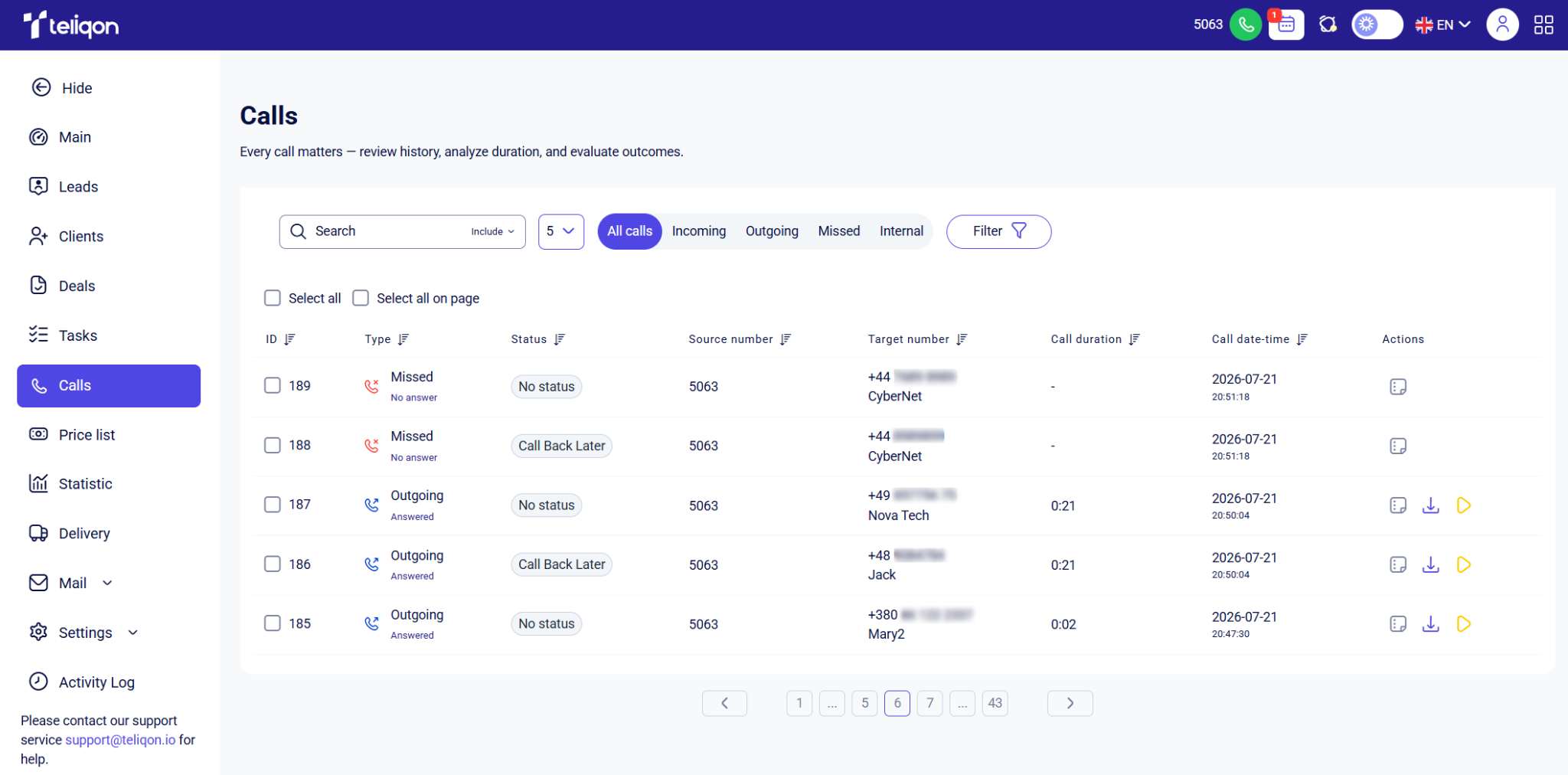
Call overview and management
Call toolbar
The toolbar on the Calls page allows you to perform actions on your calls quickly and efficiently.
The following options are available on the toolbar:
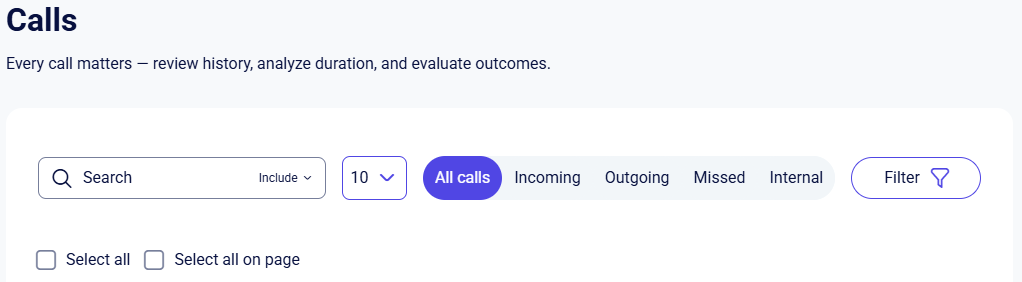
- Search bar provides a convenient way to search for calls by full or partial matches in any field. To use it, simply click on the bar and start typing - the search begins automatically as soon as you enter the first characters. The search bar also features “Include” and “Exclude” filters, giving you the flexibility to include or exclude results based on specific keywords.
- Entries per page toggle, which allows you to limit the number of records displayed on the page.
Options include:- a. 5;
- b. 10;
- c. 25;
- d. 50;
- e. 100.
- Call type toggle. Use this button to filter the list of calls on the page by type. It includes 5 options: All calls, Incoming, Outgoing, Missed and Internal;
- Filter button for the Calls page, which allows you to filter calls by combining various field criteria. For more details, see the description below.
- The Select all button allows you to select all records (calls) with a single click, while the Select all on page option selects only the records currently displayed on the active page. Clicking the button once marks the checkboxes, and clicking it again clears the selection.
Call list
Calls on this page are displayed as a list, where each column features a quick filter:

Only one quick filter can be active at a time. You can cycle through its three available states by simply clicking on the filter:
- No sorting;
- Sort descending;
- Sort ascending.
Clicking a different quick filter will reset the previously selected one to its initial state (No sorting).
To the left of the records, there is an empty square (checkbox). Click it to select a specific item, or click it again to deselect. Once a checkbox is selected, an additional quick panel appears, showing the number of selected items and the available actions:

- Send call recordings via email. After clicking this button, a download link for the recordings will be sent to your email;
- Cancel bulk selection.
After selecting the "Send call recordings via email" option, the system will send a message with a download link for the archive to the email address specified in your Teliqon CRM profile.
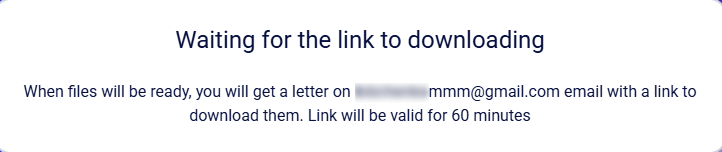
The archive will be available for download for 60 minutes. After that, you will need to repeat the process. The email will look like this:
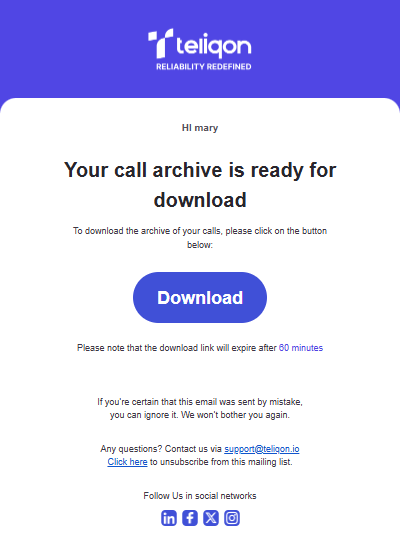
After downloading the .zip archive to your computer, extract it using your operating system's built-in tools or a third-party utility. Inside, you will find the call recordings in .mp3 format.
On the right, there are three possible actions for calls:
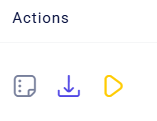
- Add a note to the call;
- Download the call (in .wav format);
- Listen to call recordings immediately.
To add a note, click on the corresponding icon. A window will open where you can leave information about the client or the call:
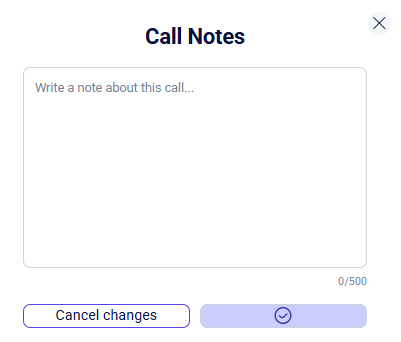
After filling in the data, click Save changes to record the information. If you need to cancel the action, click Cancel changes or the X in the corner of the window.
You can also add a note directly during a call; more details can be found here.
Once a note has been added, the icon will be highlighted:
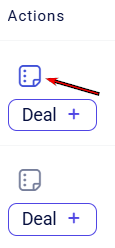
Clicking it again will open the existing note, which is available for editing.
To listen to a recording, click the corresponding icon. While the call is playing, the player panel will appear, letting you adjust the volume, pause the recording, or scrub through the timeline to reach the exact moment you need:
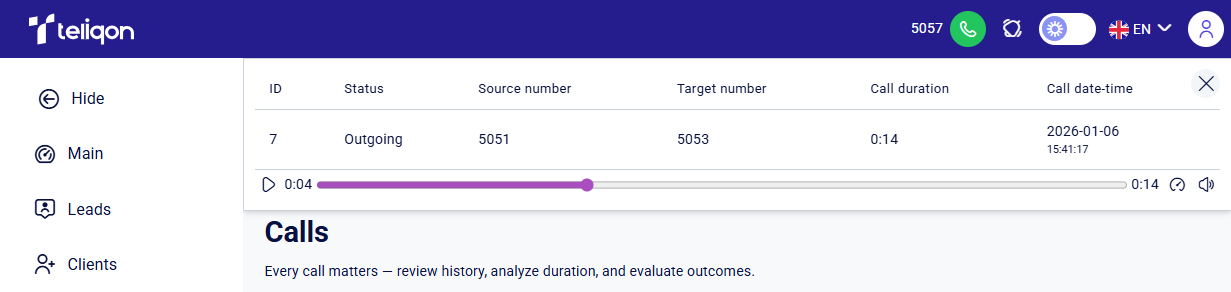
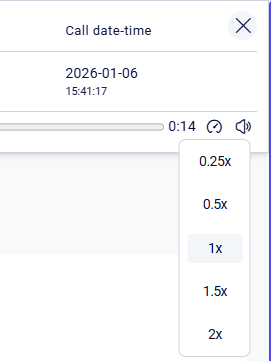
Additionally, you can adjust both the playback speed and the volume:
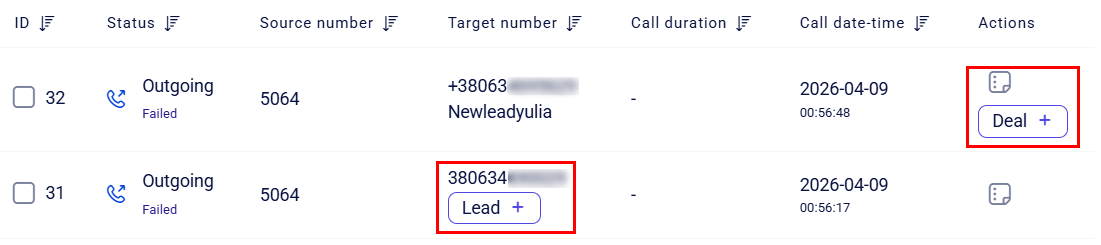
The Source number, Target number, and Actions columns contain two buttons: Lead+ and Deal+:
- The Lead+ button is displayed for calls from new callers who don't have a record in the system yet. Clicking this button opens a window for entering new lead data. You can find more detailed information on creating leads here.
- The Deal+ button appears only when a client card has already been created for the contact, but there is no associated deal. Clicking this button next to a new contact opens a pop-up window where you can fill in the fields for the future deal. More details on creating a deal are available here.
Call filters
After clicking the filter button, a settings window will appear. The following filtering criteria are available by default:
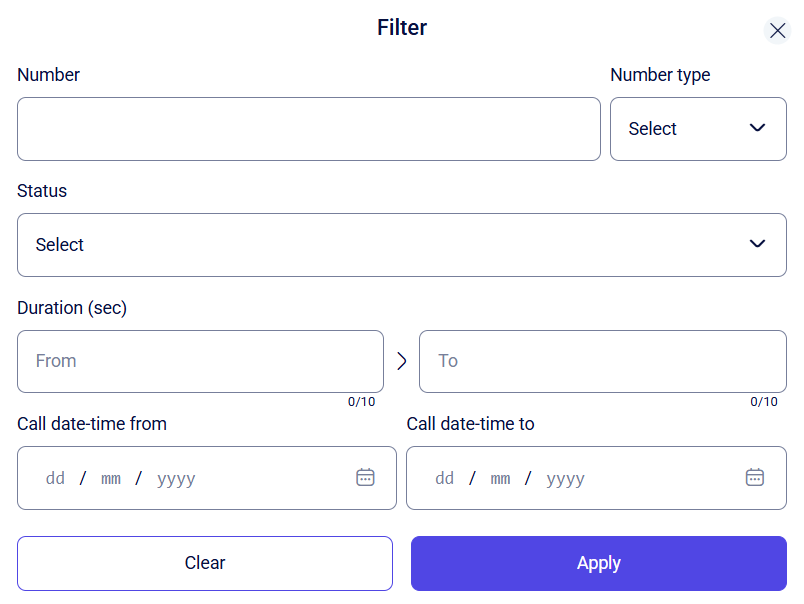
- Number - allows you to find records by full or partial digit match. Enter the full phone number or a part of it.
- Number type - select the call direction you are interested in: inbound (the number called), outbound (the number that placed the call), or search across all types simultaneously.
- Status - select the call outcome, which is manually set by the manager after the call.
- Duration - specify the conversation length in seconds. Values can be entered manually using the keyboard or adjusted using the toggle arrows.
- Call date-time - set the time range manually (in DD/MM/YYYY format, e.g., 15/06/2024) or select the required date using the built-in calendar.
Once you have selected the desired filtering parameters and want to apply the changes, click the Apply button.
If you want to clear the fields and return them to their default state, click the Clear button.
To close the filtering window, click the X in the upper right corner.
Tasks
This guide explains how to work with tasks in Teliqon CRM, including list and board views, task creation, imports, exports, filters, task cards, notes, and activity logs. It covers toolbar actions, bulk operations, task parameters, and related task management workflows.
Price List
This guide explains how to manage products and services in the Teliqon CRM Price List section. It covers toolbar actions, product and service cards, categories, barcodes, filters, import, export, and opening exported CSV files in spreadsheet applications.


