Login
This document describes the login process in the Teliqon Autodialer Software system. It explains how registered users can access the system and how password recovery works. It also covers the password reset flow and the required password security criteria.
General information
The login page for the Teliqon Autodialer Software system includes the following authorization form:
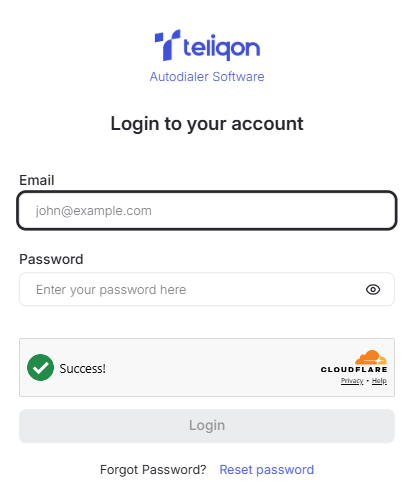
On this form, you have the following options:
-
Log in to the system if you already have an account created;
-
Reset your password if you already have an account created.
Login
For the authorization of registered users, the login form provides the following fields and tools:
-
Email - a field for entering your email address.
-
Password - a field for entering your password. You can instantly view the password you are typing by clicking the “eye” icon.
-
Login button - the button used to access the system.
The Email and Password fields are filled in manually using a keyboard. To enter the system, use the email and password of a registered user.
If you don't have an account, visit the Teliqon website and submit a quick service request. A technical support specialist will contact you to help with project creation and provide the necessary access credentials.
After entering your email and password, click the Login button. Upon successful data verification, the system will automatically redirect you to the Teliqon Autodialer Software personal account.
Password recovery
If you have forgotten your password, you can recover it using the Reset password button.
After clicking the password recovery button, the following window will open:
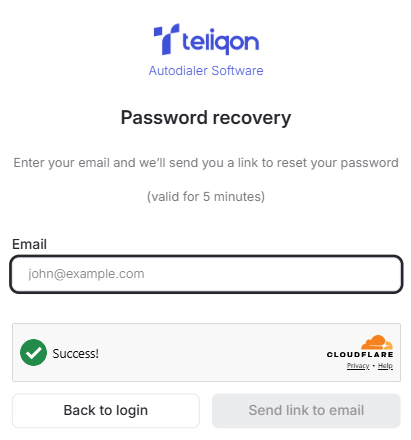
In this window, enter the email address already registered in the system for which you want to recover your password, then click the Send link to email button.
Next, the following message will be displayed:
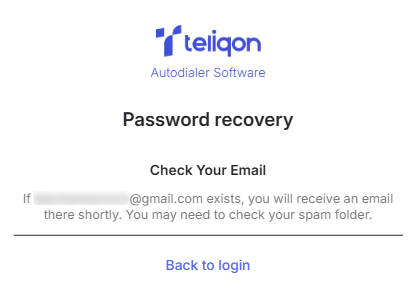
To continue the process, check your inbox and find the email from The Teliqon Team:
To continue the process, check your inbox and find the email from The Teliqon Team:
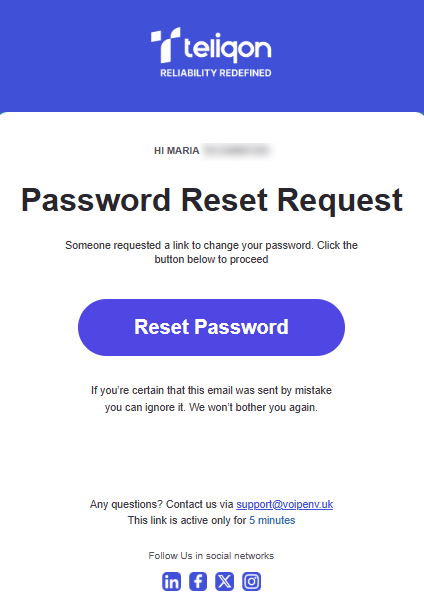
Please note that the password reset link is valid for 5 minutes.
Following the link in the email will open the following form for setting a new password:
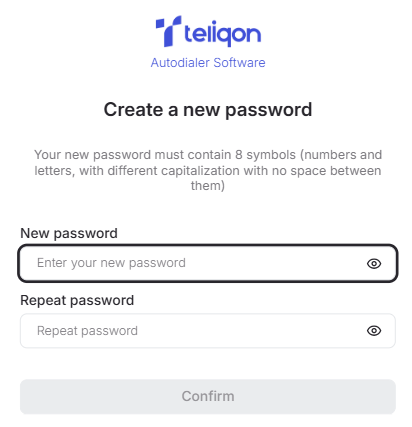
In this form, enter your new password twice. It should meet the following security criteria:
-
At least 8 characters long;
-
At least one uppercase letter;
-
At least one lowercase letter;
-
No spaces between characters.
Once you have chosen a new password and filled in both fields, click the Confirm button.
If everything is filled out according to the requirements, the following notification of a successful password change will be displayed:
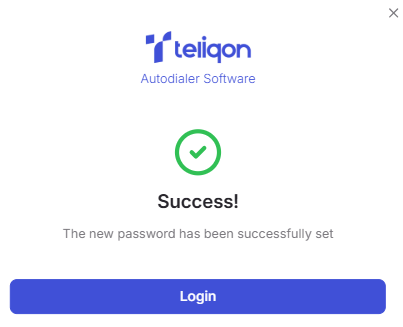
This form features a Login button that returns you to the login page. From there, you can log in to the system using your newly set password.


