Dashboard
This document describes the Dashboard page in the Teliqon Autodialer Software system. It explains how to monitor active campaigns, active agents, and live call statistics, including filters, call monitoring actions, agent statuses, and real-time call data.
General Information
On the Dashboard page, you can view the current data on campaigns and agents for your project in the Teliqon Autodialer Software:
The Dashboard consists of three pages:
- Active campaigns;
- Active agents;
- Live Call Statistics.
Active campaigns
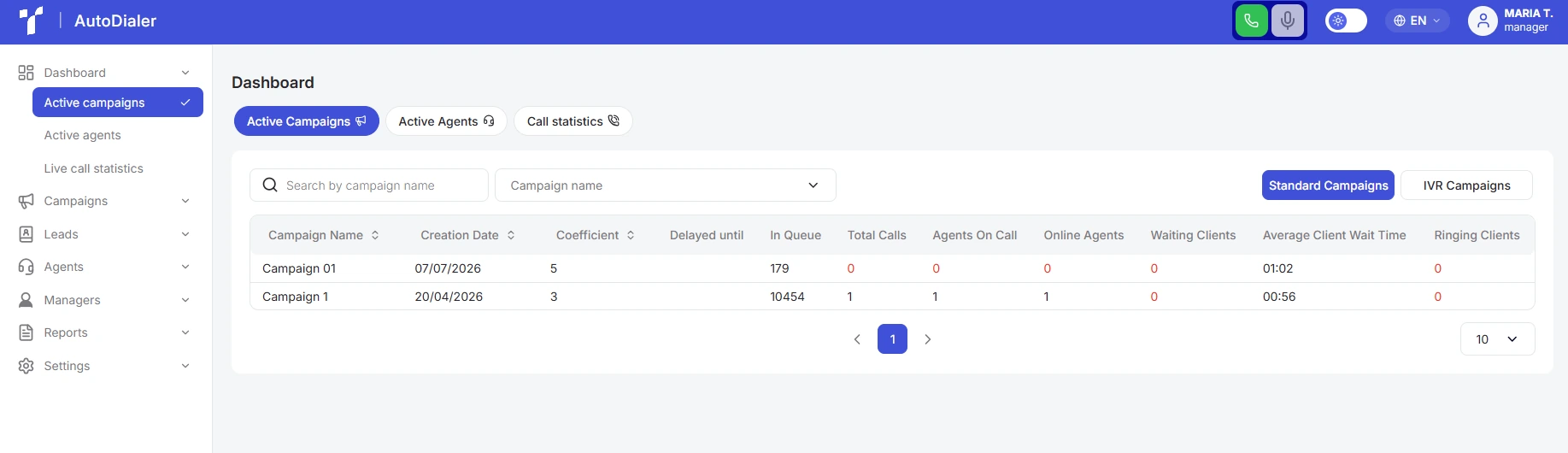
On the Active Campaigns page, you can view campaigns that are currently in active status, meaning they are being processed by the system and assigned agents in real-time:
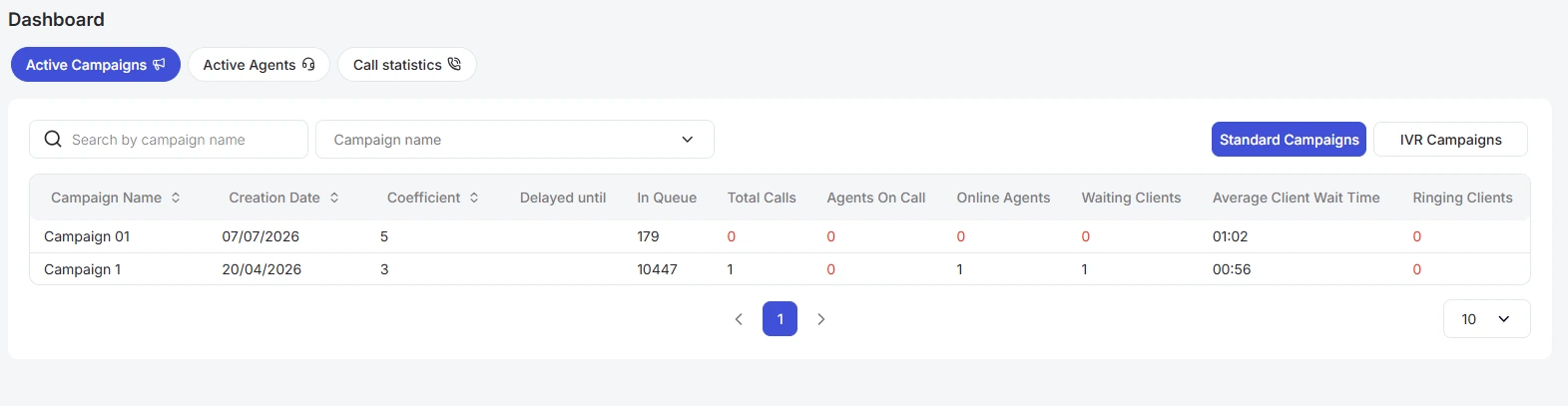
The page contains the following sections:

-
At the top of the page, there are buttons for switching between the following sections: Active Campaigns, Active Agents, and Call statistics.
-
Below the toggle buttons is the record filter panel, namely:
-
a. A search bar that allows you to quickly find campaigns by full or partial match of characters in the campaign name. To use the search bar, simply enter the campaign name and the system will automatically start searching. The search is case-sensitive, so for accurate results, make sure to use the correct uppercase and lowercase letters.
-
b. A campaign name filter. To select the campaign name you want to filter by, click the dropdown list and choose one or more options. You can start typing the campaign name to narrow down the list of available values. After selection, the name will appear in the selected list. You can reset it using the 'Reset Filters' button.
-
Campaign tabs: switch between Standard Campaigns and IVR Campaigns to view the corresponding statistics. Learn more about the differences between campaign types via the link;
-
A table with data on active campaigns, consisting of the following columns:
-
a. Campaign Name;
-
b. Creation Date;
-
c. Coefficient;
-
d. Delayed until;
-
e. In Queue;
-
f. Total Calls;
-
g. Agents On Call;
-
h. Online Agents;
-
i. Waiting Clients;
-
j. Average Client Wait Time (the average time a customer spends waiting on the line from the moment the call is answered until they are connected to an agent or the call is automatically disconnected);
-
k. Ringing clients;
-
l. Uses agents (this parameter applies to IVR campaigns and can be set to “Yes” or “No”).
Active Agents
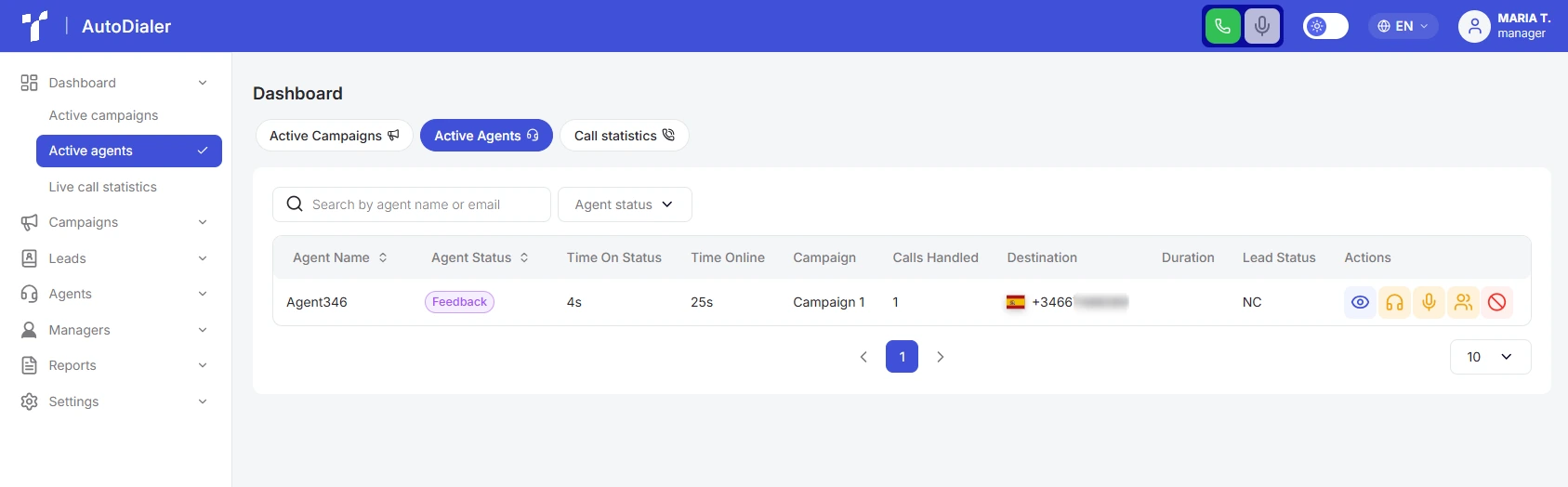
On the Active Agents page, you can view agents who are currently in active status:
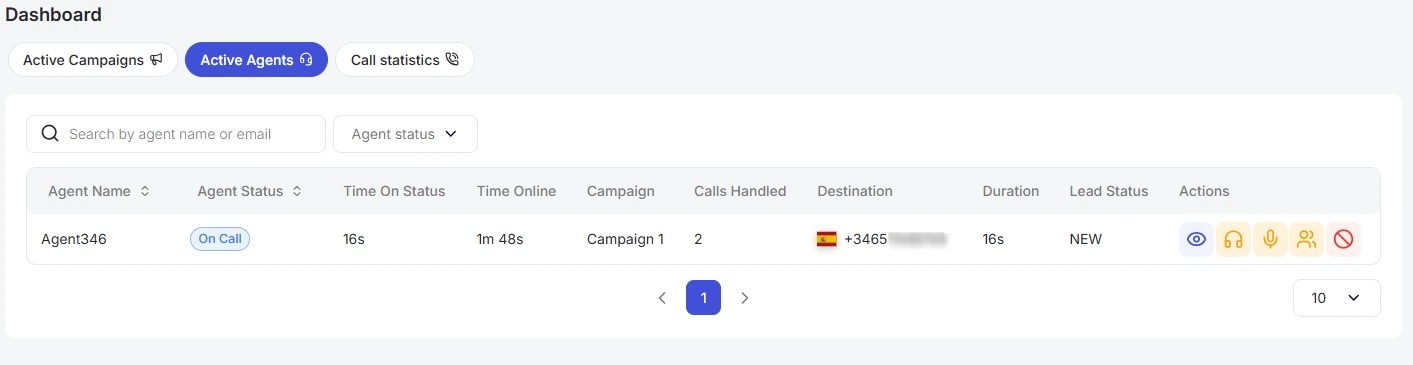
The page contains the following sections:
-
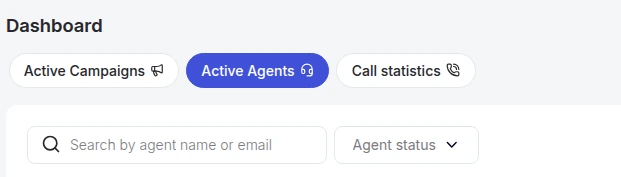
At the top of the page, there are buttons for switching between the following sections: Active Campaigns, Active Agents, and Call statistics.
-
Below the toggle buttons is the record filter panel, namely:
- a. A search bar that allows you to quickly find active agents by full or partial match of characters in the agent’s name or email address.
To use the search bar, simply enter a few characters and the system will automatically start searching. The search is case-sensitive, so for accurate results, make sure to use the correct uppercase and lowercase letters.
- b. Agent status filter. To select the status you want to filter by, click the dropdown list and choose one or more options. You can start typing the status name to narrow down the list of available values. After selection, the status will appear in the selected list. You can reset it using the 'Reset Filters' button.
- A table with data on active agents, consisting of the following columns:
-
a. Agent Name;
-
b. Agent Status;
-
c. Time On Status;
-
d. Time online;
-
e. Campaign;
-
f. Calls Handled;
-
g. Destination;
-
h. Duration;
-
i. Lead Status;
-
j. Actions:
-
i. Lead;
-
ii. Spy - listen to an active call without being heard by either party (active only for users with the “Manager” role; not available for “Administrator”);
-
iii. Whisper - join the call and provide guidance to the agent without being heard by the lead (active only for users with the “Manager” role; not available for “Administrator”);
-
iv. Barge - join the call as a full third participant, audible to both the agent and the lead (active only for users with the “Manager” role; not available for “Administrator”);
-
v. Block.
-
The active agent statuses you can view on this page include:
-
Online - The agent is ready to receive calls, but their campaigns are not yet active;
-
On Call - The agent is currently in a conversation with a client (lead);
-
Feedback - The agent is evaluating the outcome of the conversation with the client (lead);
-
On Hold - The agent is on hold, according to the specified hold time between calls in the campaign. You can read more about campaign here;
-
Pause - The agent has manually paused themselves from their personal dashboard. This status name may vary, as it can be customized by the account administrators.
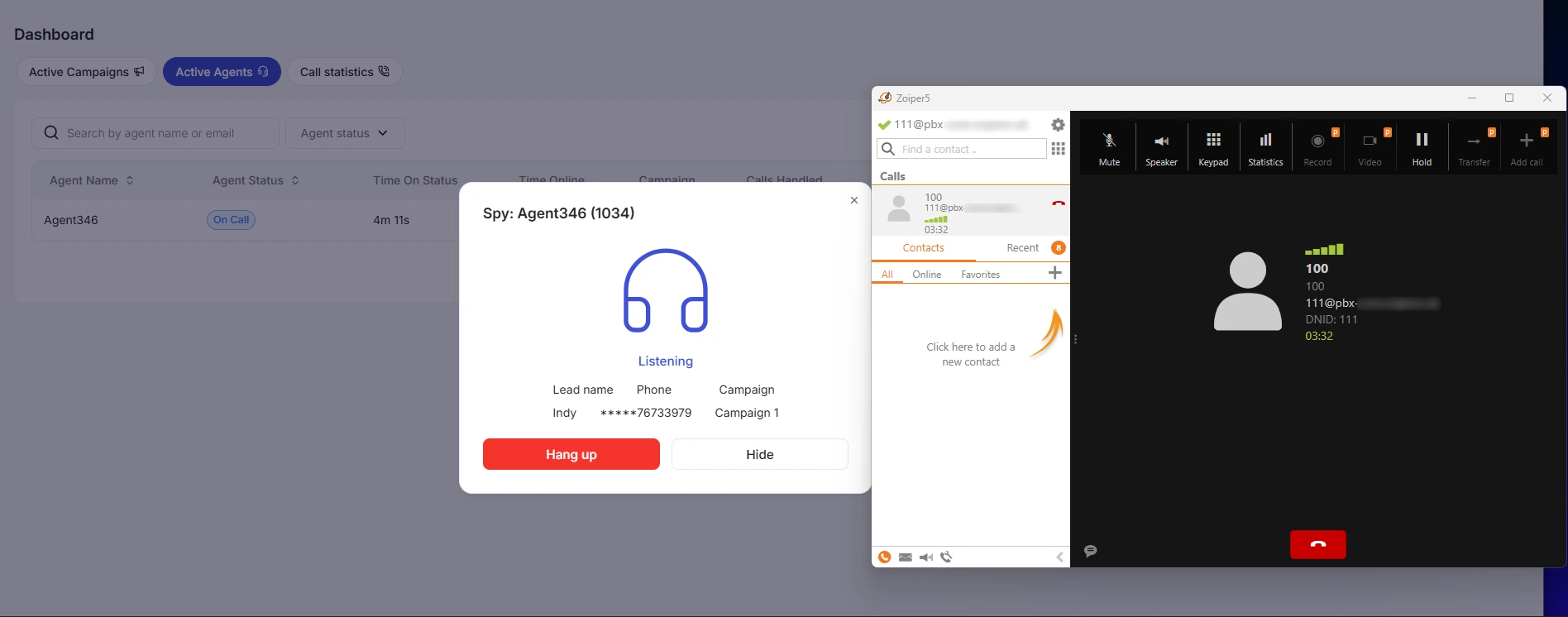
To listen in on a call (SPY mode), click the headphone icon:
-
With WebRTC: the connection is established directly through your browser, opening the call monitoring window with lead details.
-
With a SIP connection: an incoming call will be sent to your softphone or hardware device - simply answer it to start listening. The web interface will simultaneously display the window with lead details.
Below is an example of how the call monitoring feature works when paired with Zoiper and the web interface:
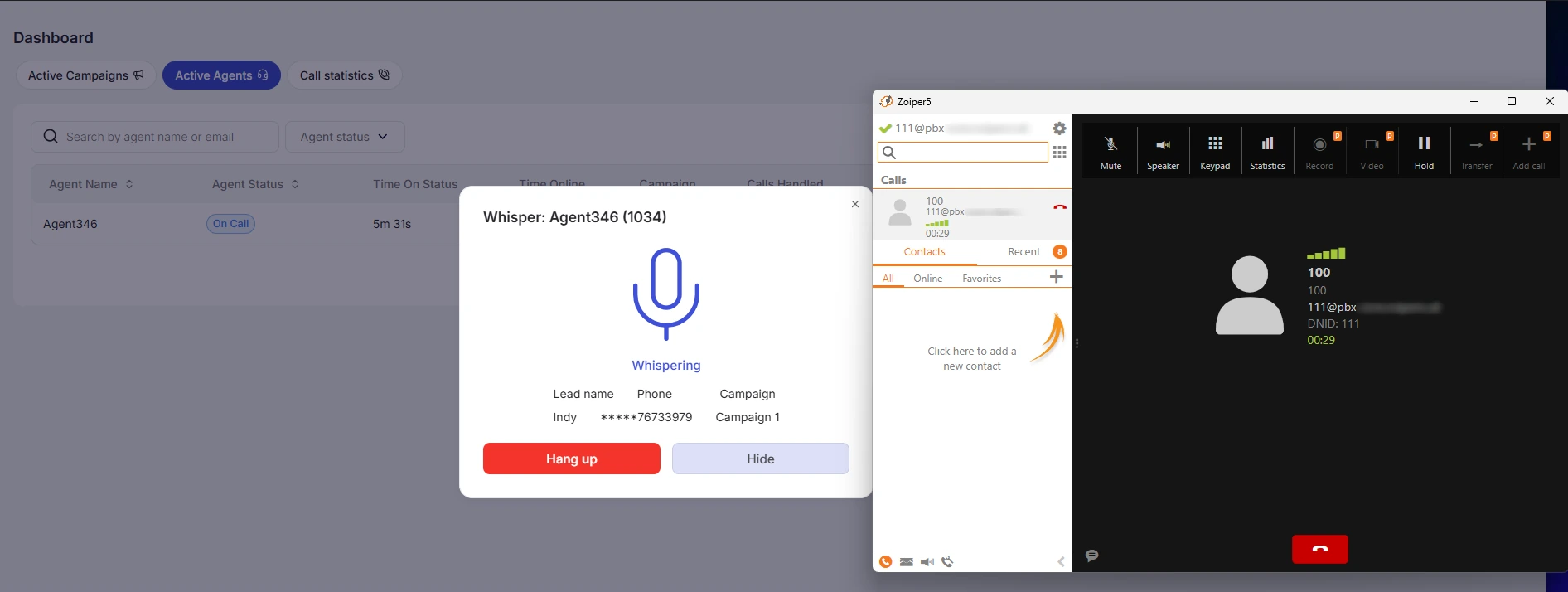
To whisper into a call and coach an agent (WHISPER mode), click the microphone icon:
-
With WebRTC: the connection is established directly through your browser, opening the call-join window with lead details.
-
With a SIP connection: an incoming call will be sent to your softphone or hardware device - answer it to start whispering. The lead details card will simultaneously appear in the web interface.
Please note: the lead will not hear your prompts, nor will they be saved in the call recording.
Below is an example of how the call whisper feature works when paired with Zoiper and the web interface:
If you join a call in Whisper mode and want to mute yourself temporarily, with WebRTC you can do this using the microphone icon on the top panel (clicking it again unmutes you):

If a SIP connection is configured, microphone controls are not displayed in the browser interface, and muting or unmuting is handled directly within the softphone or on your IP phone.
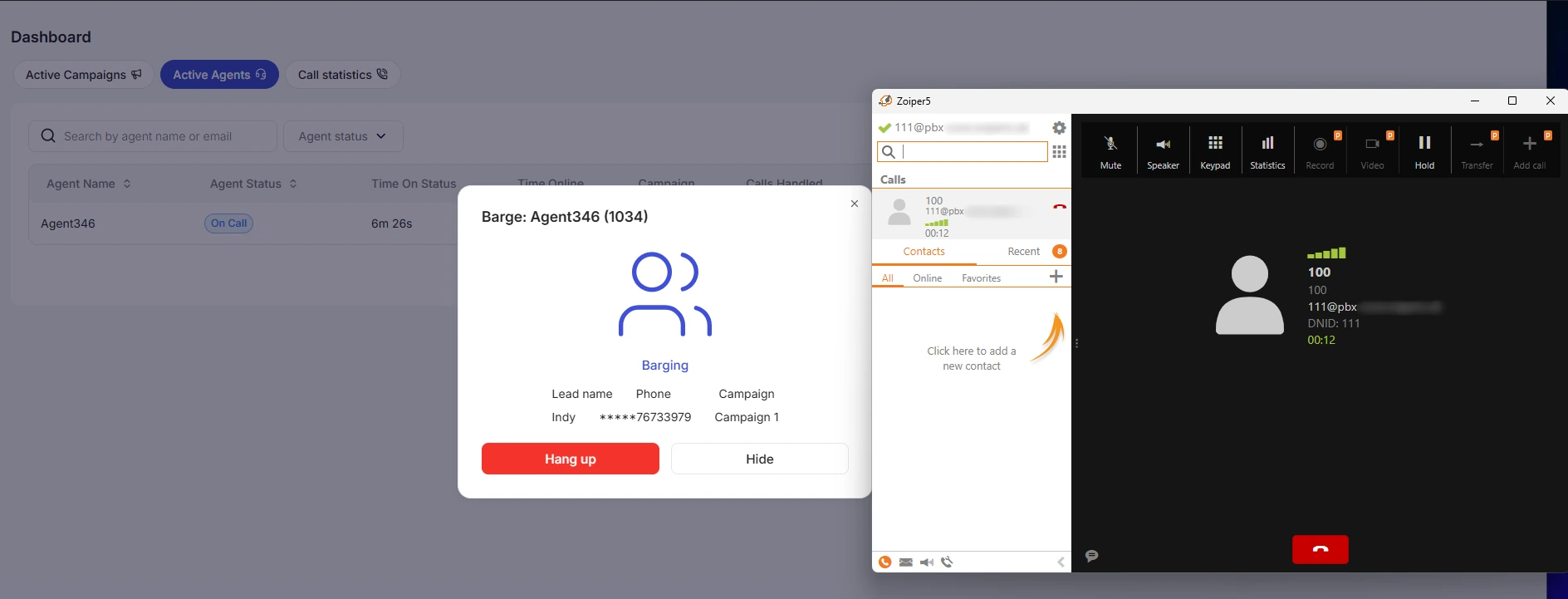
To use the BARGE mode and participate fully in the conversation, click the two-people icon:
-
With WebRTC: the connection is established directly through your browser, opening the call participation window.
-
With a SIP connection: an incoming call will be sent to your softphone or IP phone - answer it to start the dialogue (the lead card will simultaneously appear in the web interface).
Please note: in this mode, both the lead and the agent will hear you, and the conversation with your participation will be fully recorded in the CDR logs.
Below is an example of how this feature works when paired with Zoiper and the web interface:
You can also view the current lead the agent is speaking with and block the agent directly from this page:

When viewing a lead, a lead card will open:
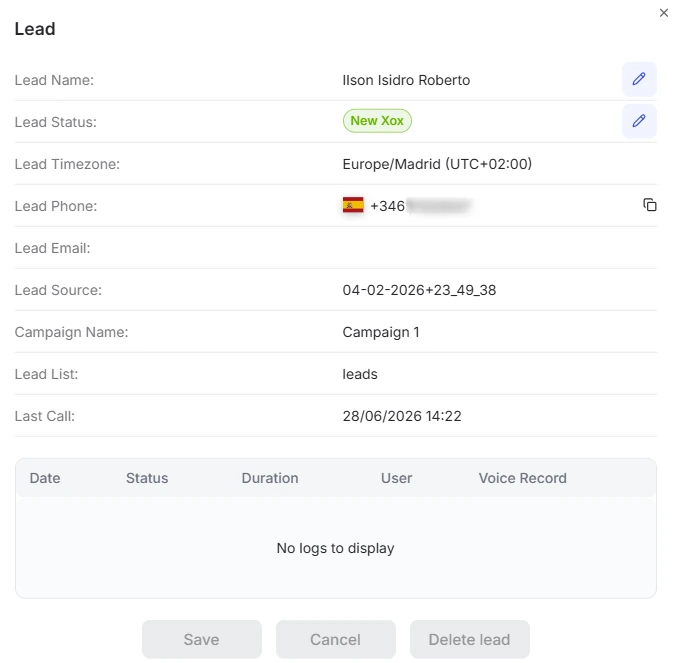
When an agent is blocked, the system will automatically log them out of the dialer's personal account and prevent them from logging in again. The block can be removed in the Agents → Agent List section.
Live Call Statistics
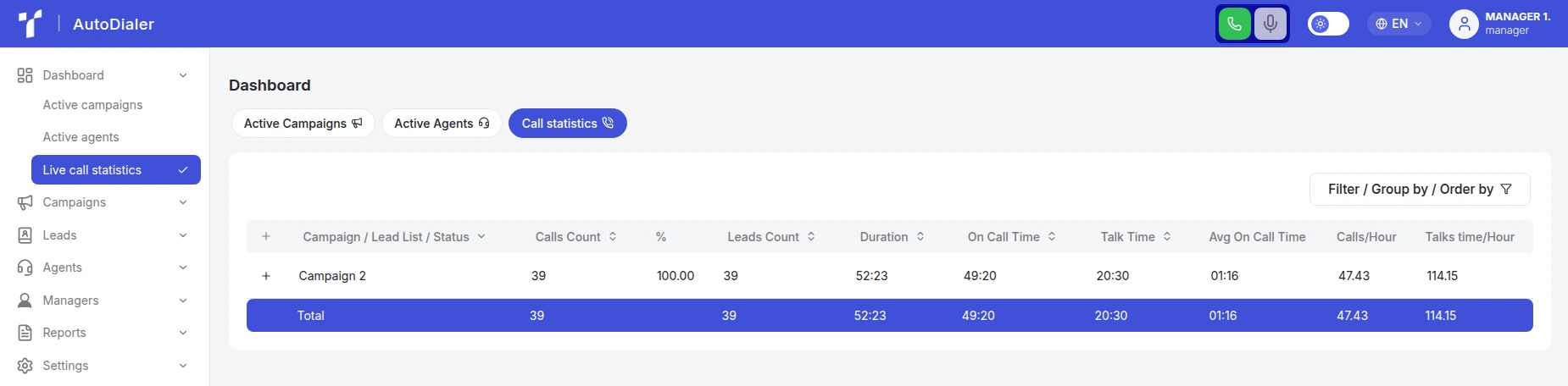
The Call statistics tab updates in real time, showing calls that have just finished with a specific status:
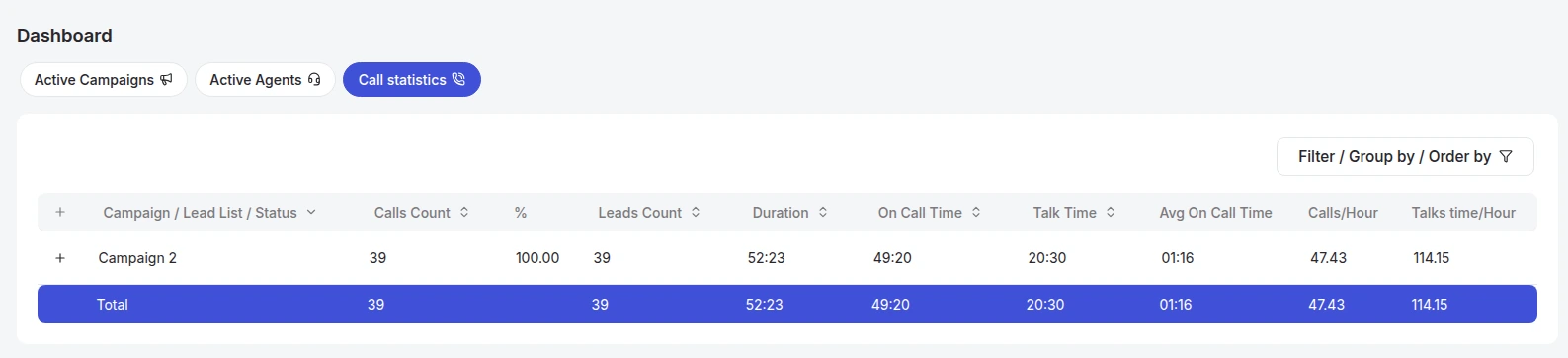
The page contains the following sections:
-
At the top of the page, there are buttons for switching between the following sections: Active Campaigns, Active Agents, and Call statistics.
-
Below the navigation buttons, there is a record management panel, which includes:

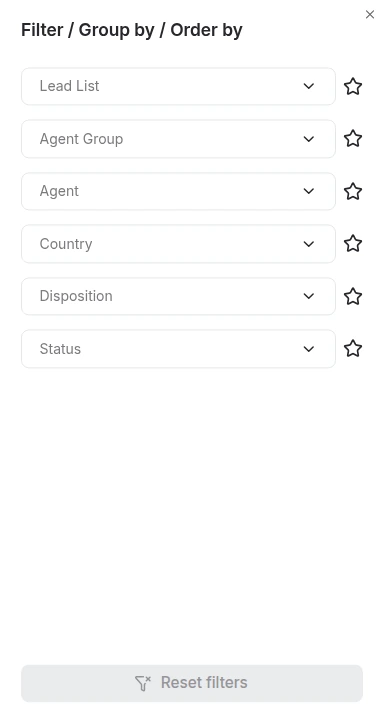
Here you can click the “Filter / Group by / Order by” button to configure how records are filtered on the page. You can also start typing a value to narrow down the list of available options:
-
a. Lead List Filter - allows you to conveniently search for active lead lists using a dropdown menu.
-
b. Agent Group Filter - allows you to select the agent group status to filter by, using a dropdown menu.
-
c. Agent Filter - allows you to select an agent to filter by, using a dropdown menu.
-
d. Lead country filter - allows you to select a country to filter by, using a dropdown menu.
-
e. Call Disposition Filter – allows you to select the call status to filter by, using a dropdown menu.
-
f. Feedback Status Filter – allows you to select the feedback status to filter by, using a dropdown menu.
- The table of real-time call data consists of the following columns:
-
a. Campaign / Lead List / Status – campaign name, associated lead list, and current status;
-
b. Calls Count – total number of calls;
-
c. % – percentage of calls relative to all completed calls;
-
d. Leads Count – number of leads;
-
e. Duration – length of the call;
-
f. On Call Time – total time spent on calls;
-
g. Talk Time – actual conversation time;
-
h. Avg On Call Time – average total time spent on calls;
-
i. Calls/Hour – forecasted number of calls per hour;
-
j. Talk Time/Hour – conversation time per hour.
User menu
This document describes the User menu in the Teliqon Autodialer dashboard. It explains the menu elements available for Admin, Manager, and Agent accounts, including theme and language controls, service switching, phone and microphone controls, profile actions, and logout.
Campaigns
Campaign management in Teliqon Autodialer Software.


