Admin's Dashboard Overview
Administrator capabilities in the Teliqon Autodialer Software dashboard, managers, settings, roles, and activity log.
General information
In the Teliqon Autodialer Software personal account, an administrator can perform all operations available to project managers.
A detailed description of these capabilities, organized by the specific pages of the account, is provided in the following documents:
The key differences between the Administrator and Manager accounts are found in the following sections:
-
Dashboard;
-
Managers;
-
Agents;
-
Settings.
Let’s take a closer look at the additional capabilities available to project administrators.
Dashboard Section
In this section, under the Active agents tab, unlike project managers, project administrators do not have access to the “Spy”, “Whisper” and “Barge” options.
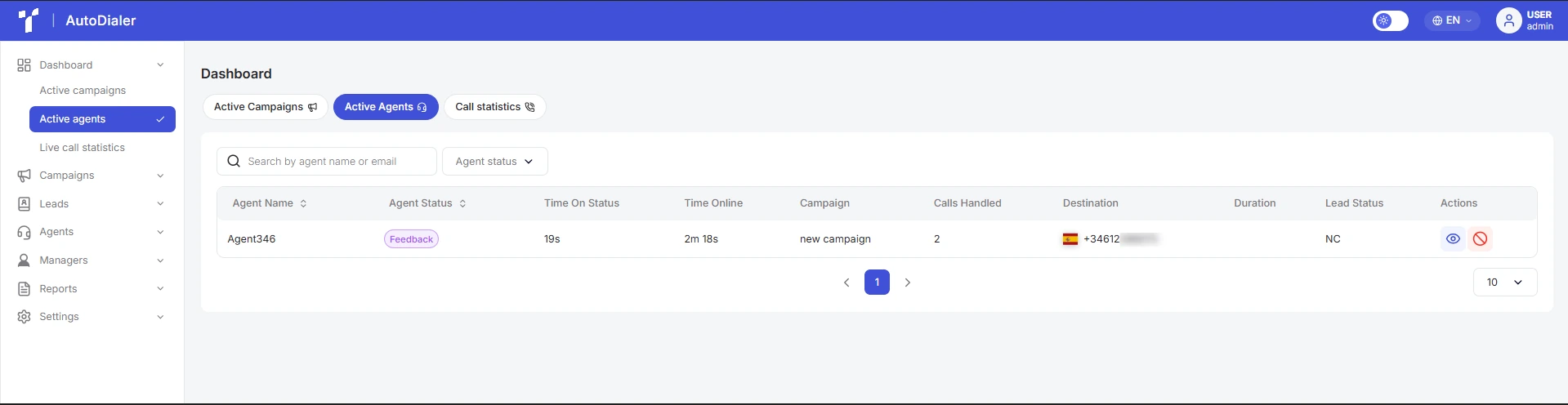
To use these features, log in to the Teliqon Autodialer Software system using a project manager account.
Managers Section
In addition to the functions described in the Managers document, project administrators have access to the following additional capabilities in this section:

-
Add a new manager to the system;
-
Edit a manager’s account;
-
Remove a manager from the system.
Add Manager button
When you click the button to add managers to the system, the following pop-up window will appear:
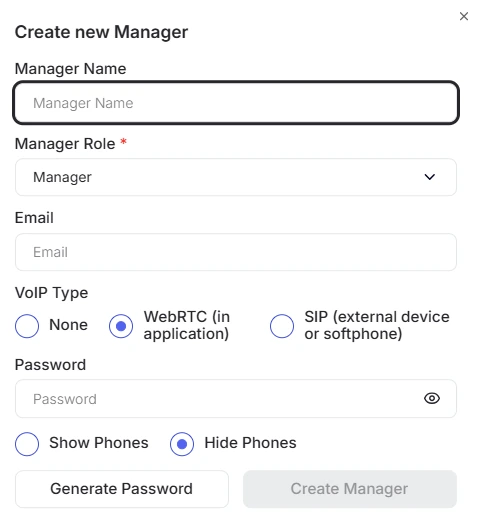
In the manager creation form, fill in the required fields:
-
Manager Name and Email - personal details for identification and login.
-
Manager Role* - the level of system access.
-
VoIP Type - select the connection type:
-
a. None;
-
b. WebRTC (in-app) - handling calls directly from the browser;
-
c. SIP (external device or softphone) - for external applications and hardware IP phones (e.g., Zoiper).
-
-
Password - enter it manually or use the “Generate password” button.
Please note: the password specified during creation is for the user account to log into the personal dashboard in the browser. If you need the SIP Password, save the user and reopen their profile for editing.
Additionally, select one of the options for how the manager interacts with the system:
-
Show all phone numbers to the manager;
-
Hide phone numbers from the manager (fully or partially, configured in Settings).
Once you have completed the fields, click Create Manager to finalize the creation, or click the X icon to cancel the changes.
If a SIP connection is selected, the following credentials are used for registration:-
Username: generated automatically as the employee's extension number (can be copied from the “PBX Name” column in the managers table).
-
Password: accessible only to the administrator in the “SIP Password” field within the manager's profile card. The administrator copies and provides it to the manager to log into a softphone or configure hardware.
-
Domain/Host: provided individually upon contacting customer support.
Edit Manager
To edit manager settings, double-click the corresponding row or click the Edit button in the “Action” column. This will open a page with specific details:
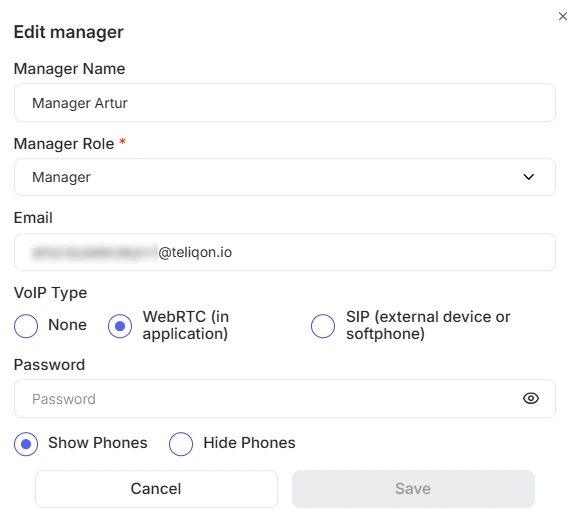
In this window, you can edit any field.
When you change the VoIP type to “SIP”, an additional “SIP Password” field appears, where you can view and copy the generated password for connecting via a softphone or hardware phone. The password can only be copied after clicking the “eye” icon to make it visible. This password is generated automatically, cannot be edited manually, and is accessible exclusively to the administrator.
Important: If you switch the call type from “SIP” to “WebRTC” and later switch back to “SIP”, the system will generate a new SIP password each time for security purposes and to prevent duplicate registrations. In this case, make sure to copy the new password and update the registration credentials in your softphone or hardware phone.
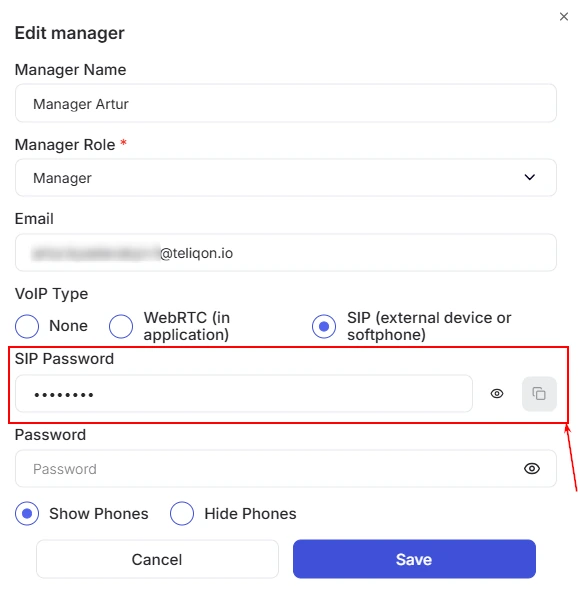
To save your changes, click the Save button. If you decide not to keep the changes, simply click Cancel.
Once saved, the updated information will be visible in the manager list table.
Delete Manager
Clicking the Delete icon in the manager’s row opens the following window:

In this window, confirm the action by clicking the Delete button, or cancel the deletion by clicking Cancel or the X icon.
After being removed from the system, the manager loses the ability to log in using their email address and password.
Agents Section
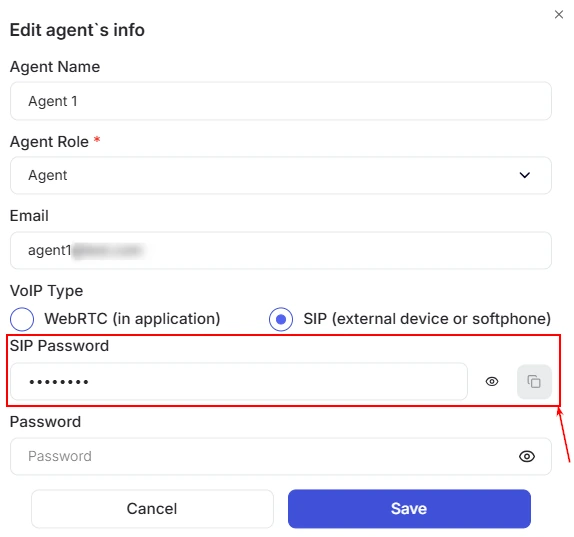
In the Agents section, administrators see the same set of parameters and configuration forms as regular managers. The only difference lies in access to sensitive telephony data:
-
SIP Password field: appears only when the “SIP” VoIP type is selected and is accessible exclusively to system administrators.
-
Viewing and copying: when editing an agent, only a user with administrator permissions can reveal the password (by clicking the eye icon) and copy it to configure a softphone or SIP device. Regular managers do not have access to the SIP password in this section.
Important: If you switch the call type from “SIP” to “WebRTC” and later switch back to “SIP”, the system will generate a new SIP password each time for security purposes and to prevent duplicate registrations. In this case, make sure to copy the new password and update the registration credentials in your softphone or hardware phone.
Settings Section
In addition to the features mentioned in the Settings document, project administrators have access to the following extra capabilities in this section:
-
Hide phone number;
-
Configure roles;
-
Activity log.
Hide phone number
The Hide Phone feature masks phone numbers in the managers' personal accounts. While this parameter is configured once during general system setup, the hiding option is activated individually for each manager in their specific settings.
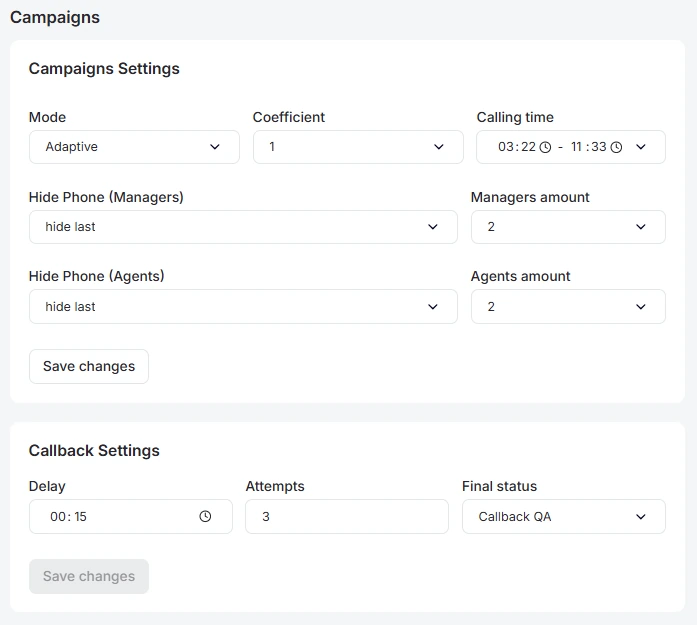
Configuration details:
-
Masking Type: Allows you to hide the phone number either partially or completely.
-
Managers amount field: Determines how many digits in the phone number will be hidden.
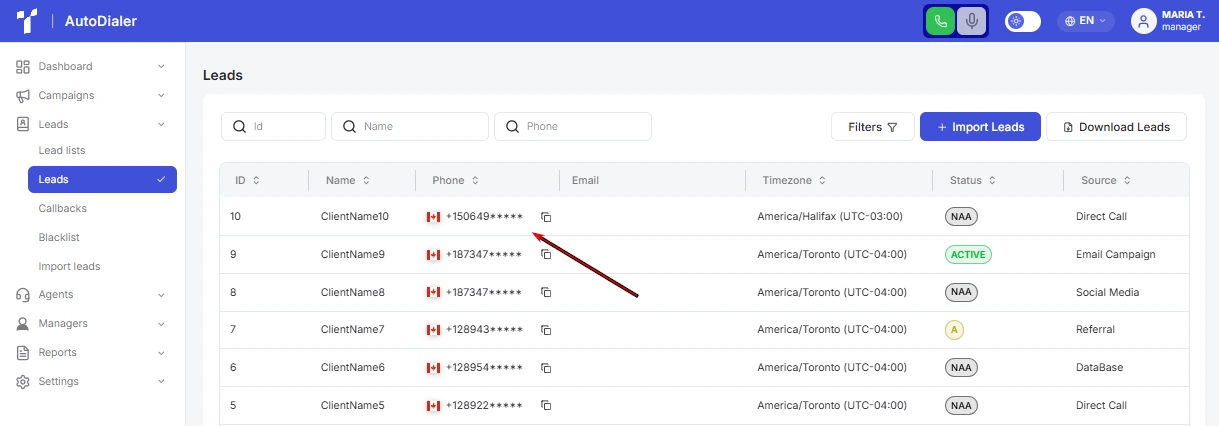
Here is how the dashboard appears to a manager when the last 4 digits of a number are masked:
Roles
The Configure roles feature provides flexible management of user access permissions to various sections and actions within the system. The system includes default basic role types: Admin, Manager, and Agent. In addition to these, you can create your own custom roles and individually configure permissions for each specific page or function.
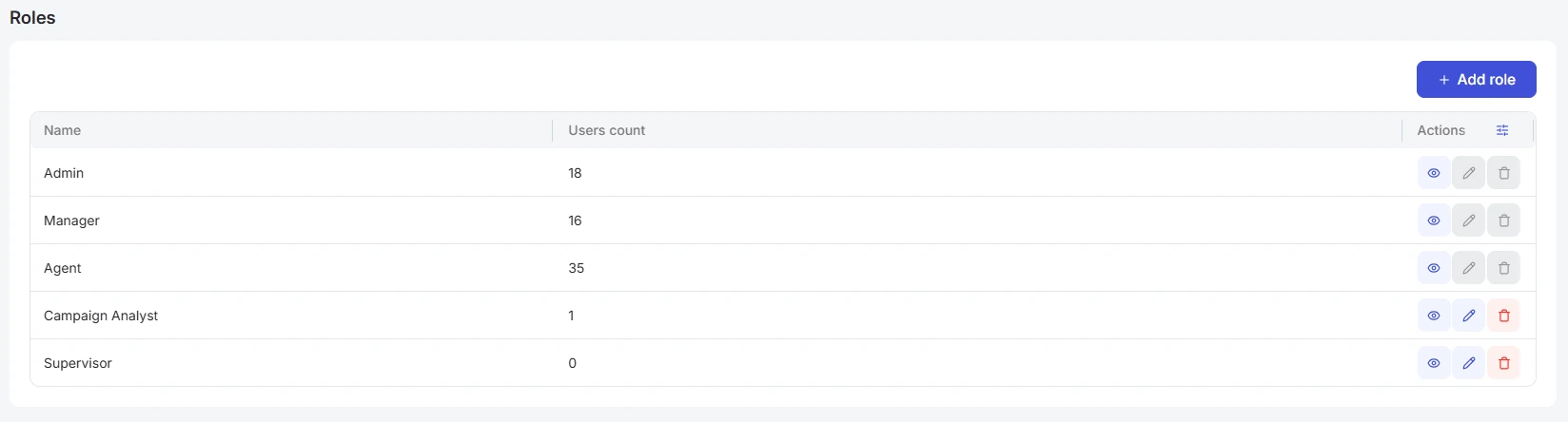
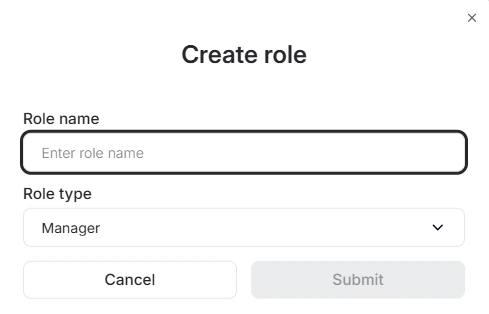
To add a new role, click + Add role. A window will open where you need to specify the role name and its type:
-
Admin – a role type with the maximum level of access, allowing users to manage global system settings, view full action audits, and configure permissions for other users.
-
Manager – a role type designed for team leaders or supervisors, granting access to campaign management, lead databases, and real-time monitoring of agent performance statistics.
The selected role type directly determines which section configuration blocks will open for further setup, as well as the basic access permissions the user will have in the system.
Once you have added a new role, you should verify its access level and edit its permissions as needed:
-
To view role settings: double-click on the corresponding row or click the “eye” icon.
-
To edit a role: click the “pencil” icon. In the Edit role window that opens, you can flexibly customize permissions for each system section. To do this, select the required section and specify exactly which operations the user is allowed to perform within it:
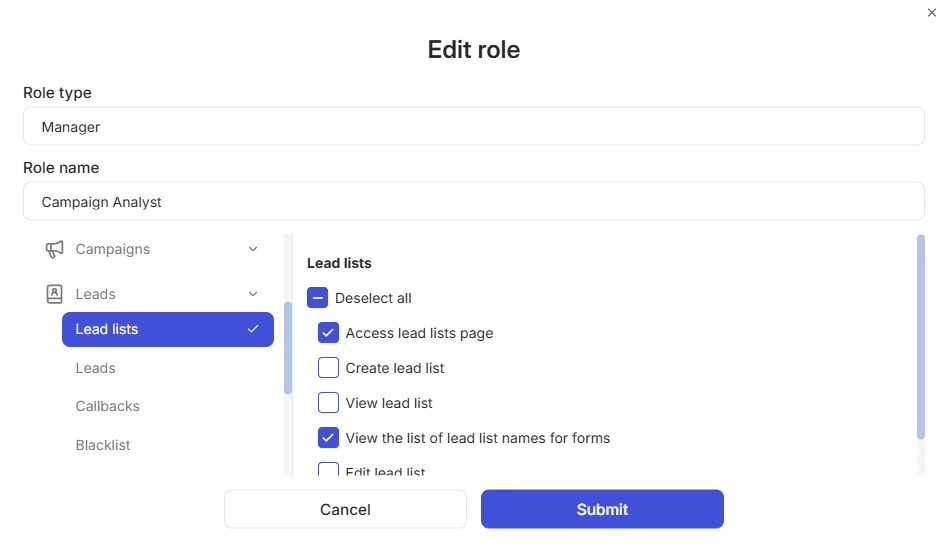
Next, you need to confirm the changes and assign the new role to a manager via the Managers → Managers list section.
Activity log
The Activity log section provides complete control and auditing of all user actions in the system. This section is designed to track any system changes - ranging from campaign and lead management to editing settings and role access permissions.
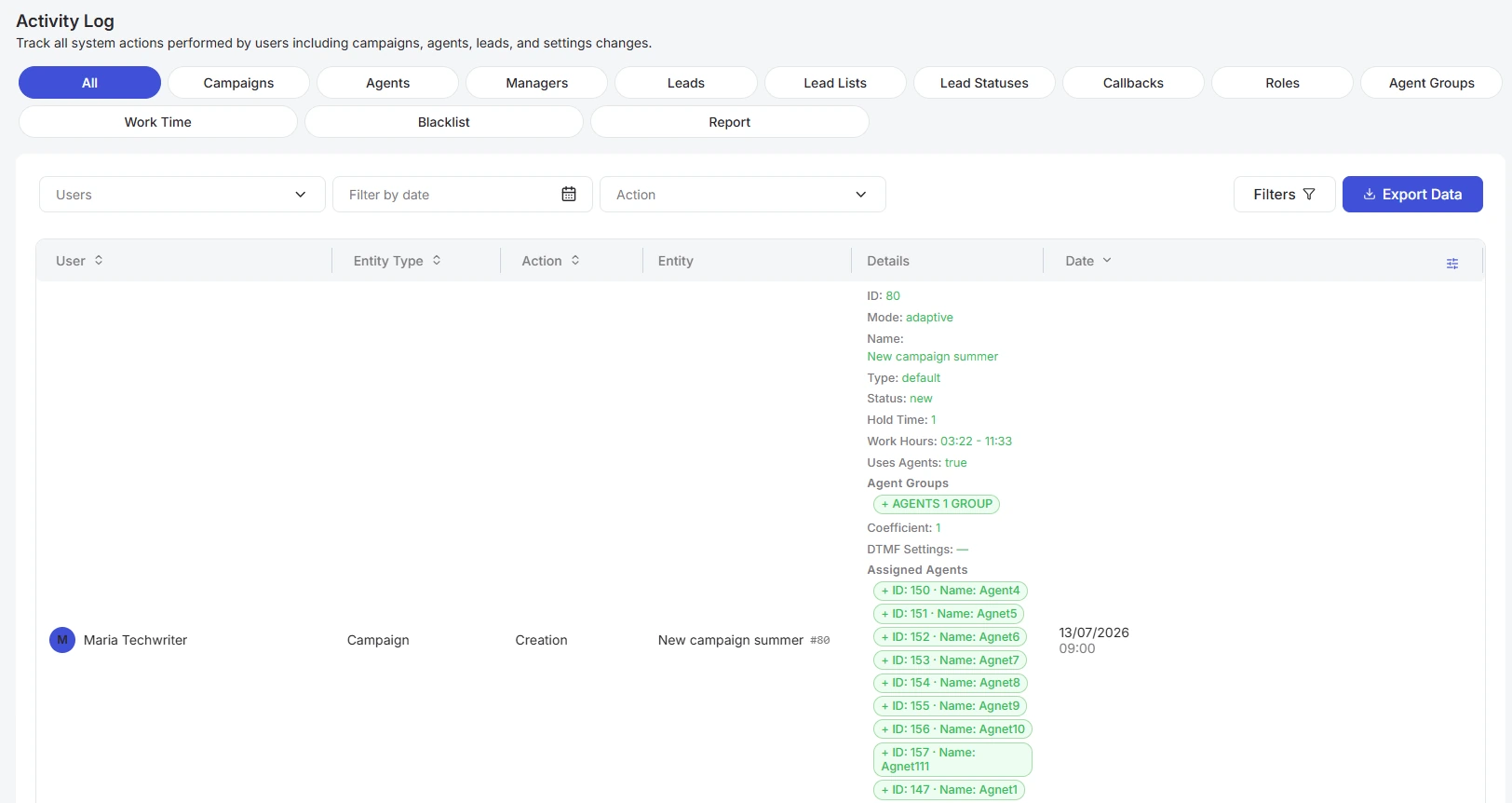
At the top of the panel, there are tabs that allow you to filter the log by a specific system section in a single click:

You can also narrow down your search using the search filters panel:
-
Users – select a specific employee whose actions you want to check;
-
Filter by date – set a specific time range;
-
Action – select the operation type (e.g., creation, deletion, editing).
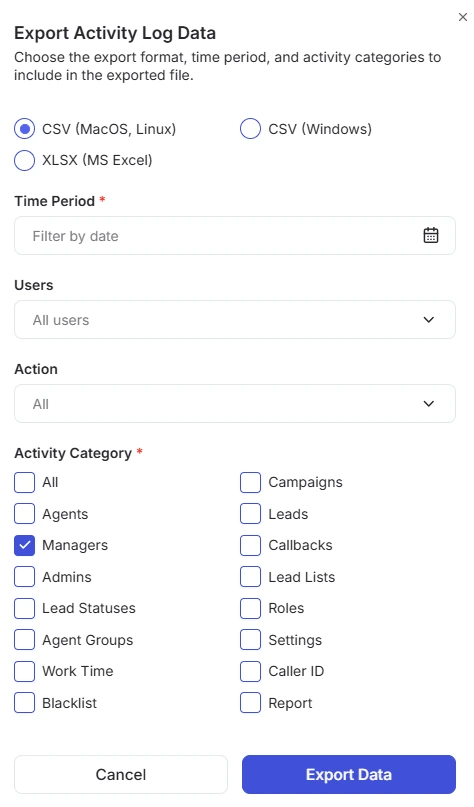
Using the Export Data button, you can download the filtered action history as a file. Clicking this button opens a window where you can flexibly configure exactly which data needs to be exported. If you have already applied filters using the quick filters panel, they will automatically be applied and displayed in this window:
The main log table contains key information about each event, which cannot be deleted from the system:
-
User – the name of the employee who performed the action;
-
Entity Type – the system category where the changes occurred;
-
Action – the nature of the operation (creation, editing, deletion);
-
Entity – the name and system ID of the specific element;
-
Details – the complete list of parameters at the moment the action was performed;
-
Date – the exact time the event was recorded in the system.
Login
This document describes the login process in the Teliqon Autodialer Software system. It explains how registered users can access the system and how password recovery works. It also covers the password reset flow and the required password security criteria.
Agent’s Dashboard Overview
This document describes the agent dashboard overview in the Teliqon Autodialer Software personal account. It explains how agents log in, pass health checks, manage statuses, handle calls, use feedback, change passwords, and run a voice test.


