Agents
Agent and agent group management in Teliqon Autodialer Software.
General Information
In the Agents section, you can view information about the agents of your project in Teliqon Autodialer Software:
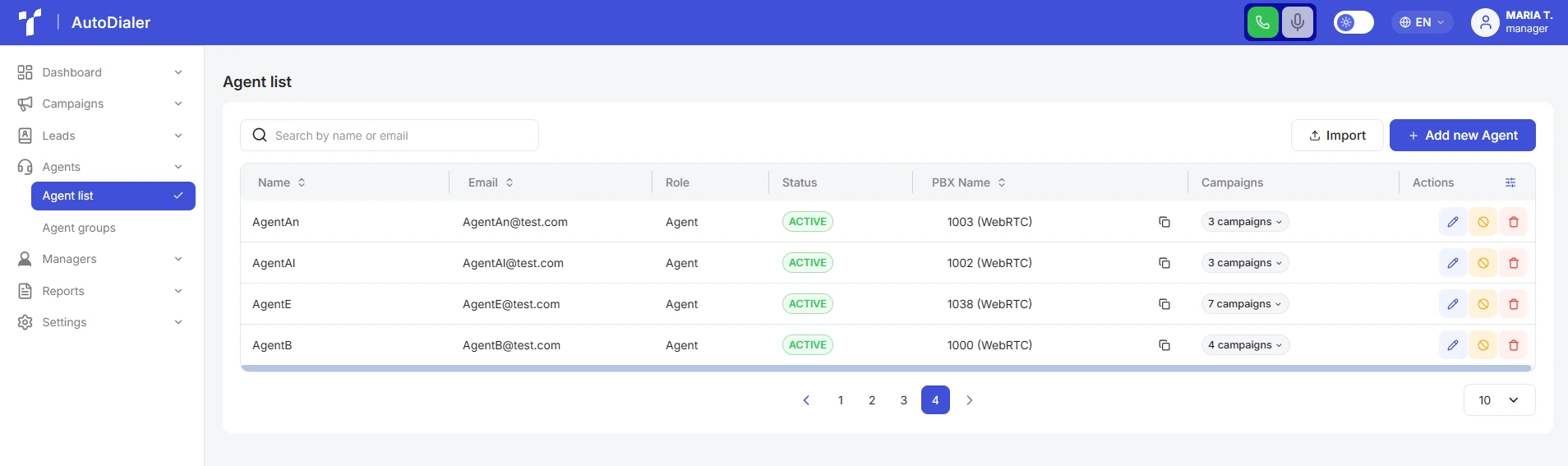
The section consists of two pages:
-
Agent List;
-
Agent Groups.
An agent is a member of your project team who handles and processes calls.
In this section, you can view information about existing agents, edit or delete them, add new agents to the system, and organize agents into groups.
Agent list
On the Agent List page, there are the following sections:
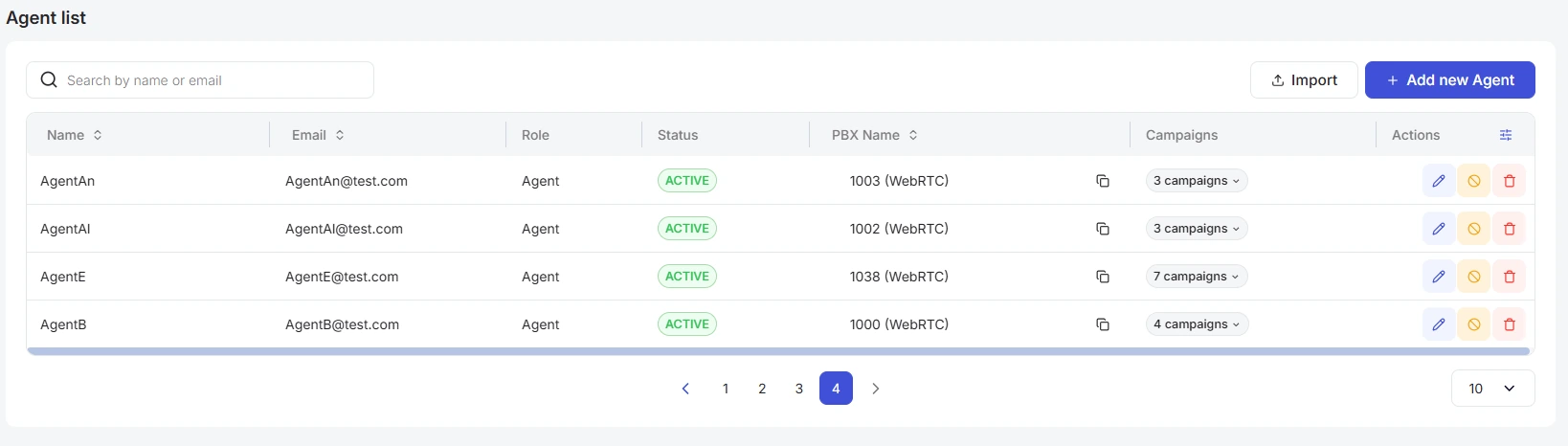
- Toolbar, which consists of:
-
a. Search bar. Using this page search, you can quickly find the agent you need by their name or email address. To start searching, simply enter more than one character in the search field, and the system will automatically begin the search.
-
b. Buttons for adding agents:
+ Add new Agent - used to create a profile card for an individual employee. Clicking it opens a window to create a new agent:
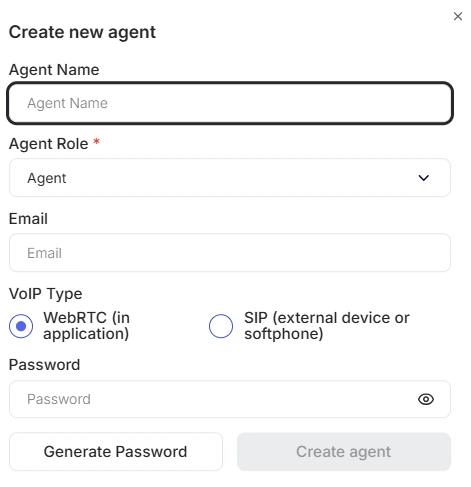
In the window that opens, enter the agent's name, select their system role (default is “Agent”), specify their email address, choose the VoIP type (“WebRTC” or “SIP”), and enter or generate a password.
Import agent - allows you to import agent data into the system for quick, bulk creation of multiple user profiles at once. Clicking it opens the Import agents window, where you can download a ready-to-use spreadsheet template:
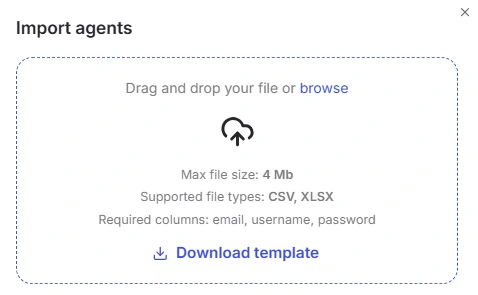
This file should be filled with your employees' data, making sure to include information in the email, username, and password columns. Once you have entered all the required details, the saved document needs to be imported back into the system: simply drag and drop it into the designated area of the window, or click “browse” to browse your device. Please note that the file has to be in CSV or XLSX format, and its maximum size cannot exceed 4 MB.
If a SIP connection is selected, use the following credentials to register:
-
Username: generated automatically as the employee's internal extension (can be copied from the “PBX Name” column in the agents table).
-
Password: accessible only to administrators in the “SIP Password” field of the user's card. The administrator copies and provides it to the agent to log into the softphone or set up hardware (see the relevant section for details).
-
Domain/Host: provided individually upon request to customer support.
- Agent table, which consists of the following columns:
-
a. Agent name - displays the name of the agent registered in the system.
-
b. Email - contains the email address associated with the agent’s account.
-
c. Role - the user’s role in the project. It can be custom or default;
-
d. Status - displays the current status of the agent (active or blocked);
-
e. PBX Name - displays the connection type and the employee's extension number, which can be quickly copied (can be modified by a Superadmin);
-
f. Campaigns - lists the campaigns to which the agent is currently assigned.
-
g. Actions:
-
i. Edit - a button that allows modifying the agent’s account details.
-
ii. Block - a button that temporarily disables the agent’s access without deleting the account.
-
iii. Delete - a button that permanently removes the agent’s account from the system.
-
The system includes a value-sorting feature. To activate this option, click the arrow next to the column name, and the data will automatically sort in ascending order. To switch to descending order, click the same arrow again.

You can also customize table columns individually. To do this, click the Settings icon:

In the window that opens, you can adjust column width, hide specific fields from the list, and change their order.
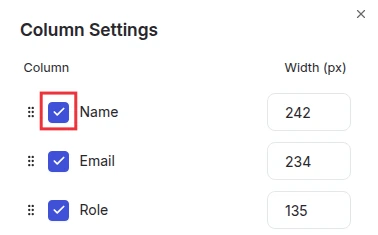
To change the order, hover over the dots icon. When the cursor changes to a hand, click and hold the selected column with the left mouse button and drag it to the desired position.
All changes are applied automatically and reflected in the interface instantly. If you want to restore the default column settings, click the “Reset to Defaults” button.
Viewing agent campaigns
Clicking the “Campaigns” button in the agent's row:

A tooltip will appear, allowing you to see which campaigns the agent is currently assigned to:
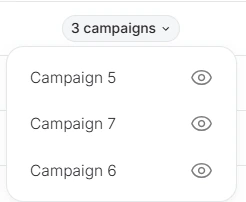
When you click on any campaign in the list, you will be redirected to the campaign details page. This page is described in detail in the “Campaigns” article.
Editing agents
Clicking the “Edit” icon in the agent's row will open the following window:
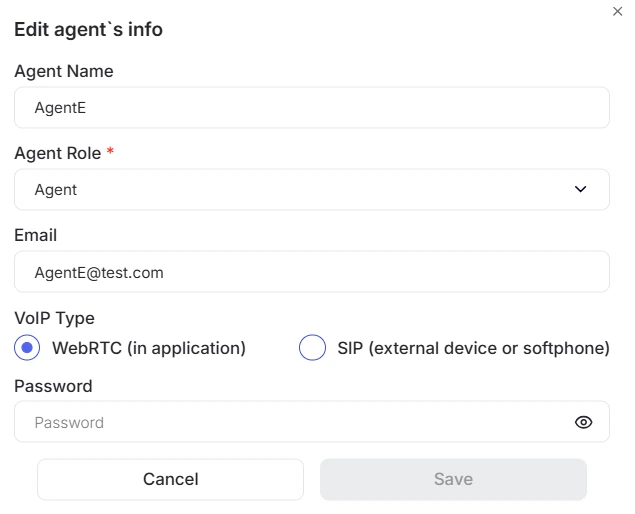
In this window, you can edit any field.
If you change the VoIP type to “SIP”, connecting via a softphone or IP phone becomes available. Since the SIP password is hidden for security reasons, login credentials can only be obtained from a system administrator who has access to this field. Important: When repeatedly switching to “SIP” and saving the settings, a new password is generated. Contact the administrator for the current credentials and update them in the softphone or on the device.
After making the necessary changes, you need to click “Save”.
If you change your mind about the changes, click “Cancel” or the “X” in the top-right corner of the screen.
Blocking agents
When you click the Block icon in an agent’s row, the icon will change to an Unblock symbol, and the status will change to “Blocked”.

A blocked agent will be automatically logged out of the system and will not be able to log in again.
To allow the agent to log in again, click the green Unblock icon in the Blocking column - this will remove the restriction.

Deleting agents
Clicking the “Delete” icon in the agent's row will open the following window:
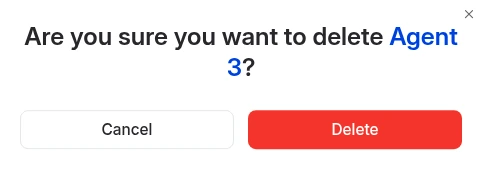
To delete the record, you need to click “Delete”.
To cancel the deletion, click “Cancel”.
Agent groups
On the Agent Groups page, the following interface elements are available:
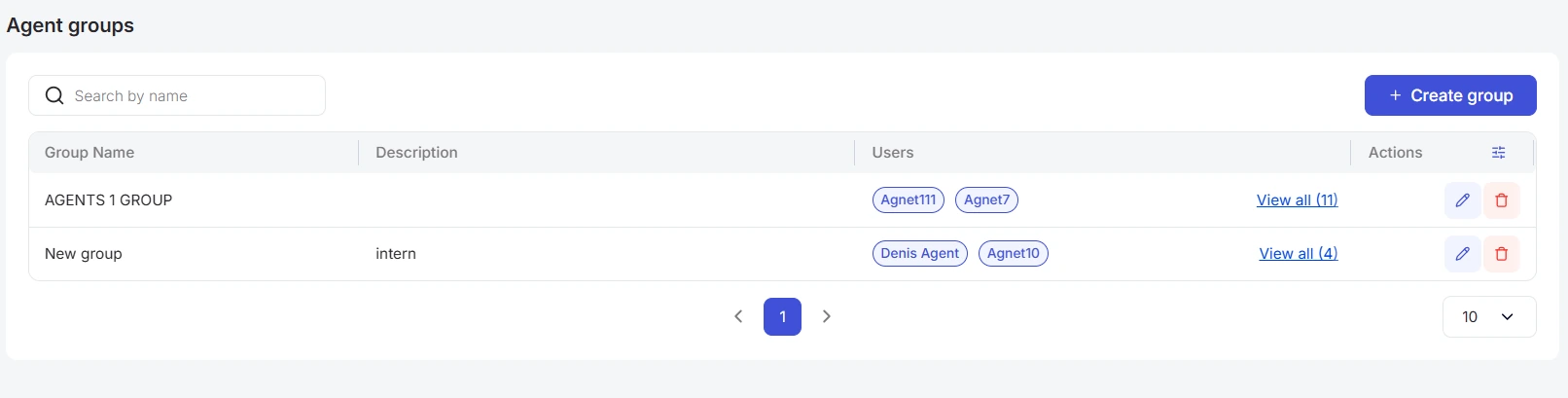
- Toolbar, which includes:
-
a. Search bar. Using the page search, you can quickly find the agent group you need by its name. To start searching, simply enter more than one character in the search field, and the system will automatically begin the search.
-
b. + Create group button.
Click this button to add a new agent group. After clicking, a group creation window will open:
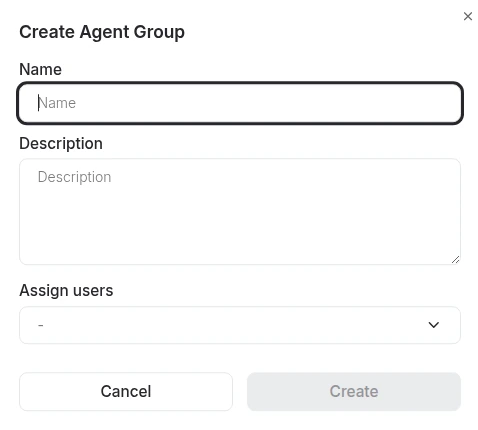
In the window, you have to enter Group Name, Group Description, Select agents who will belong to this group.
- Agent Groups Table, which consists of the following columns:
-
a. Group Name.
-
b. Description.
-
c. Users.
-
d. Actions:
-
i. Delete - removes the group from the system;
-
ii. Edit - opens a popup window where you can modify the group details:
-
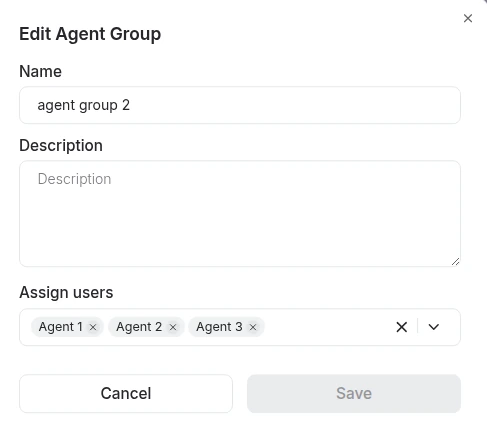
After making changes in the Edit window, click “Save” to apply them.
It is important to note that a single agent can belong to multiple groups. If an agent is part of different groups and all of those groups are added to a campaign, the system automatically eliminates duplicates. As a result, you will get a clean list of agents from all selected groups without any repetitions.
Leads
This document describes the Leads section in the Teliqon Autodialer Software system. It explains how to manage leads, lead lists, callbacks, blacklist entries, and import processes.
Managers
This document describes the Managers section in the Teliqon Autodialer Software system. It explains how to view managers assigned to a project, search the managers list, sort table data, and customize table columns.


