Campaigns
Campaign management in Teliqon Autodialer Software.
General Information
The Campaigns section contains information about your project's campaigns in Teliqon Autodialer Software:
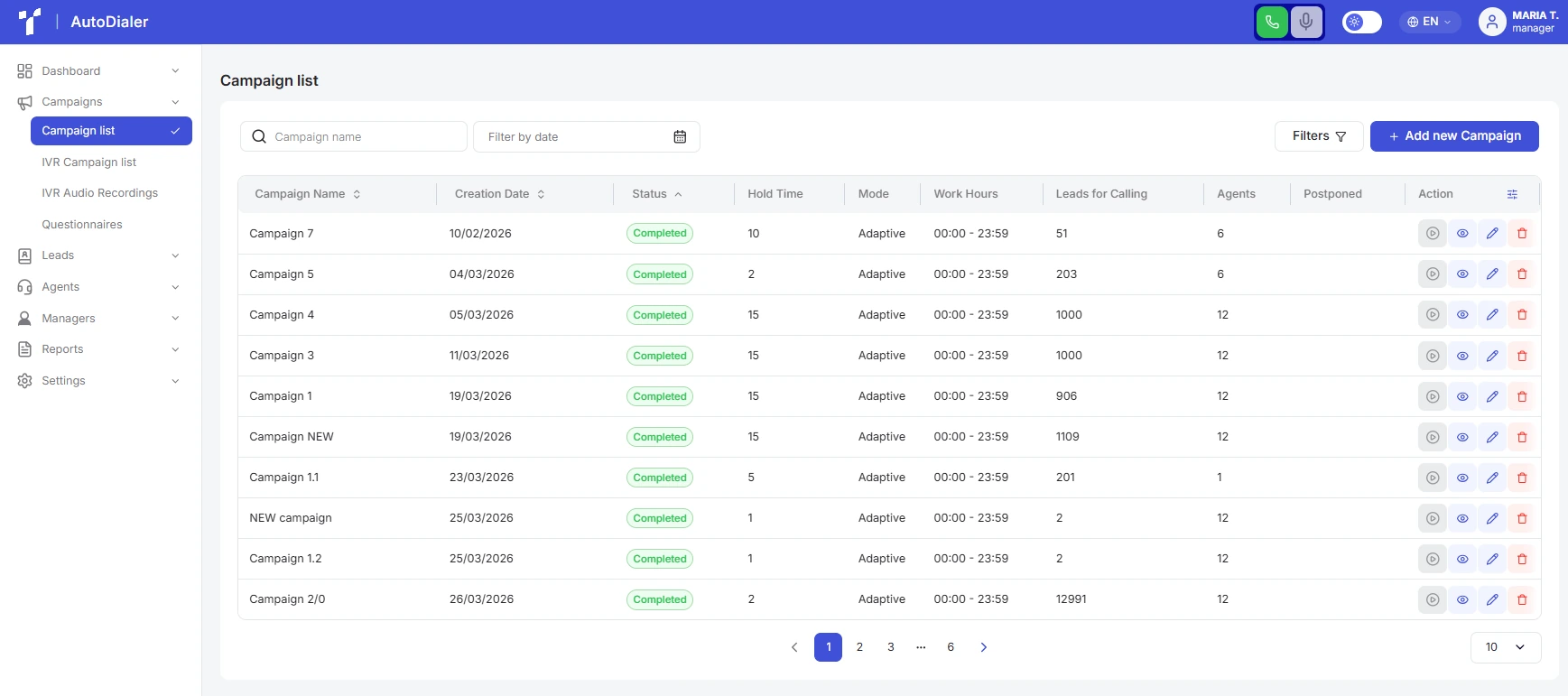
Campaign - a separate project for automatic calls to your customer base.
In this section, you can create and manage all types of campaigns (Default & IVR), configure audio recordings and questionnaires, monitor statuses, and edit or delete existing projects.
This section consists of the following pages:
-
Campaign list – projects for automatic dialing where, after picking up the phone, the customer is immediately connected to a live agent;
-
IVR Campaign list – projects where an audio message (voice menu) is played to the customer first, with the option of subsequent transfer to an agent.
-
IVR Audio Recordings - a centralized voice repository to create, upload, preview, and quickly apply audio files across any IVR campaign settings.
-
Questionnaires - a tool for creating data collection forms that guide agents during calls to capture customer responses in real time and analyze the results.
Campaign list
The Campaign list tab contains the following elements:
- Filters.
You can configure which filters appear in quick access on the top panel. To do this, click the Filters button to open a pop-up menu where you can add a specific filter to your favorites using the star icon. You can also apply the necessary filters directly within this window:
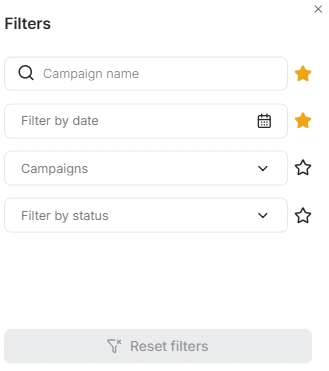
Available filters:
-
a. Search Bar - provides a convenient search for campaigns by full or partial matching of characters in the campaign name. To use it, simply enter the campaign name and the system will automatically start the search.
-
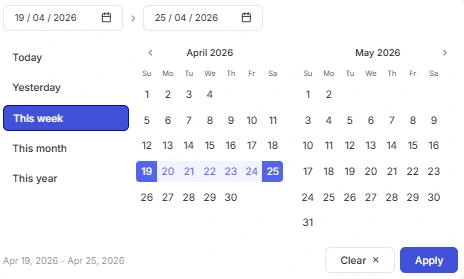
b. Filter by date opens a calendar used to select a date range for when campaigns were created. After clicking the calendar icon, a pop-up window will appear to select the required period.
To set a date range, use one of the following methods: -
Click the dates on the calendar to select the start and end dates;
-
Select one of the presets (“Today”, “Yesterday”, “This Week”, “This Month”, “This Year”).
To apply the changes, click the Apply button. If you change your mind, you can close the calendar by clicking anywhere outside the window or reset the selected dates using the Clear button.
- c. Campaigns. To select a campaign name to filter the data, click the dropdown list and choose one or more options. You can start typing the campaign name to narrow down the list of available values. Once selected, only the corresponding campaigns will be displayed in the general list.
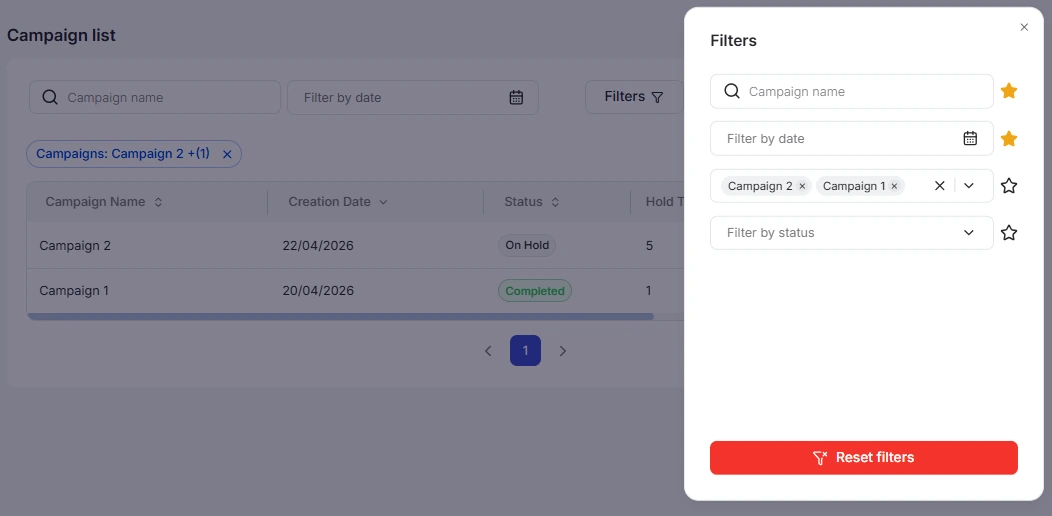
- d. Filter by status. To select a status to filter by, click the dropdown list and choose one or more values. You can start typing the status name to narrow down the list of options. Similar to the campaign name filter, once the values are selected, only campaigns with the corresponding status will be displayed in the general table.
Additionally, you can combine filters to narrow your search.
You can reset the configured filters in several ways:
- In the pop-up window - delete each filter individually by clicking the “X” next to the corresponding field (1), or click the “Reset filters” button at the bottom of the window (2) to clear all parameters at once.
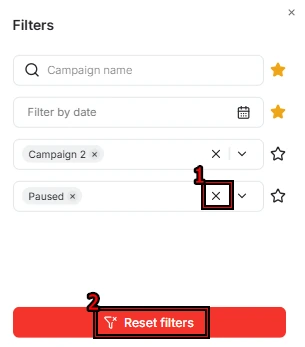
- On the top panel - click the “X” next to the name of a specific filter (1) or click the red “Reset filters” button (2) to cancel all active filters.

-
Adding a new Campaign. Detailed description of the button in the corresponding section.
-
The Campaign table consists of the following columns:
-
a. Campaign Name;
-
b. Creation Date;
-
c. Status;
-
d. Hold Time;
-
e. Mode;
-
f. Work Hours;
-
g. Leads for Calling;
-
h. Postponed (this row displays calls that were not completed because the campaign's working hours ended, as well as unprocessed callbacks and recycle attempts);
-
i. Agents;
-
j. Action (you can start or pause a campaign using the action controls. Additionally, you can view, edit, or delete a campaign).
You can find more detailed information about these parameters in the Adding a new Campaign section.
You can rearrange the column order directly within the table for your convenience. To do this, hover the cursor over the column name. When the cursor changes to a hand icon, press and hold the column with the left mouse button and drag it to the desired position.
A sorting function is also available in the system. To activate this option, click the arrow next to the column name, and the data will automatically be sorted in ascending order. To change the order to descending, click the same arrow again.


Additionally, the system provides the option to individually customize columns; to do this, click the Settings icon:

In the window that opens, you can adjust column widths, use the checkboxes to show or hide specific columns, and change their sequence.
To change the order, hover your cursor over the dotted icon. When the cursor changes to a hand icon, press and hold the selected column with the left mouse button and drag it to the desired position:
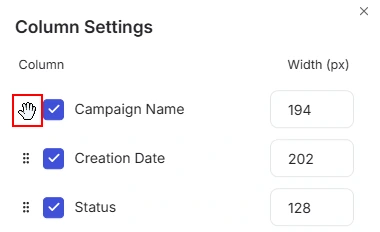
All changes are applied automatically and reflected in the interface instantly. If you wish to revert the column settings to their original parameters, click the Reset to Defaults button.
- Rows per page: Below the table, you can select the number of records to be displayed on a single page. The following options are available:
-
a. 10;
-
b. 15;
-
c. 25;
-
d. 50;
-
e. 100.
Adding a new Campaign
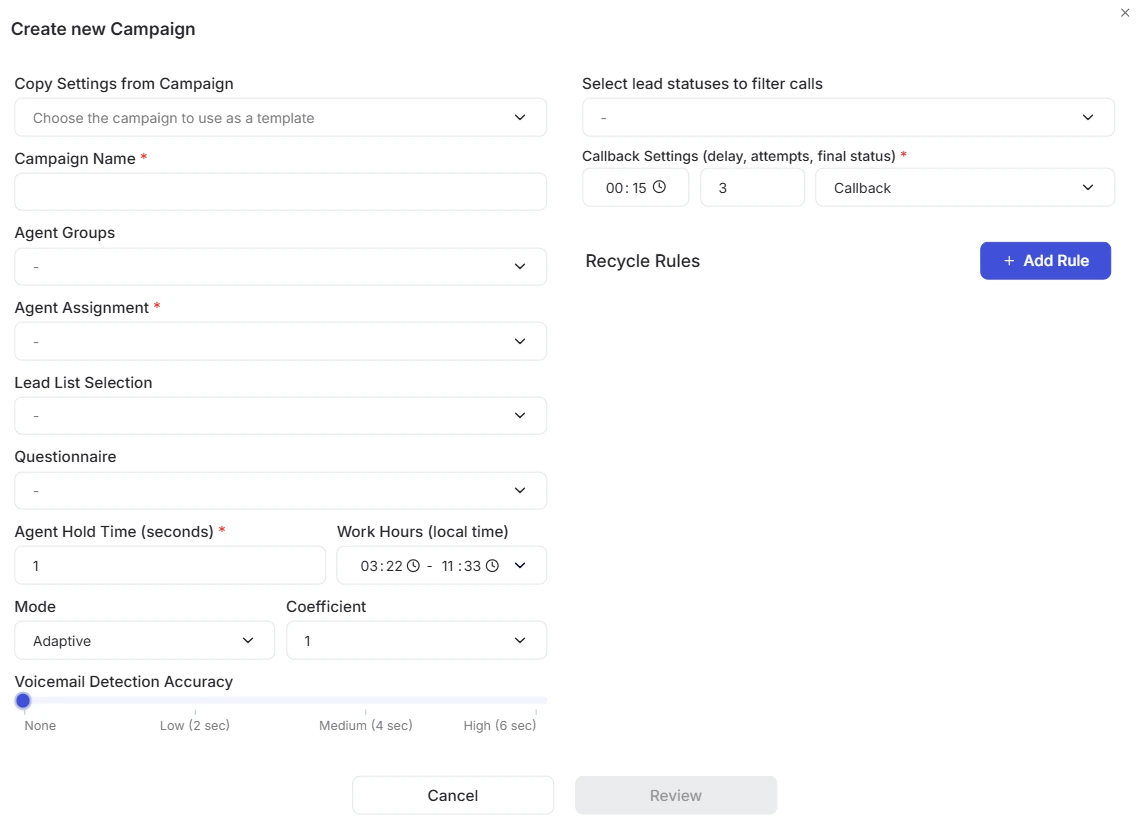
When you click the + Add new Campaign button, the following form with parameters will open:
-
a. Copy Settings from Campaign. You can select a previously created campaign whose settings will be automatically copied for the new one. These parameters can be edited if desired. This field is optional;
-
b. Campaign Name *;
-
c. Agent Groups;
-
d. Agent Assignment *;
-
e. Lead List Selection;
-
f. Questionnaire;
-
g. Agent Hold Time (seconds) *;
-
h. Mode;
-
i. Coefficient;
-
j. Voicemail detection accuracy;
-
k. Work Hours (local time);
-
l. Select lead statuses to filter calls *;
-
m. Callback Settings *;
-
n. Recycle Rules.
All fields marked with an asterisk ( * ) are required.
Agent Groups - preconfigured sets of operators managed in the “Agents” → “Agent groups” section. Using groups allows for the quick assignment of a team to handle calls.
Agent Assignment - provides the ability to select specific employees from the list individually. You can select a predefined group and then use the Agent Assignment field to add extra agents who are not members of that group.
Lead List Selection - a set of contacts that the system will use to make calls. You can find more details on how this section works in the Leads block.
Agent Hold Time (seconds) - the period during which an agent remains between “active calls”. This means they are not interacting with a client but stay on the line in real-time, ready to continue working.
You can choose one of two options for the Mode:
-
Fixed. The dialer calls a set number of leads simultaneously, regardless of how quickly agents become available.
Example: If the system is set to make 3 calls at once, it will perform exactly that number of calls without considering whether operators are busy or free.
Risks:-
a. If all agents are busy, calls may be stuck in a queue or missed.
-
b. If all agents are free, there may not be enough calls, causing operators to wait for a connection.
-
-
Adaptive. In this mode, the system analyzes the number of available agents and the call processing speed. Based on this data, the dialer automatically determines how many numbers to dial simultaneously.
Key points:-
a. If agents are busy, the system reduces the number of calls.
-
b. If agents become available, the system increases the number of calls.
-
This mode is suitable for dynamic workflows where it is essential to distribute calls efficiently and minimize customer wait times.
Coefficient. This is a multiplier used to determine the number of calls relative to the number of agents.
For example, if you have 10 agents in a campaign and select a coefficient of 2, the system will attempt to initiate 2 calls for every agent:
-
Fixed mode - the system will always initiate 20 calls (Total agents in the list × Coefficient).
-
Adaptive mode - the number of calls is calculated dynamically based on availability (Number of free agents × Coefficient).
Voicemail Detection Accuracy - a slider used to adjust the system's sensitivity for recognizing answering machines. The higher the accuracy setting, the more time the system spends analyzing the audio before dropping the call or connecting it to an agent. If set to “None”, the system will not detect voicemail at all and will immediately connect the call to an agent.
Work Hours - this is the time interval based on the lead's local time during which the system is permitted to make calls.
Select lead statuses to filter calls - these are the specific lead statuses that will be included in the campaign.
Example: If your lead list contains contacts with the status “Not Interested”, but you do not specify this status when creating the campaign, the system will skip these leads and they will not be dialed.
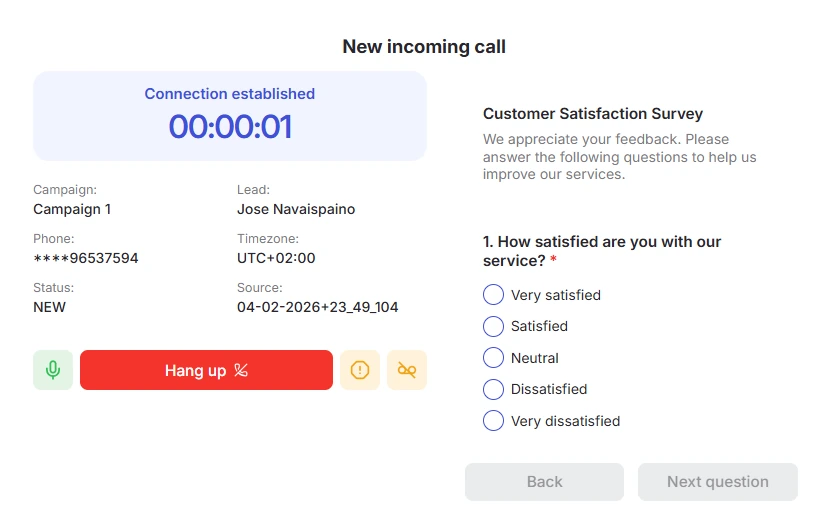
Questionnaire - connects a pre-built survey to the campaign. During the call, the agent sees on-screen prompts and questions to record customer responses in real time. Questionnaires are created and configured on a dedicated tab.
Recycle Rules define the conditions under which the system automatically schedules a redial for a lead after an agent has assigned them a specific status following a call.
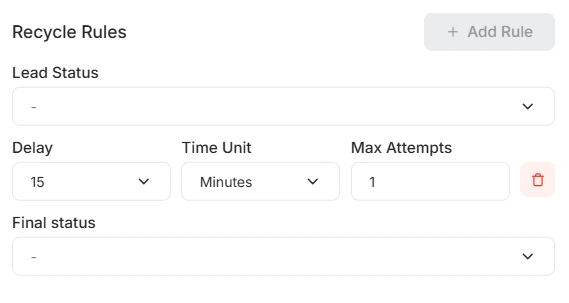
When adding a rule, you need to fill in the following parameters:
-
Lead Status: if an agent assigns a specific status to a lead after a call, the system identifies that this lead is subject to a redial rule.
-
Delay: determines the amount of time the system waits before attempting to call the lead again (e.g., 15 minutes or 2 hours).
Note: The available values in the "Delay" field change based on the selected Time Unit. -
Time Unit: specifies the unit of measurement for the delay interval. You need to choose one of the available options: Minutes, Hours, Days, Weeks, or Months.
-
Max Attempts: indicates the total number of times the system will attempt to redial a single lead (e.g., a maximum of 3 attempts).
-
Final Status: if the agent continues to select the same triggering status after the redial attempts are exhausted, the system automatically changes it to this “final status” to prevent an infinite dialing loop.
The Callback Settings parameter defines the conditions under which the system will perform callbacks. It typically includes the following elements:

-
Delay: determines how long the system waits after the initial call before attempting to call the lead back (e.g., 15 minutes or 2 hours).
-
Attempts: specifies the total number of times the system will try to dial the number again (e.g., a maximum of 3 attempts).
-
Final Status: if the agent assigns the same status again after a callback attempt, the system automatically changes it to this final status to prevent an endless dialing loop.
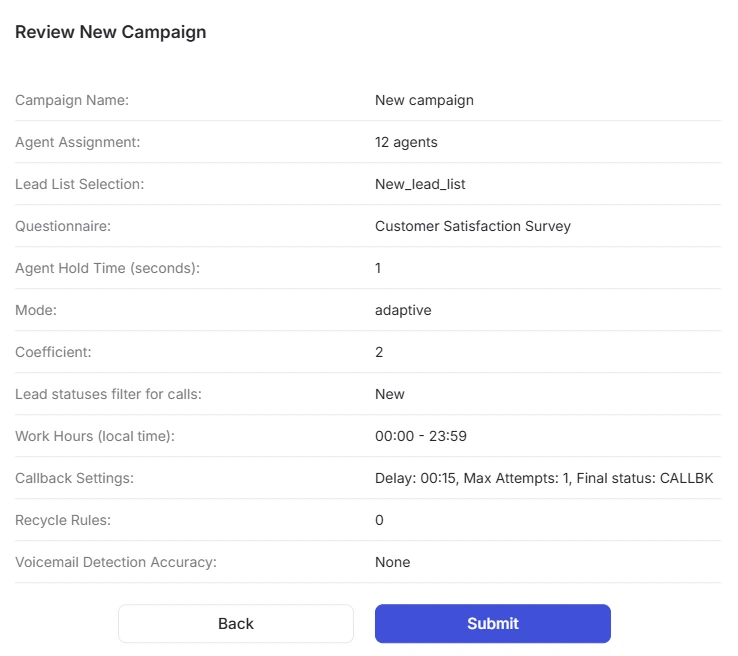
After filling in all the campaign fields, the system will prompt you to review the selected parameters.
If all information is correct, click the Submit button to complete the setup process.
The Back button allows you to return to the settings to make any necessary edits.
Viewing an existing Campaign
To view detailed information about a campaign, double-click the corresponding row or click the View button in the “Action” column. After this, a page with details will open:
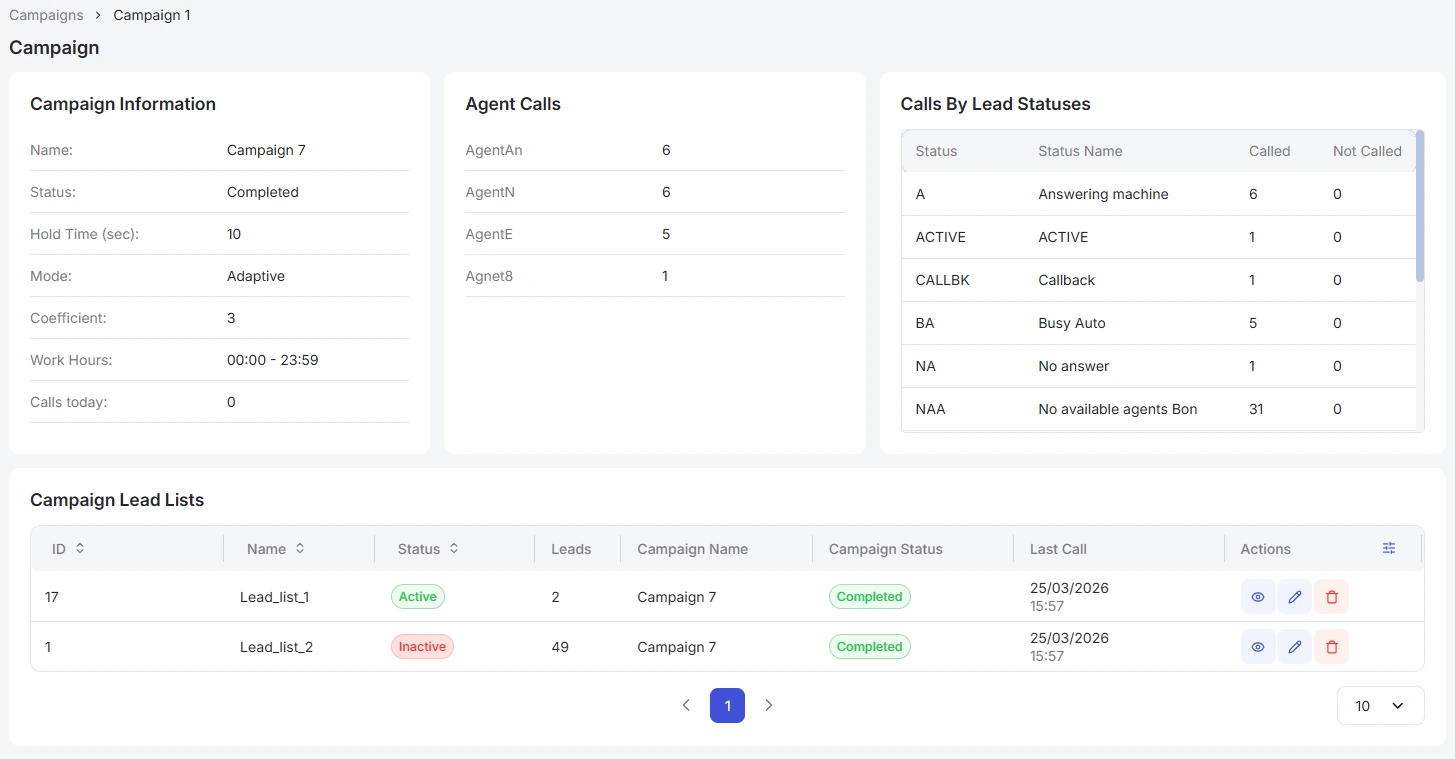
On this page, you can view campaign information, including the number of calls processed by each individual agent, the lead count broken down by status, and the lead lists associated with the campaign.
The “Campaign Lead Lists” block can also be viewed, edited, or deleted, and you can further customize the column width and order by clicking the settings icon:
You can find more detailed information regarding the Lead list settings in this section.

You can find more detailed information regarding the Lead list settings in this section.
Deleting an existing Campaign
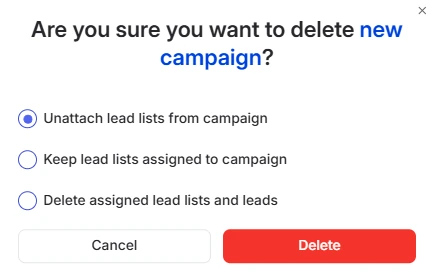
Upon clicking the Delete icon in the campaign row, a window will open where you need to choose one of three options:
-
Unattach lead lists from campaign. In this case, the lead lists will remain in the system as separate objects, while the campaign itself is deleted.
-
Keep lead lists assigned to campaign. The campaign will be deleted, but the lead lists will remain in the system associated with the deleted campaign.
-
Delete assigned lead lists and leads. This option results in the complete removal of the campaign along with all linked lead lists and the leads themselves.
To delete a record, click Delete. To cancel the deletion, click Cancel.
Editing an existing Campaign
Upon clicking the Edit icon in the campaign row, the following window will open:
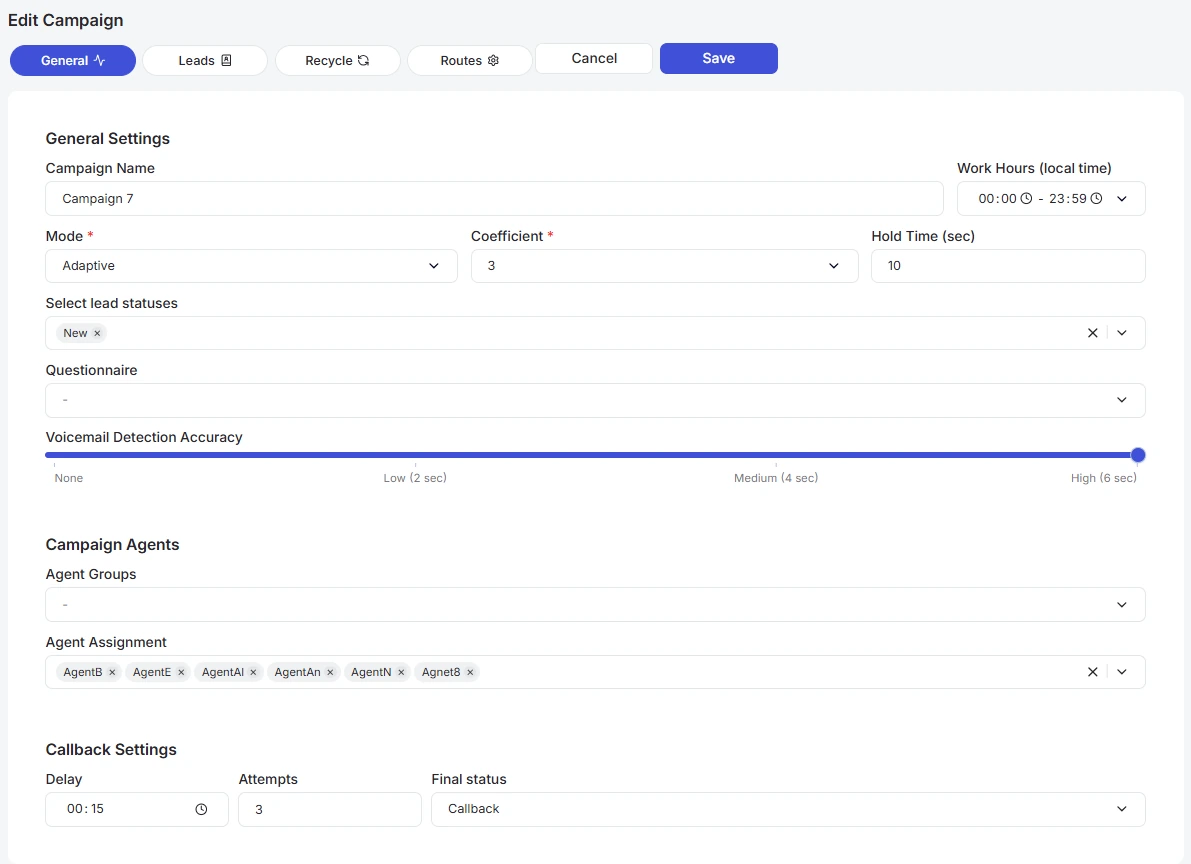
In this window, you can edit campaign data. For your convenience, the following tabs are available:
-
General - general campaign settings.
-
Leads - a list of leads and lead lists within the campaign.
-
Recycle - rules for automatic redialing.
-
Routes - call routing (settings determining which phone number will be used for outbound calls).
General
In this tab, you can edit the primary campaign parameters, including:
-
Campaign Name;
-
Hold Time (sec);
-
Mode;
-
Coefficient;
-
Work Hours;
-
Lead Status Selection;
-
Questionnaire;
-
Voicemail Detection Accuracy;
-
Callback Settings;
-
Agent Groups;
-
Agent Assignment.
More detailed information regarding these parameters is provided above.
Leads
In this tab, you can edit the lead lists for the selected campaign:
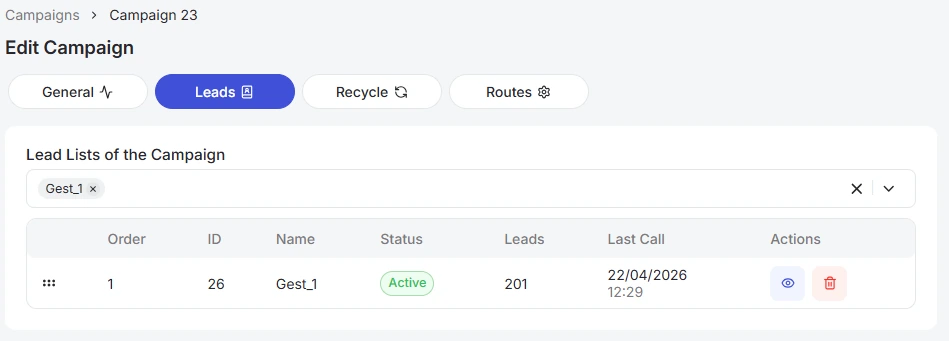
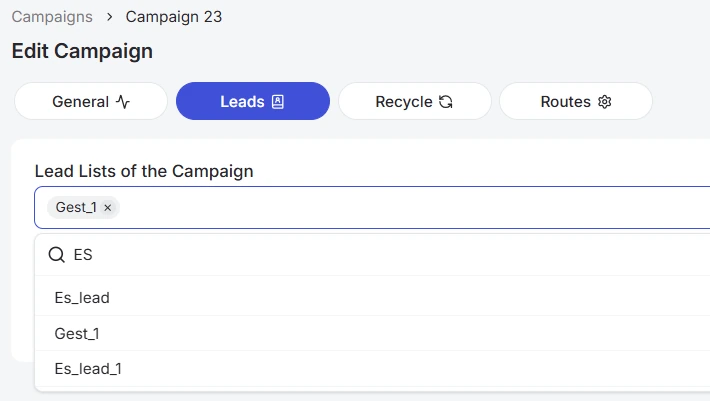
You can select from the available lead lists. To quickly find the one you need, start typing the list name in the dropdown field:
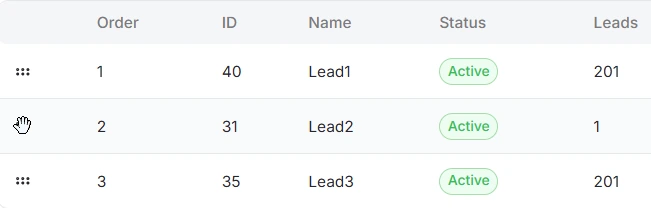
If three or more lead lists are added to a campaign, you can manually determine the sequence in which the system makes calls.
The system loads contacts in batches of 50 records. Consequently, if you change the priority while a campaign is running, the current group of leads will be completed first. The system will then begin pulling contacts from the newly prioritized list.
Once the cursor changes to a hand icon, click and hold the list to drag it to the desired position.
To quickly remove all lead lists added to the campaign, click the “X” icon on the right side of the “Campaign Lead Lists” dropdown menu:

Additionally, on this page you can:
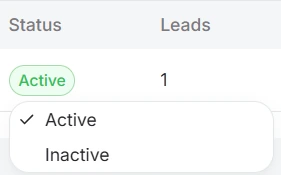
- Change lead list status (Active/Inactive);
- View lead list information by clicking the View button;
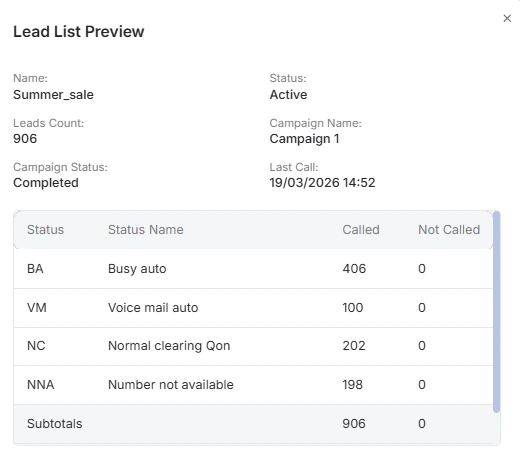
- Delete a lead list from the campaign by clicking the Delete button.
After making any changes to the campaign, a Save button will appear at the top to apply them. To discard the changes, click Cancel.
Recycle
In this tab, you can edit the recycle rules for the selected campaign:
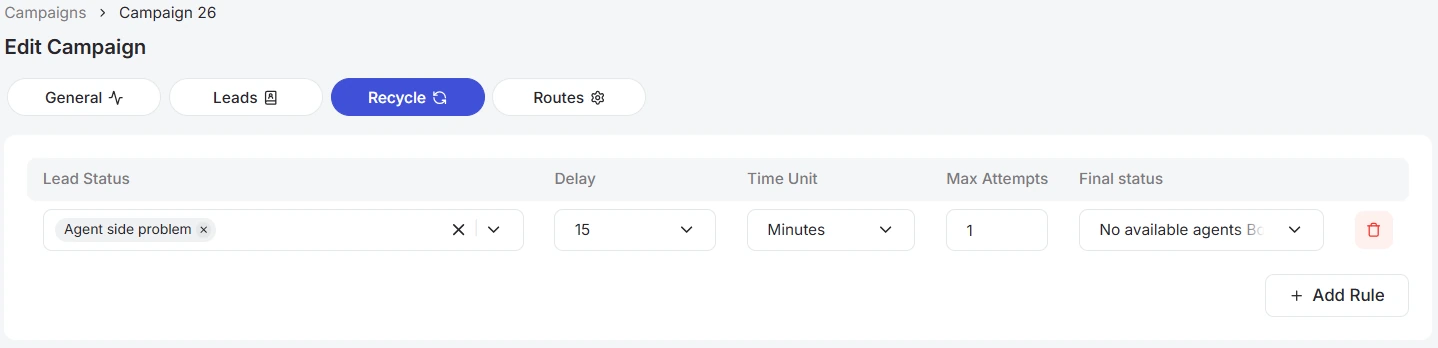
These settings define the conditions for automatic redial attempts once an agent assigns a specific status to a lead. Detailed information about the Recycle Rules parameters is provided above.
You can delete a rule by clicking the trash icon to the right of it or add a new rule by clicking the + Add Rule button.
Once you have made the necessary changes, click Save. If you change your mind and do not want to apply the changes, click Cancel.
Routes
In this section, you can flexibly configure outbound call parameters. Routes allow the system to automatically select a specific outbound number based on the prefix (area code) of the customer's phone number. This ensures that relevant local numbers are displayed when placing calls to different regions or various telecom operators.
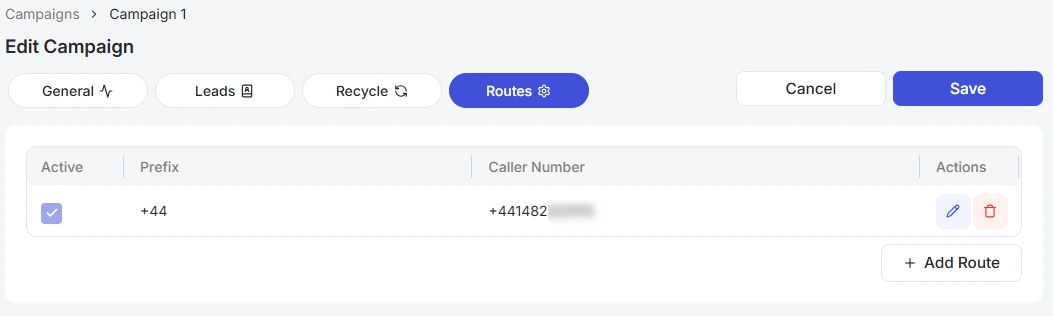
To create a new rule, click the + Add Route button, enter the prefix, and select the number that will be used for outbound calls for that specific code. Once the fields are filled, click the Save icon.
The following options are available for managing routes:
-
Activity status: use the checkbox in the Active column to enable or disable specific rules without deleting them.
-
Editing and Deletion: dedicated buttons in the Actions column allow you to modify existing route parameters or remove them from the system entirely.
IVR Campaign list
The IVR Campaign list tab is nearly identical to the Campaign list tab in its layout and interface. It offers the same management tools, filters, column customization options, sorting capabilities, and pagination. The primary difference lies in the campaign creation process.
Adding a new IVR Campaign
Clicking the + Add new campaign button opens a step-by-step configuration window.
Step 1: Campaign Setup
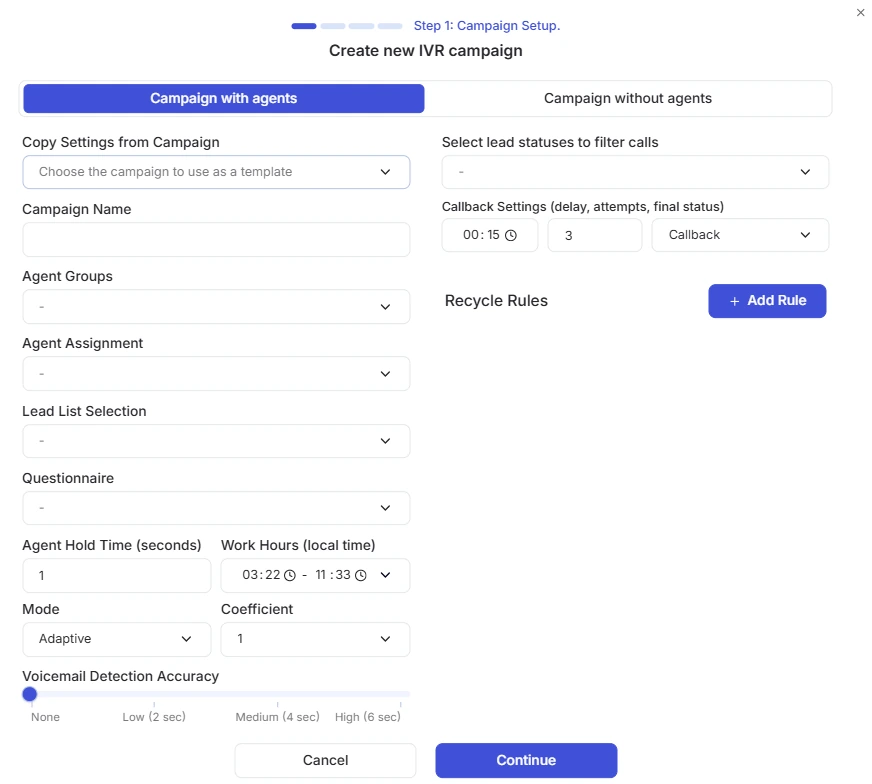
At the first stage, you need to select one of the two campaign operation modes using the tabs:
-
Campaign with agents - in this mode, the parameters are completely identical to those used when creating a regular campaign. You can read more about all the basic fields in the corresponding section of the instructions above.
-
Campaign without agents - a mode for fully automated broadcasting. Since agents are not involved, there is no option to configure callbacks, questionnaires, or agent assignments (fields for group selection, assigning specific employees, questionnaire selection, and the callback block become unavailable). Instead, the “Number of concurrent” calls field becomes available, where you can set a limit on parallel calls for processing the database.
After selecting the required tab and filling in all the necessary parameters, click the Continue button to proceed to the next step.
Step 2: Audio Response
At this stage, you configure the audio notification that the customer will hear once the call is connected.
You can select the required file from the list of previously saved files in the IVR Audio Recordings section or create a new recording by clicking the + Add new button:
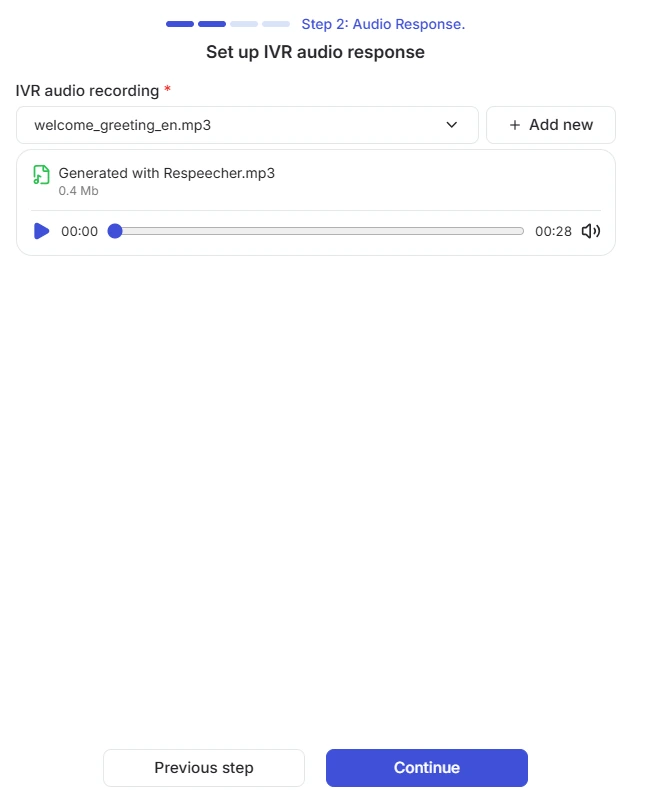
Clicking + Add new opens a modal window with two options for adding audio: uploading an existing file or generating speech using AI.
For more details on adding an audio file, see below. The added file is automatically saved in the IVR Audio Recordings section and linked to the current campaign.
To proceed to the next step, click Continue, or click Previous step to go back.
Step 3: Keypad Actions
At the third stage, you configure how the system reacts when a customer presses buttons during or after listening to the audio recording:
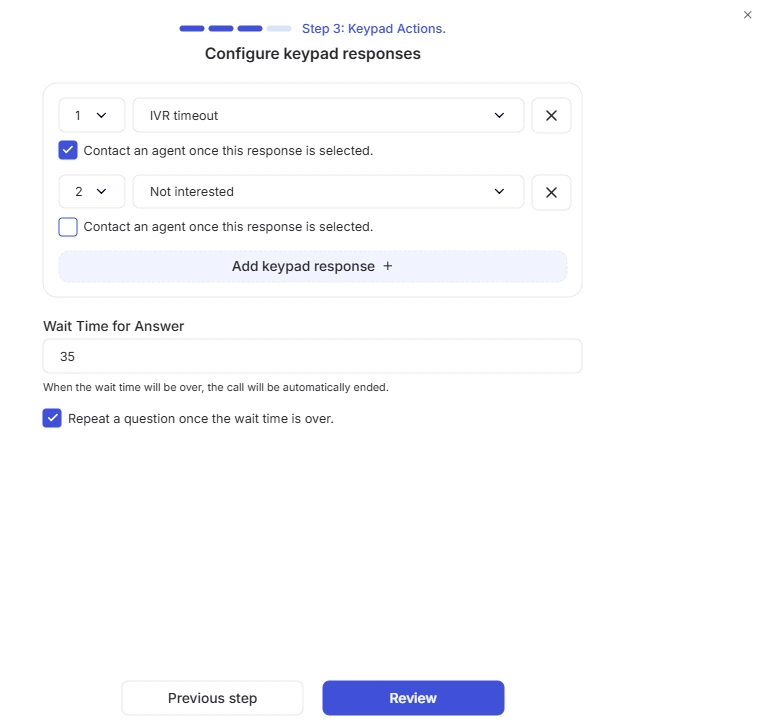
-
Keypad configuration – for each digit (1, 2, 4, etc.), you can assign a corresponding system status from the dropdown list. New button options can be added by clicking “Add keypad response +”, and unneeded ones can be removed using the cross icon on the right.
-
Transfer to agent – beneath each configured button, there is a checkbox “Contact an agent once this response is selected”. In “Campaign with agents” mode, you can flexibly customize your call handling logic. This allows for selective routing: for example, if the customer presses “1”, the system routes them to a live manager, whereas pressing “2” triggers a purely automated system action (e.g., logging a refusal) without involving an agent. Note: If “Campaign without agents” mode was selected in Step 1, this checkbox will be completely disabled for all IVR options.
-
Response timeout – specify the number of seconds the system will wait for the customer to press a button. If the customer does not make a choice within this timeframe, the call will automatically disconnect and be assigned the “IVR timeout” status in the system.
-
Repeat question after timeout – check this box if you want the system to replay the audio recording if the customer didn't press anything on the first try. Please note that the voice message will only repeat within the limits of the specified response timeout.
After completing all settings, click the Review button for a final check and to launch the campaign.
Important: if you are creating a campaign with agents, you will only be able to launch it if at least one agent is currently online. If you have configured a campaign without agents, it can be launched immediately after creation.

Actions with an existing Campaign
Similarly to regular campaigns, you can perform the following actions:
-
Edit campaigns - when editing IVR campaigns, additional sections are available where you can modify the parameters in the “Audio response” tab and adjust the operational logic in the “Keypad actions” tab.
IVR Audio Recordings
This page displays your added audio recordings:
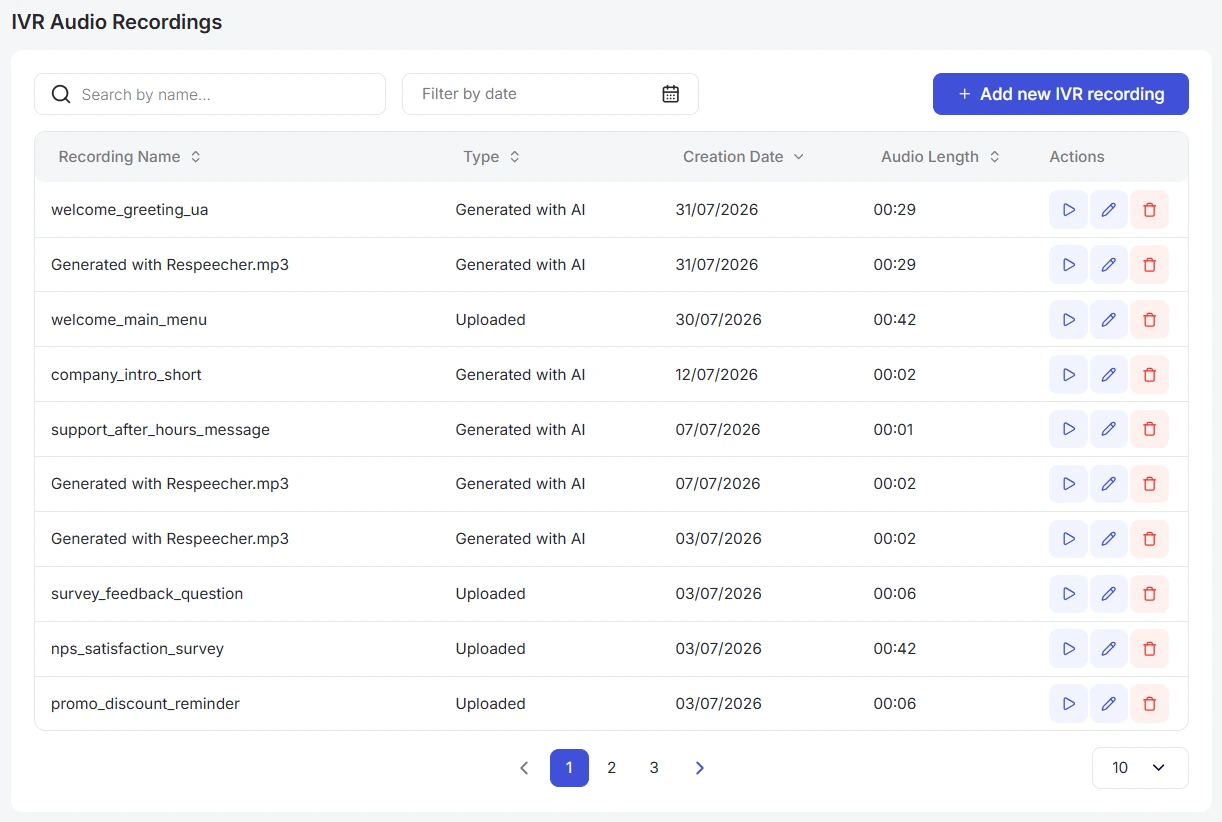
The page contains the following blocks:
- Filters.

Search bar allows you to easily search for recordings by exact or partial character matches in the recording name. To use the search bar, simply enter the name, and the system will start searching automatically.
Filter by date opens a calendar used to select a date range for when recordings were created. After clicking the calendar icon, a pop-up window will appear to select the required period.
To set a date range, use one of the following methods:.
-
Click the dates on the calendar to select the start and end dates;
-
Select one of the presets (“Today”, “Yesterday”, “This Week”, “This Month”, “This Year”).
To apply the changes, click the Apply button. If you change your mind, you can close the calendar by clicking anywhere outside the window or reset the selected dates using the Clear button.
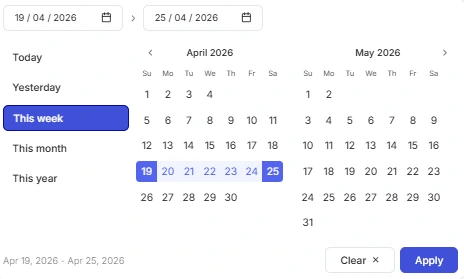
You can also combine multiple filters to narrow your search.
-
Adding a new audio recording. Detailed description of the button is in the relevant section.
-
Table of recordings, which consists of the following columns:
-
a. Recording Name;
-
b. Type (Generated with AI or Uploaded);
-
c. Creation Date;
-
d. Audio Length;
-
e. Actions (play recording, edit, or delete).
As in other sections, you can change the order of the columns: to do this, hover the cursor over the column name and drag it to the desired position. Sorting values in ascending or descending order is also available using the arrows next to the column name. For more details on these features, see here.
- Number of records per page. Below the table, there is functionality for selecting the number of rows per page. It has the following options: 10; 15; 25; 50; 100.
Adding a New Audio Recording
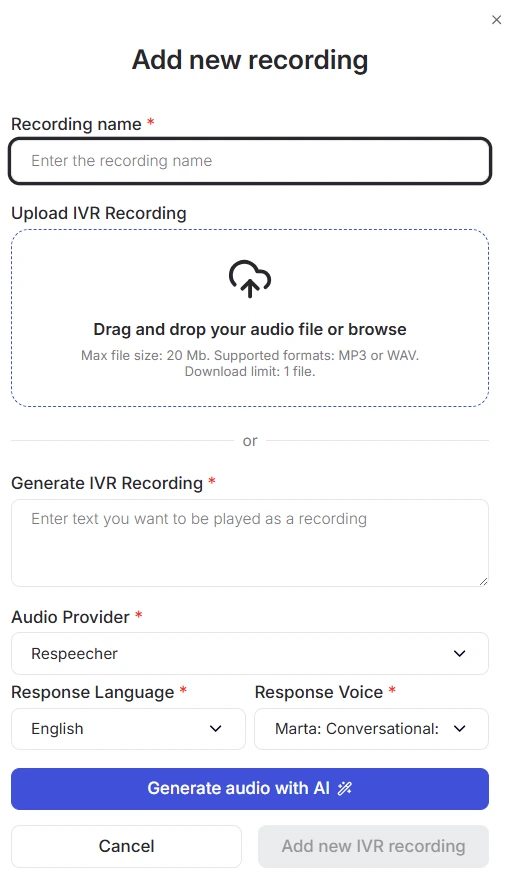
Clicking + Add new IVR Recording opens a modal window with two options for adding a recording:
-
Upload your own file - drag and drop the audio file into the upload area or click “browse”. The system supports MP3 and WAV formats, with a maximum size of up to 20 MB (limit: 1 file).
-
Generate voice with AI - if you do not have a ready-made recording, fill in the following fields:
-
IVR Recording - enter the message text to be voiced (the text must match the selected language to ensure natural sound and correct pronunciation).
-
Audio Provider - select the AI platform for generation (for example, "Respeecher").
-
Response Language and Voice - select the language of the text and the voice tone (male or female).
After filling in the fields, click Generate audio with AI - a player with the finished file will appear below for listening. You can regenerate the recording an unlimited number of times until you achieve the desired result.
When all fields are filled in and you are satisfied with the result, click Add new IVR recording: the new file will appear in the list and become available for selection when creating or editing IVR campaigns.
Actions with Existing Recordings
All created audio recordings are available for playback, editing, and deleting in the Actions column.
Playback
To play an audio recording, click the corresponding icon next to the file:

This opens the browser's standard built-in audio player. Depending on the browser you use (Chrome, Safari, Firefox, etc.), the interface and controls may vary: play/pause buttons, duration timer, and a context menu for adjusting playback speed or subtitles are available.
Editing
Clicking the Edit icon opens a modal window with all audio recording settings, which you can modify if needed.
Please note: uploading a new file or regenerating the audio will update the sound across all campaigns where this recording is used.
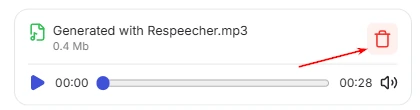
If you want to replace the audio in an existing recording, first delete the current file using the corresponding icon - this will enable the option to upload a new file or generate a different voice.
Deleting
To delete a file, click the trash icon.
In the modal window that opens, confirm the action by clicking Delete. If you change your mind, click Cancel.
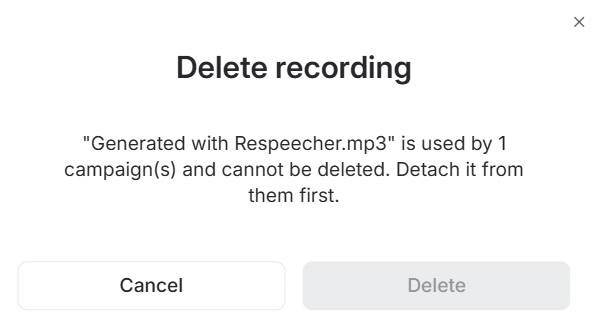
If the recording is assigned to any campaigns, a system warning will appear, preventing deletion until the file is unlinked from those campaigns:
Questionnaires
This section is designed for creating questionnaires, configuring question logic, and viewing data collected during calls:
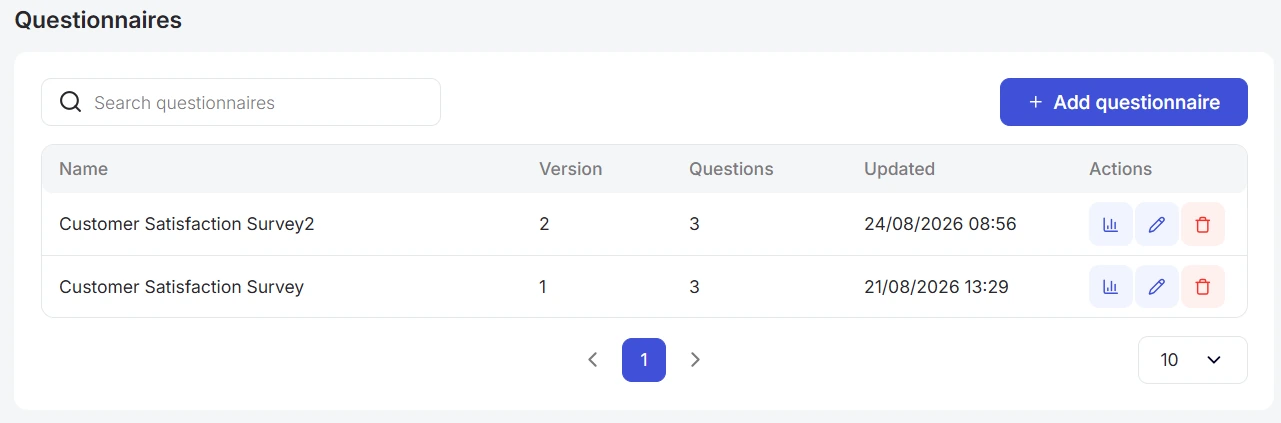
The page contains the following elements:
-
Search bar, which provides a convenient search for questionnaires by exact or partial character match in the questionnaire name. To use the search bar, simply enter the name and the system will automatically begin searching.
-
Adding a new questionnaire. Detailed description of the button is in the relevant section.
-
Questionnaires table, which consists of the following columns:
-
a. Name;
-
b. Questionnaire version;
-
c. Number of questions;
-
d. Questionnaire creation/update date;
-
e. Actions (view responses, edit, or delete).
As in other sections, you can change the order of the columns: to do this, hover the cursor over the column header and drag it to the desired position. Sorting values in ascending or descending order is also available using the arrows next to the column name. For more details on these features, see here.
- Number of records per page. Below the table, there is functionality for selecting the number of rows per page. It has the following options: 10; 15; 25; 50; 100.
If the questionnaire is linked to a campaign that the agent is handling, the questionnaire form will be displayed directly in the call window. This allows the operator to follow a clear conversation script and quickly record customer responses, saving call processing time, minimizing human error, and ensuring structured data collection for analytics.
Below is an example of how this appears on the agent's screen:
Adding a New Questionnaire
Clicking + Add questionnaire opens a modal window:
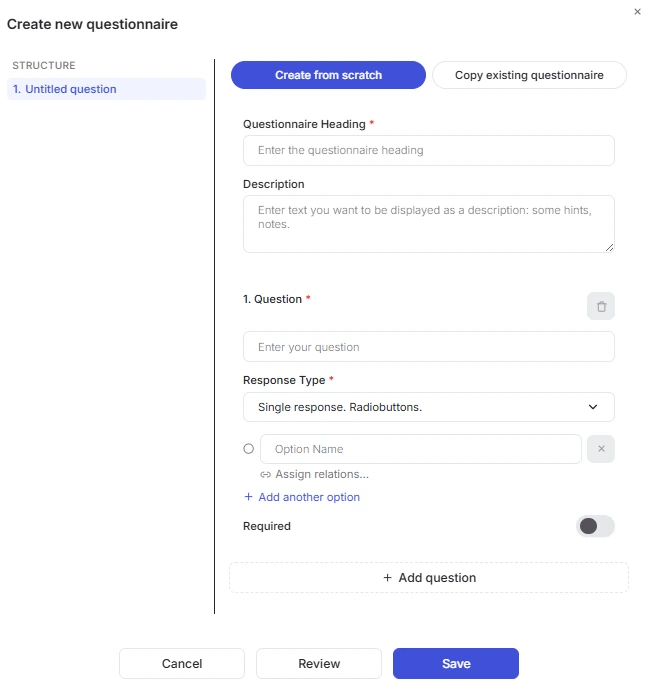
To create a new questionnaire, fill in the following fields:
-
Create from scratch / Copy existing questionnaire - choose a creation method: start with a blank form or copy the structure of an existing questionnaire for quick editing.
-
Questionnaire Heading* - a required field for internal identification of the questionnaire in the system.
-
Description - an optional field where you can add general instructions, tips, or notes for the agent.
-
Question Settings:
-
Question text* - enter the wording of the question that the agent reads to the customer.
-
Response type* - select the data capture format:
-
a. Single response (radiobuttons) - the customer chooses only one option from the provided list.
-
b. Multiple response (checkboxes) - allows selecting multiple options simultaneously.
-
c. Free text response - a free-form text field for manually entering comments or numeric values.
-
-
Answer options - enter the option label that the agent voices to the customer (or selects based on their response). If there are multiple options, add new fields using the “+ Add another option” button (available for radiobutton and checkbox types).
-
Assign relations - opens the dependency configuration window, where you create a new question linked directly to a specific answer choice. This allows building dynamic branching scenarios: for example, selecting “Yes” directs the agent to one question, while “No” leads to a different branch of the conversation.
-
Required - toggle this switch on if the agent cannot complete the questionnaire without answering this item.
-
Add question - a separate button to create a new question in the questionnaire. It allows adding the next block with question text, response type, and the required options.
After filling out the form, you can click Preview to test the questionnaire logic from the agent's perspective, Save to finalize the created questionnaire, or Cancel to exit without saving changes.
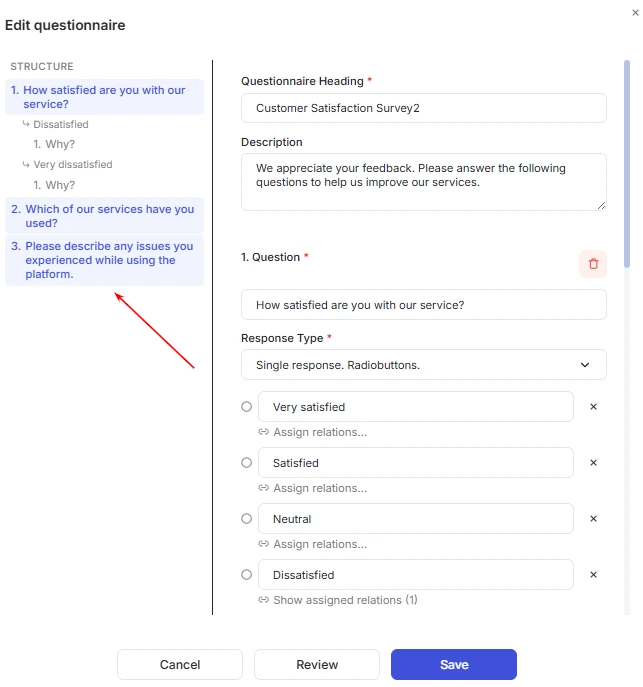
While creating a questionnaire, the Structure panel is displayed to the left of the main settings. It shows an interactive tree of the questionnaire in real time, allowing you to clearly see the entire conversation script, question hierarchy, and configured branches:
Actions with Existing Questionnaires
You can view results, edit settings, and delete questionnaires using the corresponding buttons in the Actions column.
Viewing Responses
To view collected responses for a specific questionnaire, click the corresponding icon:

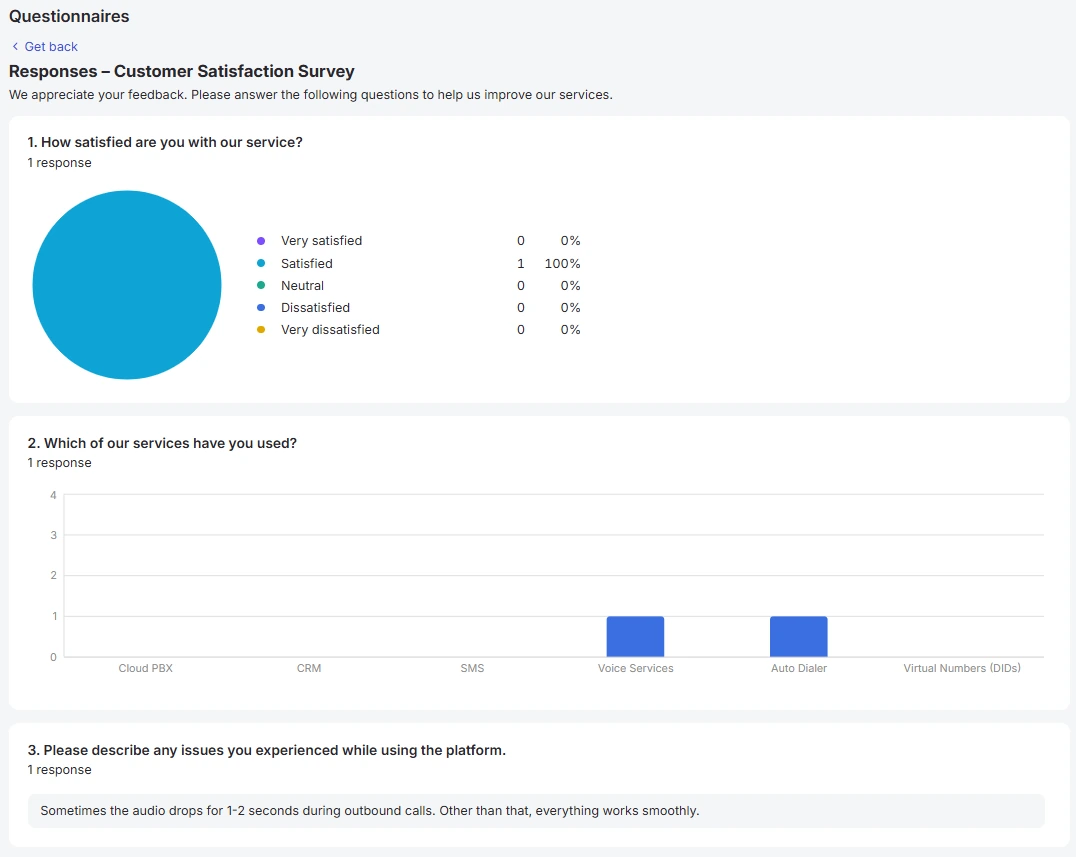
This will open a page with summary statistics and visualized results for each question:
-
Pie Chart - clearly displays the distribution of responses in percentages and counts for “Single response” questions.
-
Bar Chart - shows statistics for “Multiple response” questions. Hovering over a bar reveals the exact number of respondents for that option.
-
Text Responses - a list of expanded text comments and feedback provided by customers.
-
Response Counter - displays the total number of recorded responses next to each question.
Editing a Questionnaire
To modify a questionnaire, click the Edit icon and make all necessary changes:
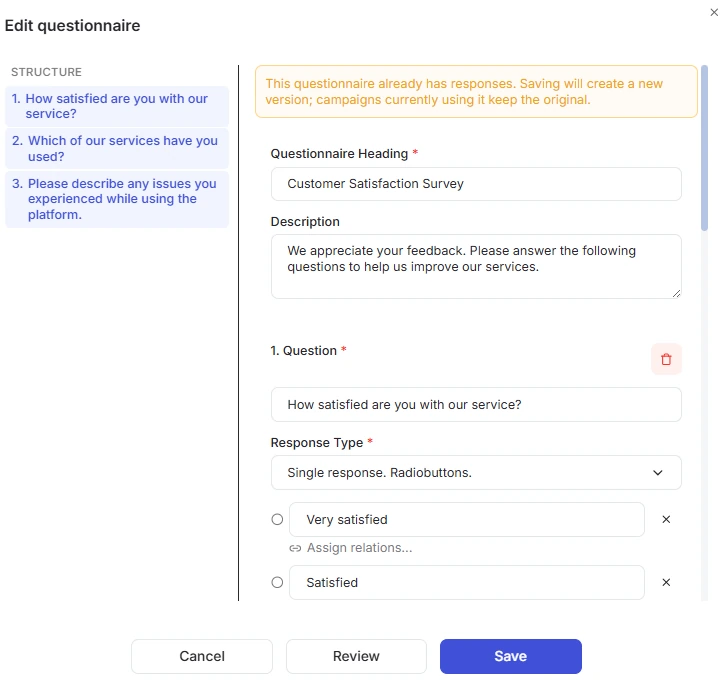
Please note: if responses have already been collected for a questionnaire, saving changes will automatically create a new version of it (as a separate questionnaire). The previous version remains linked to all current campaigns. To use the new version in calls, be sure to select it in the relevant campaign settings.
The current version number of the questionnaire is displayed in the “Version” column.
Deleting a Questionnaire
To delete a questionnaire, click the trash can icon.
In the modal window that opens, confirm the action by clicking Delete. If you change your mind, click Cancel.
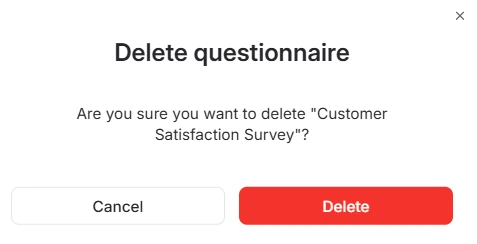
Tip: before deleting, make sure the questionnaire is unlinked from active campaigns in their settings, or select another relevant questionnaire for them.
Dashboard
This document describes the Dashboard page in the Teliqon Autodialer Software system. It explains how to monitor active campaigns, active agents, and live call statistics, including filters, call monitoring actions, agent statuses, and real-time call data.
Leads
This document describes the Leads section in the Teliqon Autodialer Software system. It explains how to manage leads, lead lists, callbacks, blacklist entries, and import processes.


