Microsoft 365 Integration
This document explains how to integrate Microsoft 365 with Teliqon Cloud PBX, configure application permissions, authenticate users, and enable contact synchronization and call logging.
General Information
You can integrate various Microsoft 365 services with Cloud PBX solution purchased through the Teliqon Portal.
The following integration types are supported:
-
Microsoft Entra ID Integration (formerly Azure Active Directory);
-
Microsoft Teams Integration;
-
Microsoft Outlook Integration.
Before you begin, please ensure that your Cloud PBX subscription is active and corresponds to one of the following plans: Teliqon Business, or Teliqon Ultimate.
Plan-specific requirements for each Microsoft 365 integration type will be outlined in the respective sections.
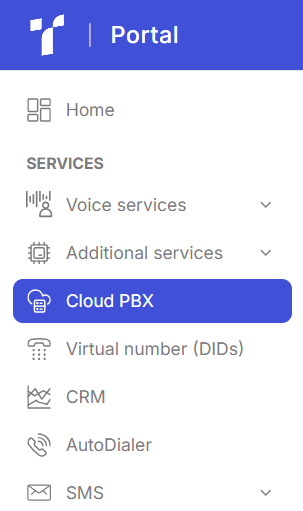
You can verify your Teliqon Cloud PBX subscription in your Teliqon Portal account. To do so, sign in to the system and navigate to the Cloud PBX section:
If you already have an active Cloud PBX subscription, you will see it displayed on the page:

If Teliqon Cloud PBX is not yet activated, you will instead see a list of available Cloud PBX plans. You may select any of them (Teliqon Business, or Teliqon Ultimate) on your own, or contact Teliqon Portal Technical Support for assistance with activation, setup, and further configuration.

Next, to access Cloud PBX Management account, click the pencil icon in the Actions column:

Then use the domain specified in the subscription settings to open Cloud PBX personal workspace:

If your Cloud PBX subscription is configured correctly, following this link will take you directly to Cloud PBX dashboard:

If you encounter any issues at any of the steps above, please contact Teliqon Portal Technical Support for assistance.
Why Integrate Microsoft 365
Before outlining the benefits of integration, it is important to clarify the term Extension.
An Extension in Teliqon Cloud PBX is an entity that simultaneously represents an Employee Contact and provides a dedicated internal phone number through which the employee can receive calls.
Each of the three available Microsoft 365 integrations offers its own set of advantages when connected to the Teliqon Cloud PBX system.
Benefits of Microsoft Entra ID (Azure Active Directory) Integration:
-
Microsoft Entra ID User Synchronization - Enables one-way synchronization of user accounts from Microsoft Entra ID to Teliqon Cloud PBX. Any updates to user information in Microsoft Entra ID are automatically synchronized with the PBX, simplifying user management and reducing manual configuration.
-
Automatic Extension Creation - Allows extensions to be automatically created for synchronized Microsoft Entra ID users, enabling them to access business communication features and interact with the Cloud PBX system using their assigned office extensions.
-
Single Sign-On (SSO) - Allows Microsoft Entra ID users to authenticate in Teliqon Cloud PBX using their Microsoft account credentials. This simplifies access for users and enhances security by eliminating the need to enter passwords manually.
Benefits of Microsoft Teams Integration:
-
Unified Interface for All Communications - Employees no longer need to switch between Teams and softphones for Cloud PBX calls. All calls - internal, external, and international - are made directly through Microsoft Teams.
-
Centralized PBX Function Management - You continue managing all PBX functionalities for your Teams users directly in the Teliqon Cloud PBX system, including:
-
a. Interactive Voice Response (IVR);
-
b. Call queues;
-
c. Call forwarding rules;
-
d. Call recording;
-
e. Call analytics, and more.
- Mobility and Convenience - Calls placed via Teliqon Cloud PBX work on any device that supports Teams (PC, smartphone, tablet). Employees can work from home or abroad using their corporate number. Office staff in Teams can also call mobile field workers via Cloud PBX, and those workers will see the company’s internal caller ID.
Benefits of Microsoft Outlook Integration:
-
Click-to-Call Directly from Outlook - Initiate calls to any Outlook contact with a single click. Cloud PBX automatically starts the call via your softphone or IP phone, eliminating the need to copy numbers or open another application.
-
Caller ID Identification - When a customer calls, Cloud PBX retrieves their information from your Outlook contacts, allowing you to immediately see their name, company, and other details.
-
Automatic Call Logging - All incoming, outgoing, and missed calls can be automatically logged in Outlook, creating a complete interaction history with customers - no need to record notes manually.
-
Unified Contact Database - All Outlook contacts become available in Cloud PBX user interface, removing the need to duplicate or manually manage multiple phonebooks.
-
Enhanced Customer Service - With full caller identification and access to prior email interactions in Outlook, you can communicate more professionally and respond more efficiently to customer needs.
Microsoft Entra ID
How to Integrate Microsoft Entra ID (Azure Active Directory)
To enable this integration, your Azure AD tenant must support API access (Graph API). This functionality allows external applications to read user data. Therefore, an active Microsoft 365 / Azure AD Premium subscription is required. It is also essential that the user who performs the integration has Global Administrator permissions in the Microsoft account.
Step 1
To configure the Microsoft Entra ID integration, you first need to locate and save the Redirect URI from the Teliqon Cloud PBX system.
- You can find it by opening Cloud PBX personal dashboard and using the button that leads to the portal management system:

- On the page that appears, navigate to the menu and select “Integrations” → “Collaboration”:

- There, you will see the Microsoft 365 Integration option. Click “Integrate”:

- In the window that opens, copy the values from the following fields - Redirect URI and Client SSO Redirect URI:

Where:
-
Redirect URI - the address to which you will be redirected after the authentication process for the integration is completed.
-
Client SSO Redirect URI - the address that allows users to sign in to Cloud PBX using their Google credentials.
Step 2
Next, you need to register a Microsoft Entra application that will be used to connect Cloud PBX to Microsoft Entra ID.
-
Sign in to the Microsoft Entra ID (Microsoft Azure) portal using a Microsoft Global Administrator account. Portal link: https://portal.azure.com/
-
In the search bar, find and select “Microsoft Entra ID” to open your organization’s directory:

- In the left navigation panel of your organization’s directory, go to “App registrations”:

- Click “+ New Registration”:

- Fill in the application registration details:

-
a. Name: Enter the application name.
-
b. Supported account types: Select “Accounts in this organizational directory only”.
-
c. Redirect URI: In the “Select a platform” dropdown, choose “Web”, then paste the Redirect URI you previously obtained from the PBX.
-
Click “Register”.
-
The Microsoft Entra application is now successfully created.
"The Application (client) ID” and “Directory (tenant) ID” are displayed on the “Overview” page. Make sure to save these values - you will need to enter them into the PBX later.

Step 3
Next, you have to grant the Microsoft Entra application the required API permission, allowing it to access specific data in Microsoft Entra ID.
-
Sign in to the Microsoft Entra ID (Microsoft Azure) portal using a Microsoft Global Administrator account. Portal link: https://portal.azure.com/
-
In the search bar, find and select “Microsoft Entra ID” to open your organization’s directory.

- In the left-hand navigation panel, go to “App registrations”:

- Open the “All Applications” tab and locate the application created in Step 2:

- In the application's left navigation menu, go to “API permissions”, then click “Add a permission”.

- On the “Select an API” screen, navigate to “Microsoft APIs” → “Microsoft Graph”.

- Add the required permission that allows the application to set user presence status:
- a. Choose “Application permissions”, find and select "Presence.ReadWrite.All" permission, then click "Add permissions".

- b. Click “Grant admin consent for …” to approve the permission for the application.

- c. In the pop-up window confirming the permission grant, click “Yes”.
- The application now has the necessary permissions
Step 4
Generate a client secret so that the Microsoft Entra application can authenticate during integration.
-
Sign in to the Microsoft Entra ID (Microsoft Azure) portal using a Microsoft Global Administrator account. Portal link: https://portal.azure.com/
-
In the search bar, find and select “Microsoft Entra ID” to open your organization’s directory.

- In the left-hand navigation panel of the organization directory, go to “App registrations”:

- Select the “All Applications” tab and locate the application you created in Step 2:

- In the application’s left-hand navigation panel, open “Certificates & secrets” → “Client secrets”, then click “New client secret”:

- On the “Add a client secret” page, complete the following actions:
- a. Add a description and set the expiration period for the client secret.

- b. At the bottom of the page, click “Add”. The newly created client secret will appear in the “Client secrets” list.

-
Important: Save the client secret value before leaving the page, as it is displayed only once. Otherwise, you will need to generate a new client secret.
-
Done - you can proceed to the next step.
Step 5
Next, you need to enter the Application ID and Client Secret obtained from the Microsoft Entra application into the PBX to complete the integration between Teliqon Cloud PBX and Microsoft Entra ID.
- To do this, open your Teliqon Cloud PBX dashboard and use the button that navigates to the portal management section:

- On the page that opens, select “Integrations” → “Collaboration” in the menu:

- There you will see the Microsoft 365 integration option. Click “Integrate”:

- УIn the “App Registration” section, enter the following information:

-
a. Application (Client) ID: Insert the application ID obtained in Step 2.
-
b. Tenant ID: Insert the tenant ID obtained in Step 2.
-
On the same page, in the “Certificates & Secrets” section, paste the client secret into the “Client Secret” field.
-
After this, click “Save.” You will be redirected to the Microsoft sign-in page.
-
Log in using a Microsoft account with Global Administrator permissions:

- You may be prompted to complete additional security verification. Click “Next” to finish the process or skip this step.

- In the pop-up window, review the permissions and click “Accept” to confirm.

- Click “Ok” in the informational window after the confirmation:

- Done - the integration has been successfully connected:

How to Enable Microsoft Entra Id SSO
You can additionally enable Single Sign-On (SSO) to allow users synchronized between Teliqon Cloud PBX and Microsoft Entra ID to log in to the PBX dashboard using their Microsoft accounts. To do this, you must add the Client SSO Redirect URI to the Microsoft Entra application created in Step 2:
-
Sign in to the Microsoft Entra ID (Microsoft Azure) portal using a Microsoft Global Administrator account. Portal link: https://portal.azure.com/
-
In the search bar, find and select “Microsoft Entra ID” to open your organization’s directory.

- In the organization directory’s left-hand navigation menu, go to “App registrations”:

- Select the “All Applications” tab and locate the application created in Step 2:

- In the left-hand navigation panel of the Microsoft Entra application, go to “Authentication”.

- Add the SSO Redirect URI for subsequent authentication in Teliqon Cloud PBX.
-
a. On the “Authentication” page, click “Add URI” in the “Web” section.
-
b. Paste the Client SSO Redirect URI obtained from the PBX (in Step 1).
-
c. Click “Save”.
- Done - you can now log in to the Cloud PBX system using Microsoft accounts.
As a result, the Teliqon Cloud PBX login page will display the option to authenticate using Microsoft:

How to Synchronize Contacts with Microsoft Entra ID
Once the integration has been successfully connected, you can configure a synchronization rule based on contacts to synchronize users from Microsoft Entra ID into the Teliqon Cloud PBX system. During the synchronization process, the PBX will automatically create Extensions (see the “Why Connect Microsoft Entra ID” section) for the users being synchronized, and any changes made to these users in Microsoft Entra ID will automatically update the corresponding extensions in the PBX.
It is important to note that you cannot synchronize more contacts than the number of available extension slots in Cloud PBX subscription.
Contact synchronization flow
- Go to Teliqon Cloud PBX dashboard and click the button to open the portal management section:

- On the page that opens, navigate through the menu to “Integrations” → “Collaboration”:

- On the Microsoft 365 integration page, enable the “User Synchronization” toggle:

- In the dropdown list for “User Range for Extension Auto Creation”, select the group of users you want to synchronize with Teliqon Cloud PBX. Three synchronization options are available:

-
a. All users - When this option is selected, all Microsoft Entra ID users will be synchronized with the PBX, and an Extension will be created for each of them.
-
b. Users of Specific Type - When this option is selected, only the specified Microsoft Entra ID user types will be synchronized. In the “User Type” dropdown, select which types should be included:
i. Member - all users who are “members” of your organization.
ii. Guest - all “guest” users in your organization’s directory.
-
c. Users on Specific Group - When this option is selected, only users from selected Microsoft Entra ID groups will be synchronized. Use the “Group” dropdown to select the groups you want to sync.
- Additionally, you will have access to the checkbox “Auto delete the Extensions no longer sync”. When enabled, if a synchronized user no longer appears during the next synchronization cycle, their corresponding Extension in the PBX will be automatically removed:

- In the “User’s Extension Number” dropdown, choose how Extensions will be assigned to synchronized users. The following options are available:

-
a. Assign Automatically - Extensions will be assigned automatically, starting from the number specified in “Start Extension Number from”.
-
b. Read Specific Property Value - Use this option if your Microsoft Entra ID users already have assigned phone numbers stored in a specific property field. The PBX will read and use these values when synchronizing. When selected, specify the property name in the “Property Name field”. (Reference to Microsoft Entra ID user properties: https://learn.microsoft.com/en-us/graph/api/resources/user?view=graph-rest-1.0#properties)
- In the “Delete the Extension when its associated user account is” dropdown, select which user account statuses should trigger PBX to stop syncing the user and delete the related Extension:

- You will also see two additional checkboxes that can be enabled or disabled:
-
a. Auto associate Extensions with the Users that share the same email address - when enabled, users whose email matches an existing Extension will be linked to that Extension.
-
b. Send Welcome Email automatically after an extension is created - when enabled, newly synchronized users will automatically receive a welcome email.
- The final step is to configure the “Map” section, where you specify which Microsoft Entra ID fields will be synchronized with PBX contact fields. For example:

(Reference to Microsoft Entra ID user properties: https://learn.microsoft.com/en-us/graph/api/resources/user?view=graph-rest-1.0#properties)
- Click “Save”. The initial synchronization will run immediately after saving.
As a result, you will be able to see how many users have been synchronized:

Synchronized users in the Extensions list will be marked with an icon .

You will not be able to modify the following user fields directly from PBX. To update them, changes must be made in Microsoft Entra ID followed by re-synchronization:
-
Last name;
-
First name;
-
Email Address;
-
Mobile Number;
-
Job Title.
How to stop contact synchronization
After you have synchronized the contacts, if you need to stop the synchronization and avoid overwriting the already synchronized data, you can do so as follows:
- Navigate to your Teliqon Cloud PBX dashboard and click the button that opens the portal management section:

- On the page that opens, select “Integrations” → “Collaboration” from the menu:

- On the Microsoft 365 integration page, switch off the “User Synchronization” toggle:

- A pop-up window will appear asking you to confirm the action. You can choose either to delete the synchronized contacts or keep them:

- Click “Save”. Done - the synchronization has been temporarily paused.
How to Synchronize Groups with Microsoft Entra ID
Once the integration has been successfully enabled, you can configure a group-based synchronization rule to synchronize the required groups from Microsoft Entra ID with the Extension Groups in Teliqon Cloud PBX. During the synchronization process, the PBX will automatically create Extensions (see the “Why Integrate Microsoft 365” section) for the groups being synchronized. Any changes made to these groups in Microsoft Entra ID will be reflected in the PBX, and the corresponding extension groups will be updated accordingly.
The number of groups that can be synchronized from Microsoft Entra ID to the PBX depends on the number of Extension Groups that the PBX system is able to create.
Group synchronization flow
- Go to Teliqon Cloud PBX dashboard and click the button to open the portal management section:

- On the page that opens, navigate through the menu to “Integrations” → “Collaboration”:

- On the Microsoft 365 integration page, enable the “Group Synchronization” toggle:

- In the “Synchronize for” dropdown menu, select which groups you would like to synchronize:

-
a. All Groups - when this option is selected, all Microsoft Entra ID groups will be synchronized with the PBX, meaning that an Extension Group will be created for each of them.
-
b. Specific Group Type - select a specific type of group to synchronize. Two types are available:
i. Security Groups - all security groups in your organization’s directory.
ii. Microsoft 365 - all Microsoft 365 groups in your organization’s directory.
-
c. Specific Group - synchronize only selected groups. Using the dropdown list, choose the group(s) you want to synchronize. By default, the dropdown displays up to 200 groups. If you need access to more, contact Teliqon Cloud PBX technical support.
- Additionally, you will see the option “Auto delete the Extension Groups no longer in sync”. When this checkbox is enabled, any Extension Group that is no longer present in Microsoft Entra ID during the next synchronization will automatically be removed from the PBX.

- Click “Save”. The initial synchronization of groups will start immediately.
After synchronization is completed, you will see how many groups were successfully synchronized:

Synchronized groups in the Extension Groups list will be marked with a special icon .

You will not be able to modify the following fields for synchronized groups directly in the PBX: Name, Group Member. To apply changes, you must update the data in Microsoft Entra ID and run synchronization again.
How to stop group synchronization
After you have synchronized the groups, if you need to stop the synchronization and avoid overwriting the already synchronized data, you can do so as follows:
- Go to Teliqon Cloud PBX dashboard and click the button to open the portal management section:

- On the newly opened page, in the menu, select “Integrations” → “Collaboration”:

- On the Microsoft 365 integration page, disable the “Group Synchronization” toggle:

- A confirmation pop-up will appear. You can choose either to delete the synchronized groups or keep them:

- Click “Save”. Done - group synchronization has been temporarily suspended.
Microsoft Teams
How to Integrate Microsoft Teams
To enable this integration, a corporate license that includes Microsoft Teams is required. For example:
- Microsoft 365 Business Basic / Standard / Premium
or
- Microsoft 365 E1 / E3 / E5
or
- Office 365 E1 / E3 / E5
Another important requirement for activating the integration between Teliqon Cloud PBX and Microsoft Teams is that each user must install the “Linkus for Teams” application on their Teams client and sign in. Once the integration is enabled, Teams users will be able to make, receive, and manage calls directly within Microsoft Teams.
Step 1
To begin, you need to install the “Linkus for Teams” application in the Microsoft Teams client:
-
Sign in to Microsoft Teams.
-
In the left-hand navigation panel, select the “Apps” section. On the opened page, use the search bar to type “Linkus”:

-
Choose the application described as: “Place calls, check voicemails, look up contacts, and more in Microsoft Teams.”
-
You will be redirected to a page where you must authenticate using your Teliqon Cloud PBX web client credentials.
Step 2
- After selecting the application, navigate to the “Phone Extension” tab.

- In the input field, enter the domain of your Teliqon Cloud PBX portal and click “Access the PBX”:

- You will be redirected to the Teliqon Cloud PBX authentication page.
Step 3
To log in to the Cloud PBX system, you can use one of the following methods:
-
Sign in with your Extension account in Teliqon Cloud PBX.
-
Sign in using Microsoft SSO (if you have previously enabled SSO in Cloud PBX).
Signing in with an Extension Account
- On the login page displayed in Step 2, enter the credentials of your Teliqon Cloud PBX Extension account:

-
a. Username - the email address associated with your Extension account in PBX.
-
b. Password - the password for your Extension account in PBX.
-
Then click “Log In”.
-
A pop-up window will appear asking you to confirm whether you allow Linkus to send notifications about incoming messages and calls.
Signing in with an Microsoft SSO
- On the login page displayed in Step 2, click “Sign in with Microsoft”:

-
A pop-up window will appear, prompting you to enter your Microsoft account credentials.
-
You will then see another pop-up window asking whether you allow Linkus to send notifications about incoming messages and calls in the chat.
Step 4
At this step, you can configure and select the endpoint used to place and receive calls. You may use the Teliqon Cloud PBX Web Client, the Linkus Desktop Client, or an IP phone as the call endpoint by enabling CTI control for these devices. This allows you to manage calls directly from Microsoft Teams while calls are placed and received through the selected endpoint:
- Use the Teliqon Cloud PBX Web Client. Sign in to the Cloud PBX web client. In the top-right corner of the PBX interface, click the button shown in the screenshot:

The label should display “Web Client”, indicating that calls will be handled through the web client.
- Use the Linkus Desktop Client (hereinafter referred to simply as Desktop). To do this:
-
a. Sign in to the Desktop Client.
-
b. The icon will switch to a “monitor” symbol, and the label will change to “Desktop Client”. This indicates that calls will be handled through the desktop applicationу:

- Use Yealink / Fanvil / Snom IP phones. To use an IP phone, register your extension on the selected IP phone. The icon will change to an “application” symbol, and the label will display the device name. This indicates that calls will be handled through the IP phone:

Microsoft Outlook
How to Integrate Microsoft Outlook
To enable this integration, Outlook must be the Windows version (not macOS), as the integration is supported only by the Outlook client for Windows. Additionally, the version must be Outlook 2016 or later.
Step 1
-
First, log in to the Linkus Desktop client (hereinafter referred to simply as Desktop).
-
Then navigate to Preferences → Integration and enable the integration by toggling “Enable Outlook Integration”.

- Within the integration settings, you can configure two checkboxes:

-
a. Automatic Contact Creation - When enabled, Outlook will automatically open the contact creation page when you receive or make a call from an unknown number not matched to an Outlook contact. In the dropdown “Call Types to Auto-create Contacts”, select when the contacts should be created:
i. Inbound - for incoming calls from unknown numbers;
ii. Outbound - for outgoing calls to unknown numbers.
-
b. Call Logs Synchronization - When enabled, all call history for your Outlook contacts will be synchronized with Outlook.
- Click “Save”.
Step 2
- Open Microsoft Outlook and go to the “File” tab:

- Select “Options” from the left-hand menu:

- In the pop-up window, choose “Add-ins” and click “Go”:

-
A window with available add-ins will appear. From the list, select “Linkus Outlook Integration” and click “OK”.
-
In the following pop-up, click “Install”.
-
Integration is now successfully enabled. You can now make calls to your Outlook contacts via the Desktop client by right-clicking a contact in Outlook and selecting the call option through Linkus.


